How to enable Game Mode on Mac for non-native games
We ran into this while testing Assetto Corsa on Mac with AirPods Pro.
The game was running well, the wheel felt right, and force feedback was working through Torqer. But the audio felt wrong: engine sound, kerbs and shifts were just delayed enough to be distracting. At first we assumed this was simply the cost of using Bluetooth headphones for sim racing.
Then we forced macOS Game Mode on manually before launching Assetto Corsa through CrossOver, and the difference was immediate: AirPods latency became low enough to actually enjoy the game.
This how we realised that, on modern macOS, Game Mode can apparently materially improve wireless audio and controller latency.
Playing resource-intensive games on Mac with Game Mode on gets you much better frame rate and improved USB/bluetooth latency. It should help avoid such accidents 🙂
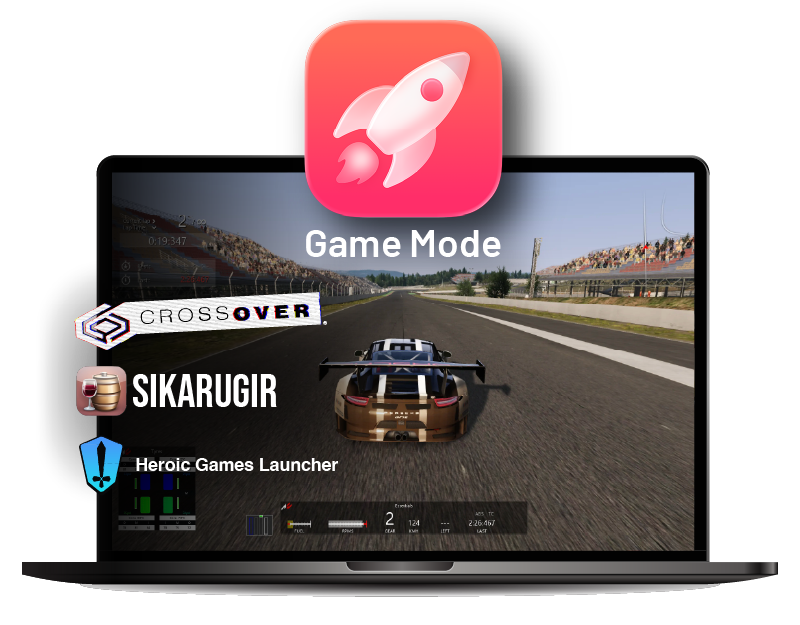
For native Mac games, it usually turns on automatically. For Windows games running through CrossOver, Sikarugir, Whisky, Wine or other wrappers, macOS does not always recognize that a game is running. In that case, you may need to enable Game Mode manually.
This guide explains what Game Mode does, how to check whether it is active, and the most reliable way to force it on for Wine-based games.
What Game Mode does
Game Mode is available on Apple Silicon Macs running macOS Sonoma 14 or later, including macOS Sequoia and macOS Tahoe.
When active, Game Mode gives the game higher priority access to CPU and GPU resources while reducing the impact of background tasks. In practice, this can help with:
- smoother frame rates
- more consistent frame pacing
- fewer background-process interruptions
- better responsiveness in demanding games
The second benefit is just as important: Game Mode improves wireless accessory latency. Apple says Game Mode doubles the Bluetooth sampling rate, which reduces input latency and audio latency for wireless accessories such as game controllers and AirPods.
That matters a lot for racing games. If you use AirPods with Assetto Corsa, for example, Game Mode can make the difference between audio that feels delayed and audio that feels usable.
How to know whether Game Mode is active
When macOS enables Game Mode, you should see a game icon in the menu bar:
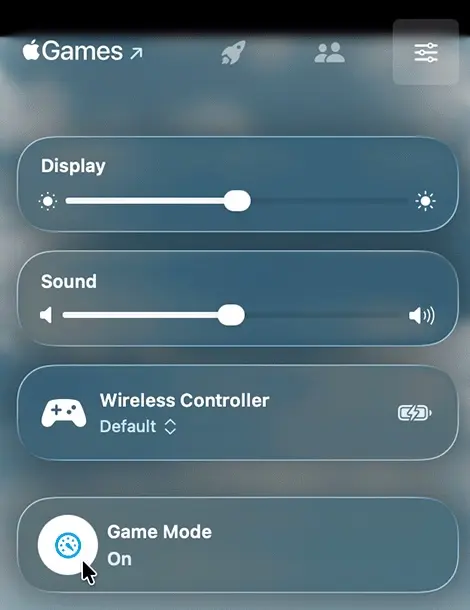

On macOS Tahoe 26 or later:
- Put the game in full screen.
- Press
Command-Escto open Game Overlay, or click the game icon in the menu bar. - Open the settings panel and check Game Mode.
On macOS Sonoma 14 or Sequoia 15:
- Put the game in full screen.
- Move the pointer to the top of the screen.
- Click the game icon in the menu bar.
- Check whether Game Mode is on.
If you see the icon and Game Mode is on, you do not need to do anything else.
Native Mac games: usually automatic
For native Mac games, the normal path is simple:
- Launch the game.
- Enter macOS full-screen mode.
- macOS detects the game and turns Game Mode on automatically.
This is the cleanest option because Game Mode turns off automatically when you quit the game or leave full screen.
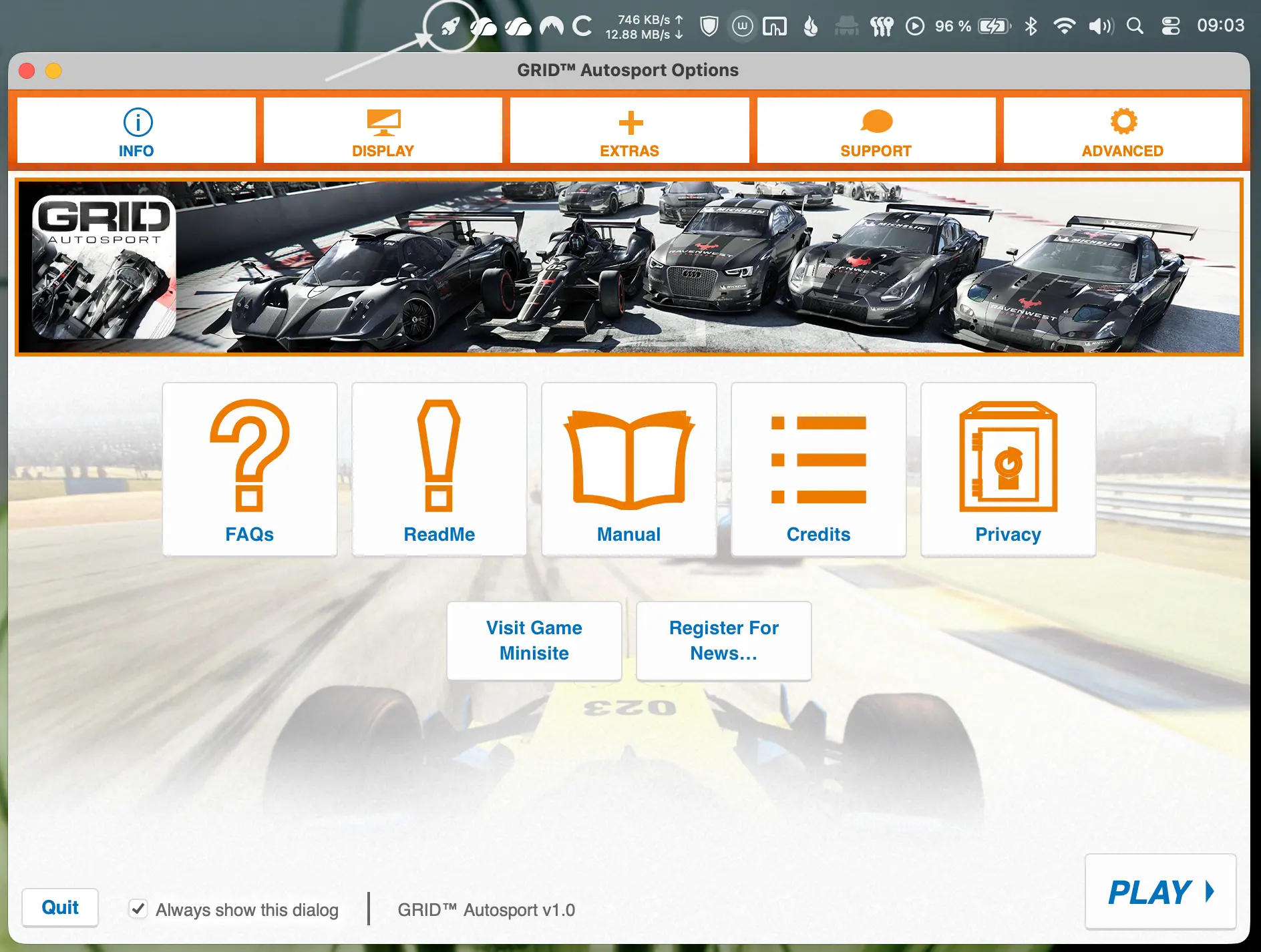
If Game Mode does not activate, make sure the game is using macOS’ built-in full-screen mode. Borderless-window modes do not always trigger Game Mode in the same way.
CrossOver, Sikarugir and Wine: why it often does not turn on
Windows games running through compatibility layers are different.
When you launch a game through CrossOver, Sikarugir, Whisky or Wine, macOS may only see the wrapper app, launcher or Wine process. It may not recognize the actual Windows game as a game in the same way it recognizes a native Mac title.
That is why Game Mode often does not activate automatically, even when the game is full screen.
For sim racing, this is easy to miss because the game still runs normally. You might only notice it indirectly:
- AirPods latency feels too high
- Bluetooth controller input feels delayed
- performance feels less consistent than expected
- the game icon never appears in the macOS menu bar
The easiest way: let Torqer handle Game Mode for you
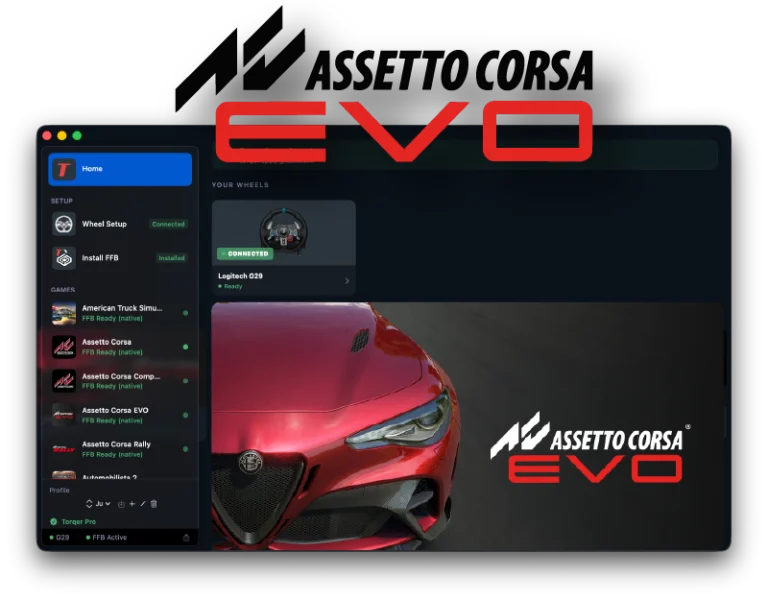
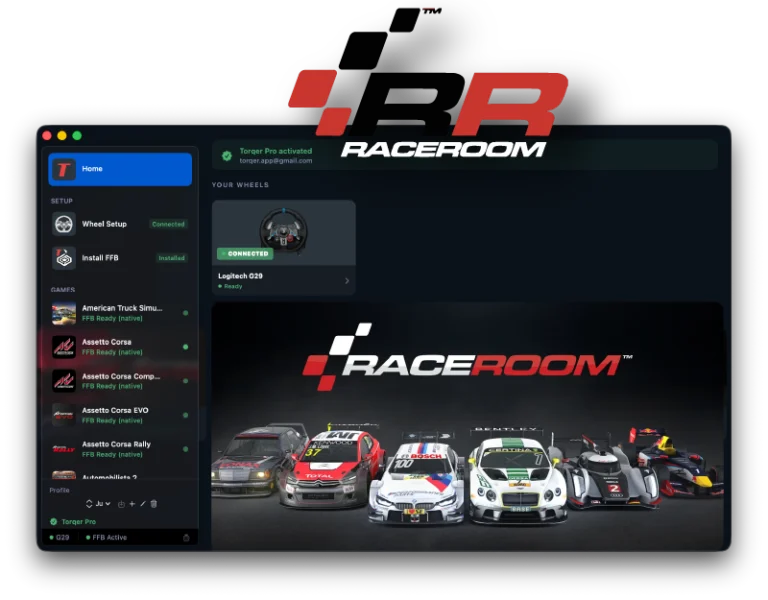
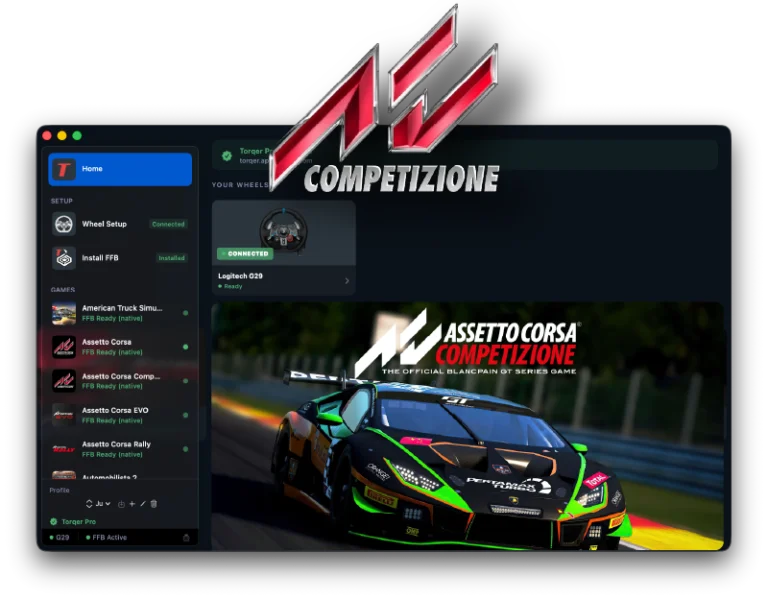
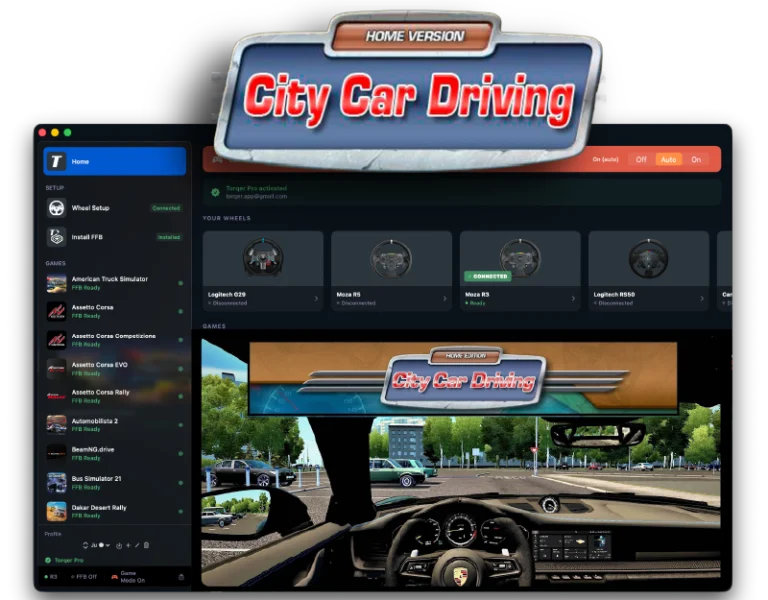
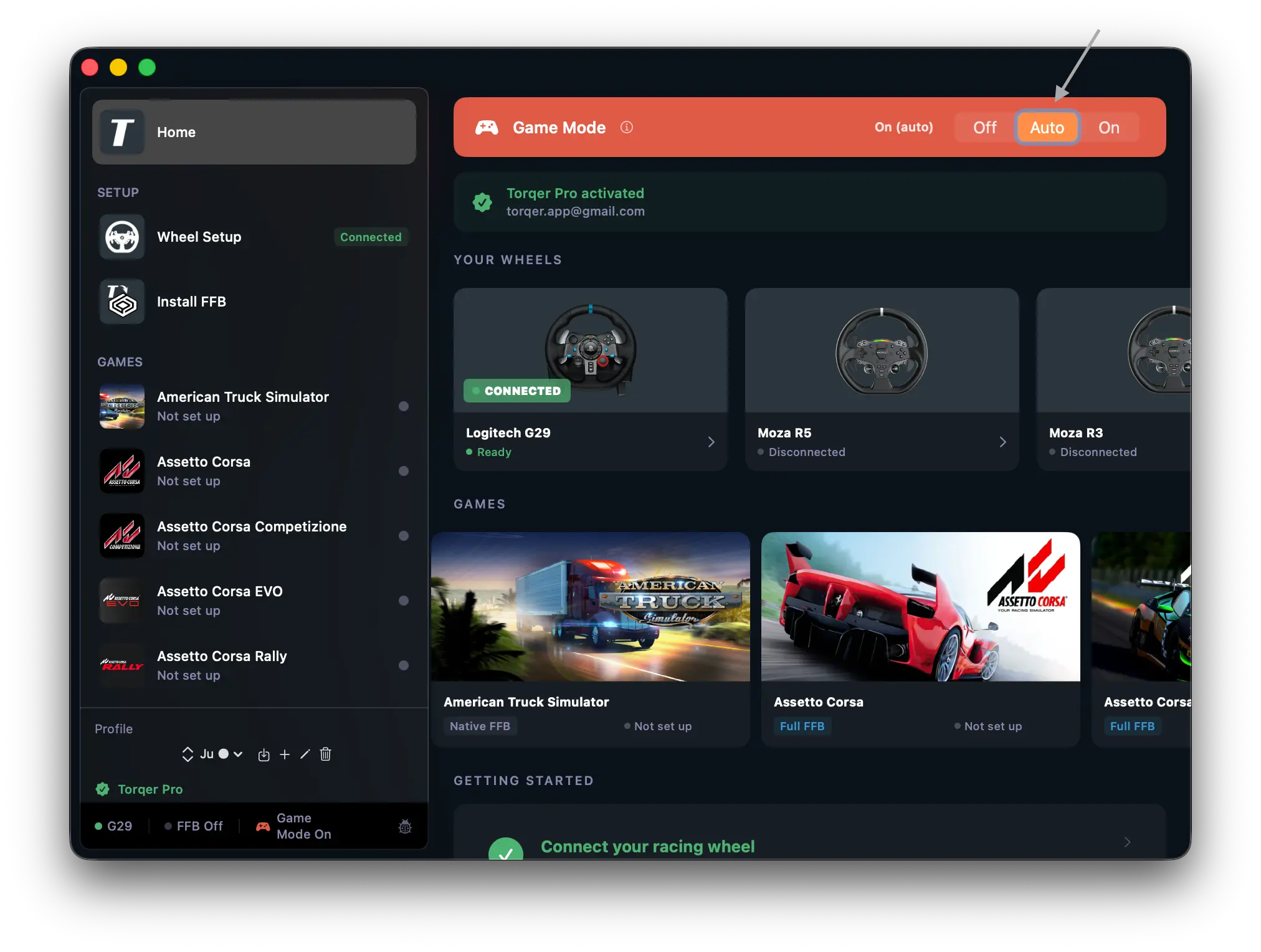
Torqer features an automatic Game Mode control bar so you don’t have to worry about getting the most out of your computer when you’re sim racing with Force Feedback on your Mac:
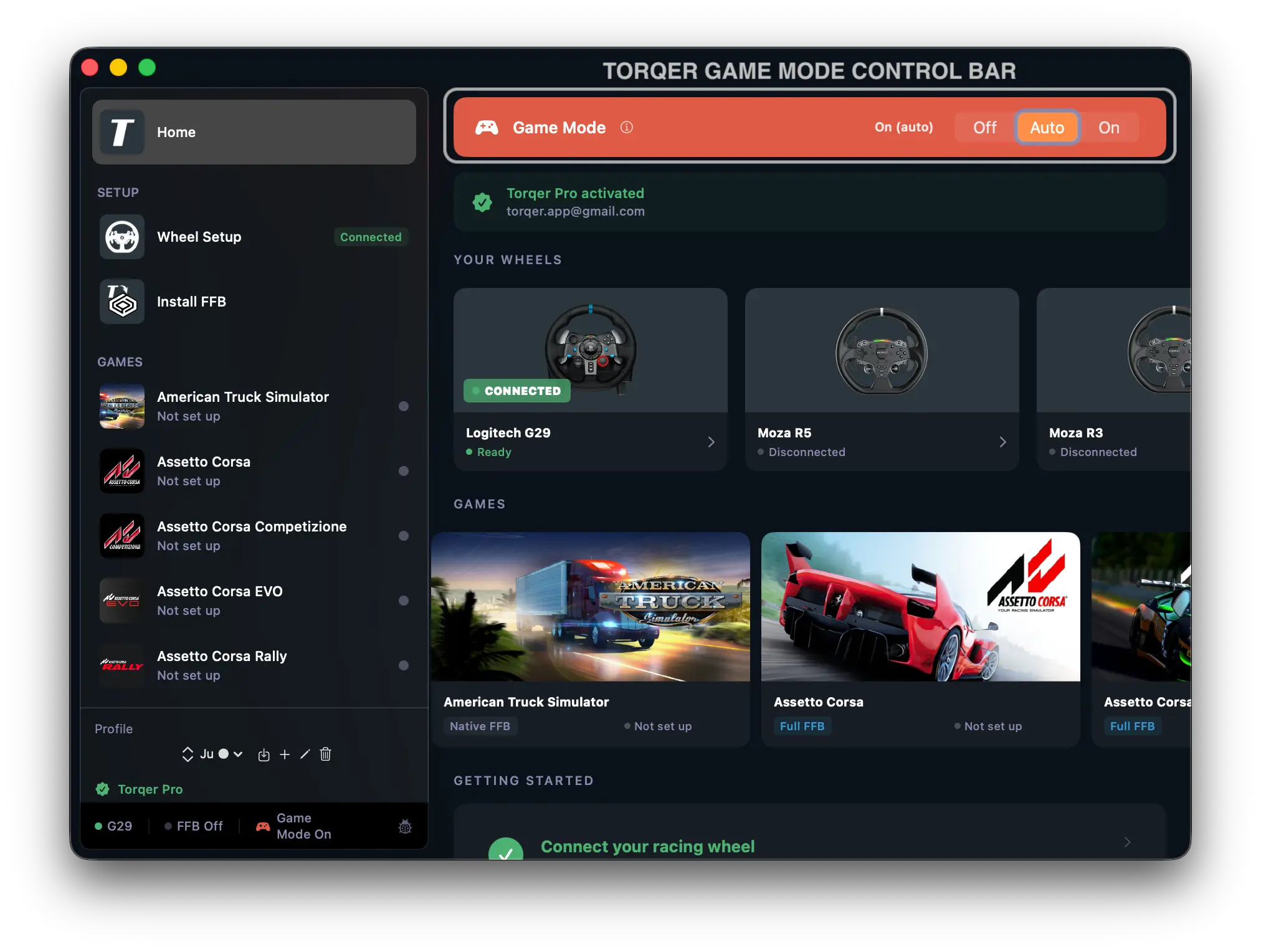
Torqer uses the same gamepolicyctl tool as the manual method, which ships with Xcode. Xcode is Apple’s free developer environment, you don’t need to use it for anything, just have it installed.
If Xcode isn’t installed yet, Torqer will show a banner on launch with a direct link to the App Store. The download is large (~7 GB), but it’s a one-time setup.

Once Xcode is installed, a Game Mode control bar appears at the top of Torqer’s home screen.
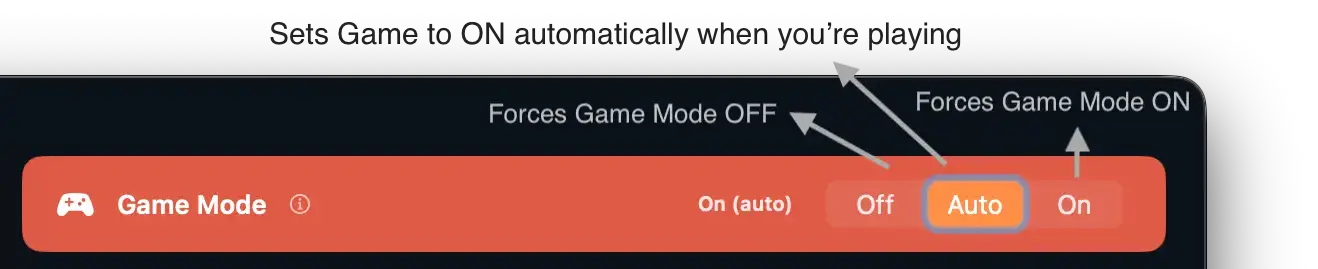
It has three options:
- Off: Torqer leaves Game Mode completely alone. Use this if you prefer managing it yourself, or if you don’t want Torqer touching system settings.
- Auto (recommended): Torqer enables Game Mode as soon as it launches, and resets it to the macOS default when you quit. This is the set-and-forget option: you get the performance boost every time you race, and macOS regains full control of CPU/GPU scheduling for background tasks (like Spotlight or system updates) the moment you’re done.
- On: Enables Game Mode for the current session only. It won’t be re-applied automatically next time you open Torqer. Useful if you want a one-off boost without making it a permanent habit.
For most sim racers, Auto is the right choice.
The old workaround: launch Chess first
One older workaround was:
- Open Apple’s Chess app.
- Let macOS enable Game Mode.
- Launch your CrossOver or Wine game afterward.
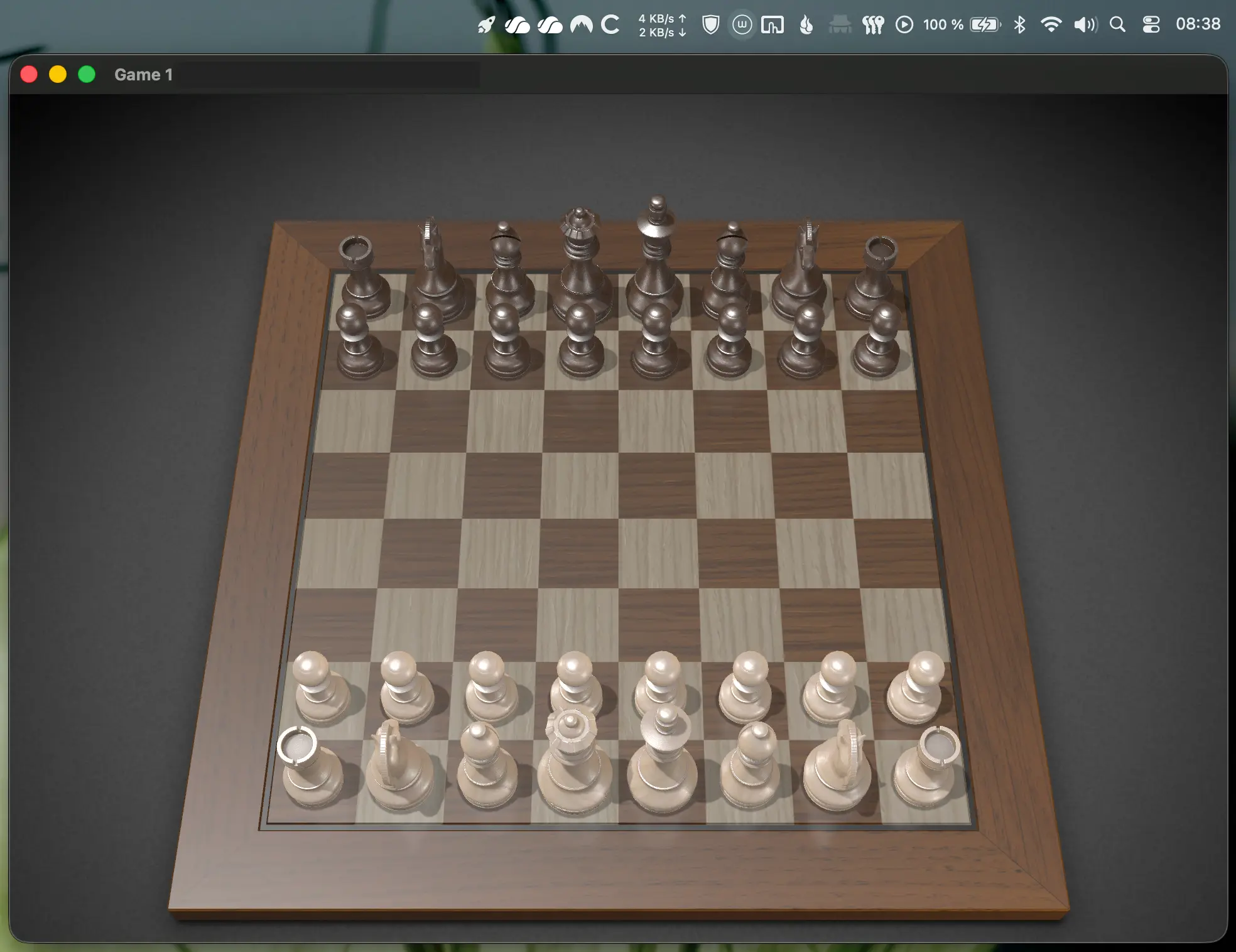
This was a hack, not a proper solution. It is no longer the recommended method because newer macOS versions provide a better command-line control.
If you are on a recent macOS version such as Tahoe, use the command-line method below instead.
The manual workaround: force Game Mode on
If macOS does not detect your CrossOver, Sikarugir or Wine game automatically, you can force Game Mode on manually with Apple’s gamepolicyctl tool.
This requires Xcode to be installed.
Before launching your game, open Terminal and run:
/Applications/Xcode.app/Contents/Developer/usr/bin/gamepolicyctl game-mode set onThen launch your game from CrossOver, Sikarugir, Whisky or Wine.
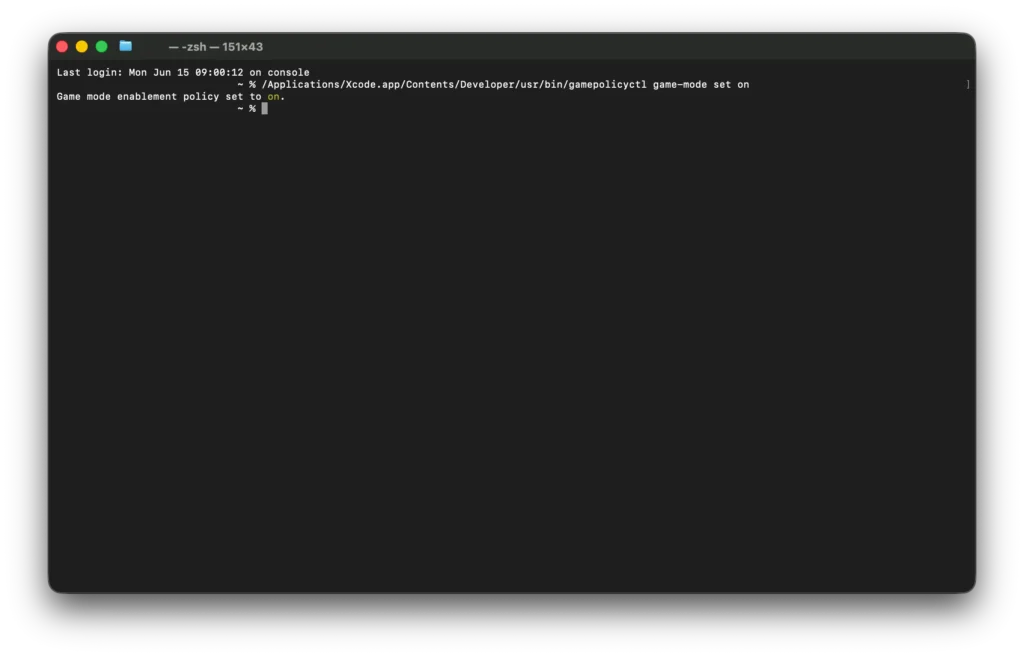
After your gaming session, return Game Mode to automatic behavior:
/Applications/Xcode.app/Contents/Developer/usr/bin/gamepolicyctl game-mode set autoThis is the best current workaround I have found for Wine-based games that macOS does not detect automatically.
Important notes
- Use
set onbefore launching the game. - Use
set autoafter you finish playing. - Do not leave Game Mode forced on permanently unless you have a specific reason.
- If the command is missing, install or update Xcode from the Mac App Store or Apple Developer downloads.
- This is a system-level policy toggle, not a per-game setting.
Recommended workflow for sim racing
For CrossOver, Sikarugir or Wine games:
- Connect your wheel and audio device.
- Launch Torqer.
- Set Game Mode to ‘Auto’ or ‘On’:
- Launch your game.
- Drive and enjoy 🙂
This is especially useful if you race with AirPods Pro or wireless controllers. Lower audio latency makes engine sound, tyre noise, kerbs and shifts feel much more connected to what the car is doing.
Should you always use Game Mode?
For gaming, yes, usually.
Game Mode is designed to prioritize the game and reduce latency while you are playing. That is exactly what you want for racing sims.
The reason to return to auto afterward is not because Game Mode is dangerous. It is simply better to let macOS manage normal desktop behavior when you are done gaming. When Game Mode is on, some Spotlight features (the macOS search indexing tool) are disabled to save resources, and may prevent you from performing searches in Finder, Mac Mail, etc.
If you are rendering video, exporting files, compiling code, running heavy background jobs or using the Mac for work, you probably do not want a forced gaming policy active.
Troubleshooting
The command says the tool does not exist
Install Xcode, not only the Command Line Tools.
The expected path is:
/Applications/Xcode.app/Contents/Developer/usr/bin/gamepolicyctlIf Xcode is installed somewhere else, adjust the path.
Game Mode still does not show in the menu bar
With Wine-based games, the menu bar indicator may not behave exactly like it does with native games. The important point is that the system policy has been set before launching the game.
Use the command-line method, launch the game, and test the practical result: frame pacing, controller response and AirPods latency.
AirPods still feel delayed
Check that Game Mode was forced on before launching the game.
Also remember that Bluetooth audio can never be as low-latency as wired headphones. Game Mode improves the situation, but it does not make AirPods identical to a wired headset.
Native games do not trigger Game Mode
Make sure the game is using macOS full-screen mode. If the game is running in a borderless window, try using the green full-screen button or the game’s full-screen option.
Sources
- Apple Support: Use Game Mode on Mac — https://support.apple.com/en-us/105118
- Apple’s local
gamepolicyctlhelp output in Xcode