How to run Richard Burns Rally on Mac with force feedback (CrossOver + Torqer)
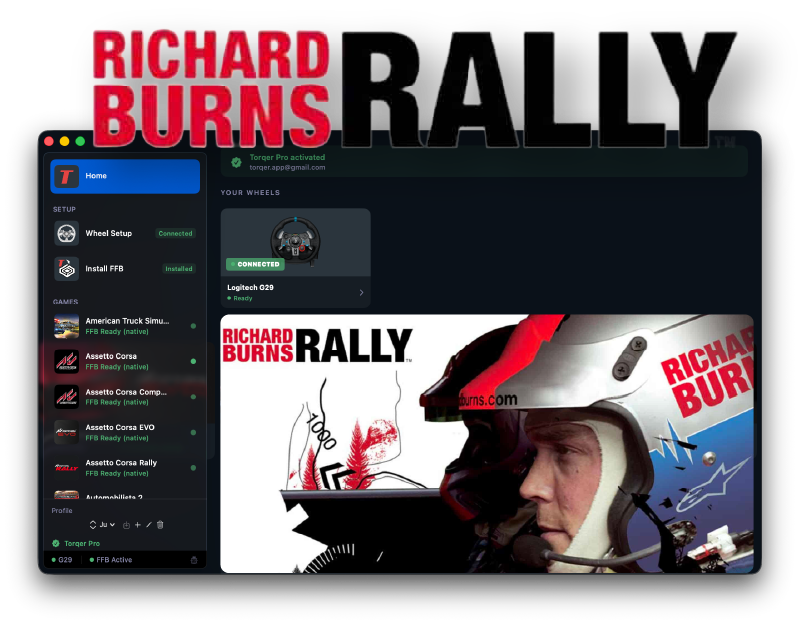
Richard Burns Rally is a 2004 rally simulator that many still consider the most realistic rally physics on any platform. It’s demanding, technical, and completely unforgiving… which makes the feel of the wheel through a stage corner one of the most satisfying things in sim racing. It’s also a game where playing without FFB would make absolutely no sense!
Thankfully, with CrossOver and Torqer, you can now run RBR on your Mac with full force feedback:
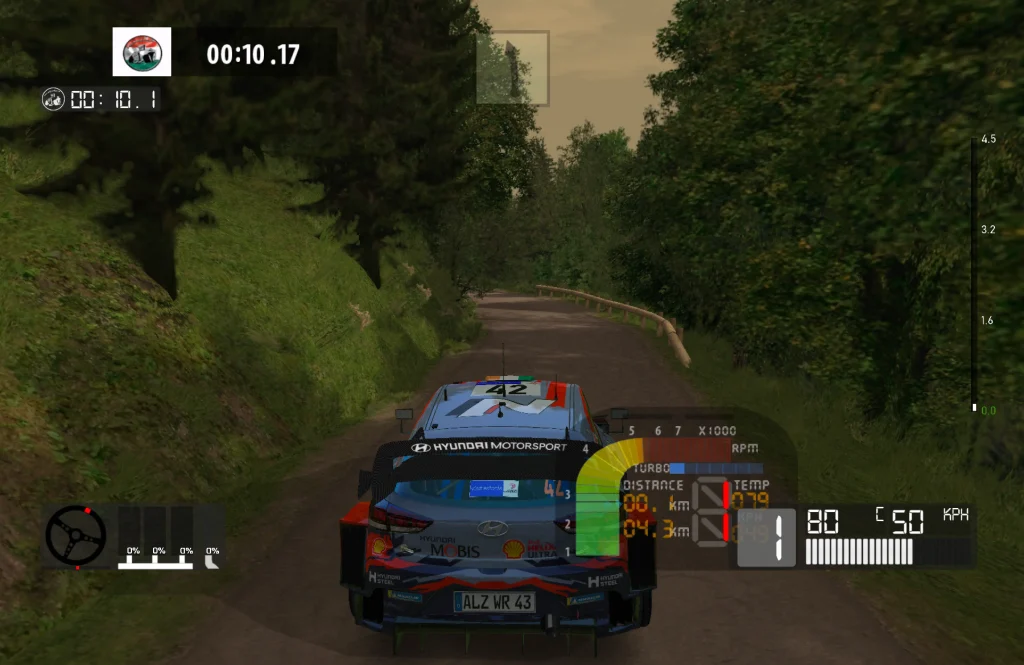
This guide covers everything from getting RBR to run on Mac to driving a stage with full FFB. Tested on M-series MacBooks with macOS 26 and CrossOver 26.1.
What you’ll need
- A Mac with Apple Silicon (M-series) running macOS 13 or later
- A Torqer-supported wheel
- CrossOver — paid app, 14-day free trial available
- Torqer — free download, includes a 5-day full-feature trial
- A free copy of Richard Burns Rally from Rally Sim Fans
Step 1 – Prepare your Mac
1a. Uninstall Logitech G Hub (if installed)
G Hub conflicts with Torqer’s direct hardware access. If it’s already on your Mac, we recommend you remove it before continuing.
Open G Hub and use its built-in uninstall option, or drag the app from /Applications to the Trash and remove its launch agent:
sudo rm /Library/LaunchAgents/com.logi.ghub.engine.plist1b. Install CrossOver
- Download CrossOver from codeweavers.com. The 14-day free trial needs no credit card.
- Drag it to
/Applicationsand launch it.
1c. Create a CrossOver bottle
- In CrossOver, click New Bottle
- Name it
Richard Burns Rally - Leave the type as Windows 10 64-bit
- Click Create
Once created, open the bottle’s settings (right-click → Settings) and enable:
- D3DMetal — translates DirectX to Apple Metal. Improves performance on Apple Silicon.
- MSync — reduces CPU overhead from Wine’s synchronisation layer.
1d. Install Richard Burns Rally
- Download RBR as described on Rally Sim Fans’ install page
- In CrossOver, select your RBR bottle and click Install Software
- Select Install unlisted application in the top right of CrossOver’s window
- Locate RSF’s Rallysimfans_Installer.exe, run it and follow the installation steps
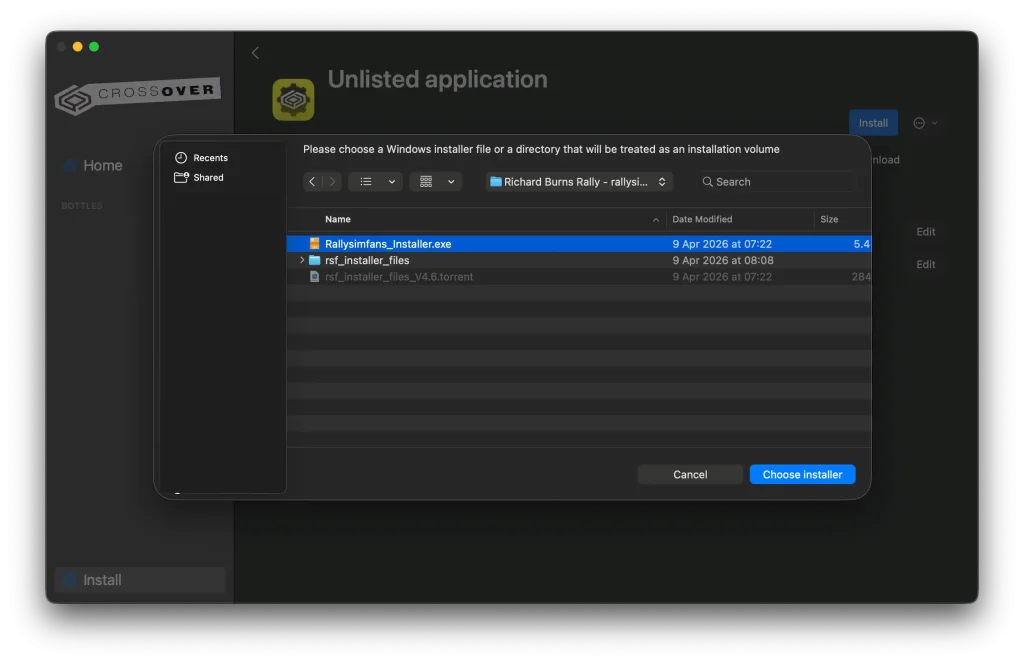
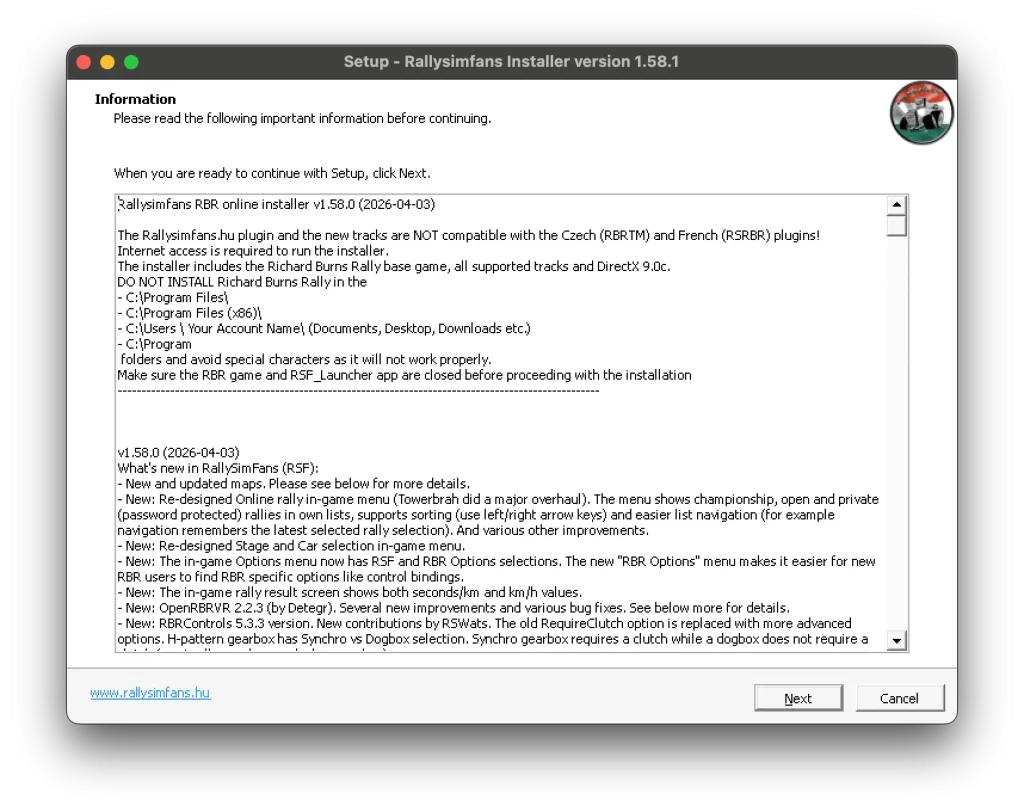
Once the installation is done, try to launch the game:
- Click the Run Command button in your CrossOver bottle
- Navigate to your RBR install folder
- Select the RichardBurnsRally_SSE.exe program (don’t use RBR Startup.exe or the RSF launcher just yet, as they are harder to run reliably)
- Click Run, the game should then launch to the menu
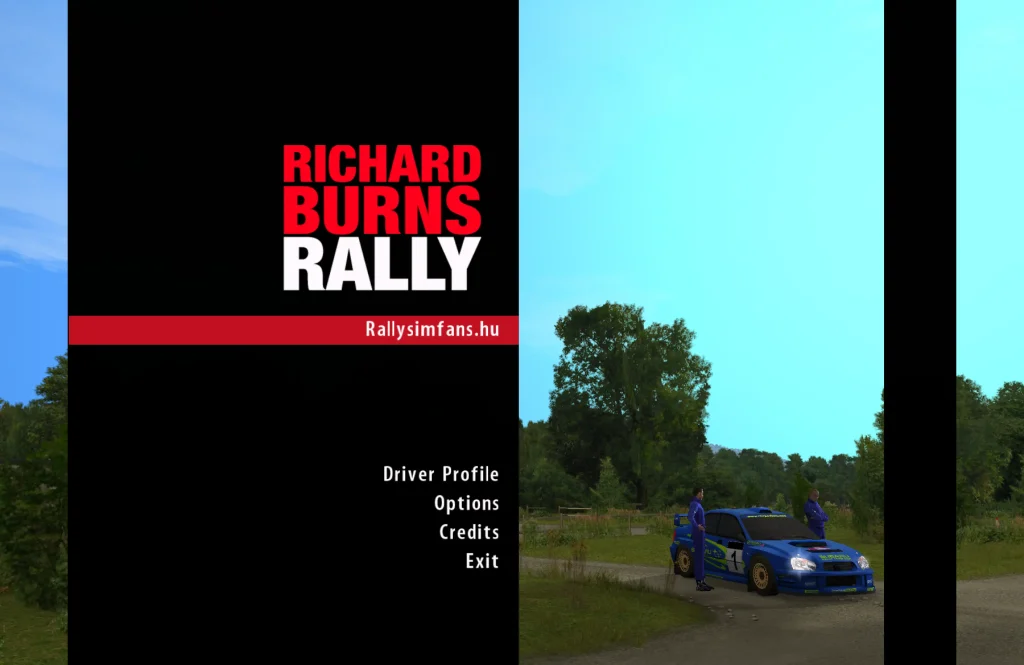
Once to confirm it runs fine on CrossOver, you can close it before continuing.
Step 2 – Install Torqer and set up FFB
2a. Download and install Torqer
Download Torqer, open the DMG, and drag Torqer to your Applications folder.
Launch Torqer. On first launch it starts a 5-day trial with all features unlocked (no account needed).
2b. Connect your wheel
Plug in your wheel via USB if it isn’t already. Torqer detects it automatically and shows a green “Connected” status at the top of the window.
2c. Install Torqer FFB into your CrossOver bottle
- In Torqer, click Install FFB in the sidebar
- Torqer scans your CrossOver bottles: select your RBR bottle
- Click Install
Torqer installs the necessary FFB components right into your RBR CrossOver bottle. This is what intercepts the game’s FFB calls and routes them to your wheel.
2d. Select Richard Burns Rally in Torqer
In Torqer’s sidebar, click Richard Burns Rally. FFB starts automatically when the game launches, nothing else to configure.
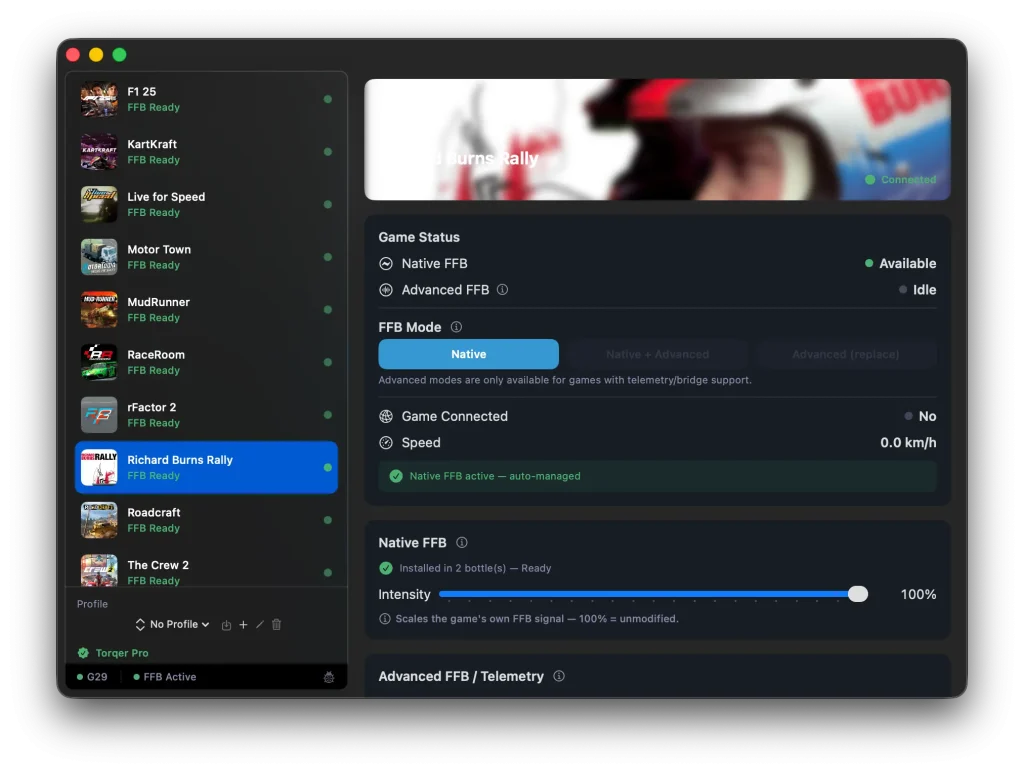
Step 3 – Configure FFB inside RBR
In-game FFB settings
Launch RBR through CrossOver. In the main menu, go to Options → RBR Options → Options → Controls.
In the Controls settings, make sure to map your wheel’s inputs properly: steering, throttle, brake and clutch axes. You can also link a few buttons to useful in-game actions from there.
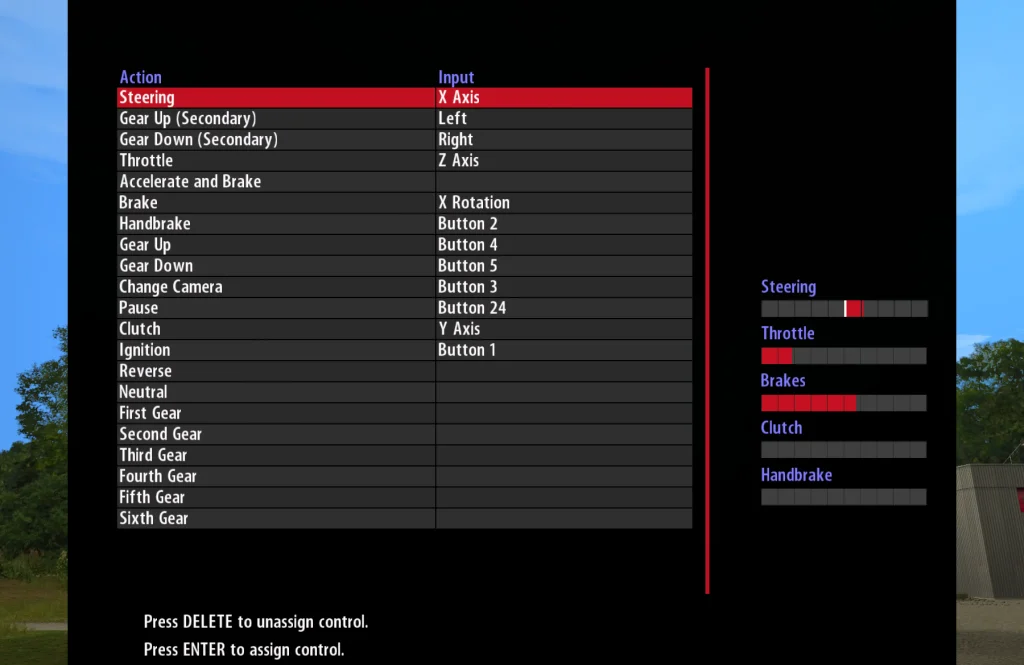
Also look for the Force Feedback section. With Torqer installed and running, the Force Feedback option should be available (not greyed out). Enable it and set:
- Force Feedback Strength: 50–80% as a starting point
- Test from the same screen to verify the wheel produces force (sometimes doesn’t work, don’t worry)
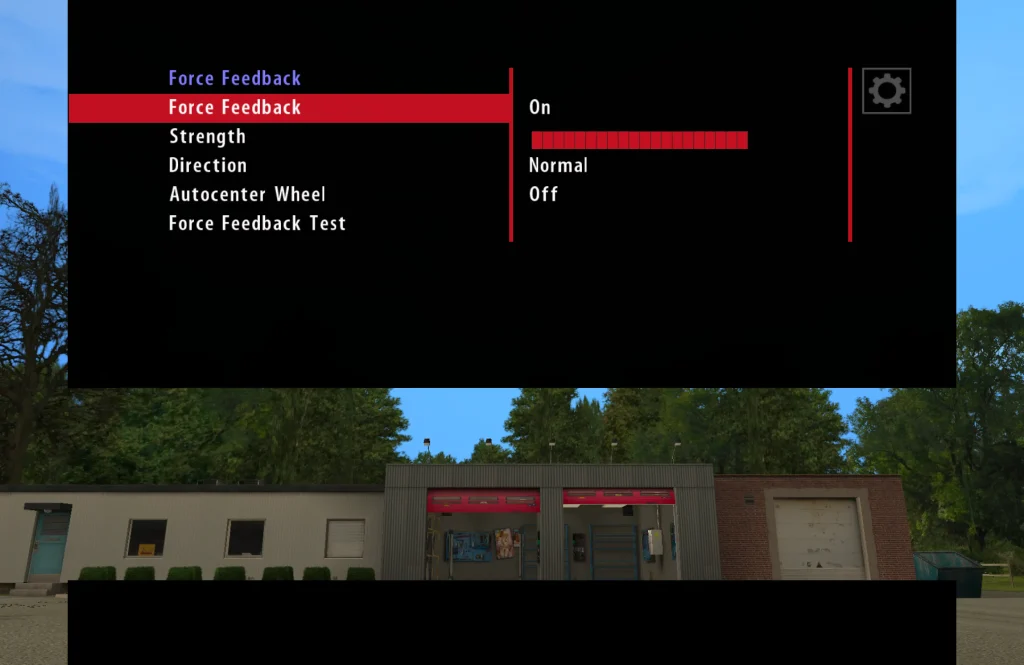
Note: The in-game FFB test button may not produce obvious wheel movement: this is normal. RBR sends its main FFB forces only during an active stage, not in the menus. Run a short stage to feel the full effect.
On the stage
RBR’s FFB is delivered as a continuous ConstantForce effect that carries road surface information, kerb strikes, tyre slip, and understeer/oversteer.
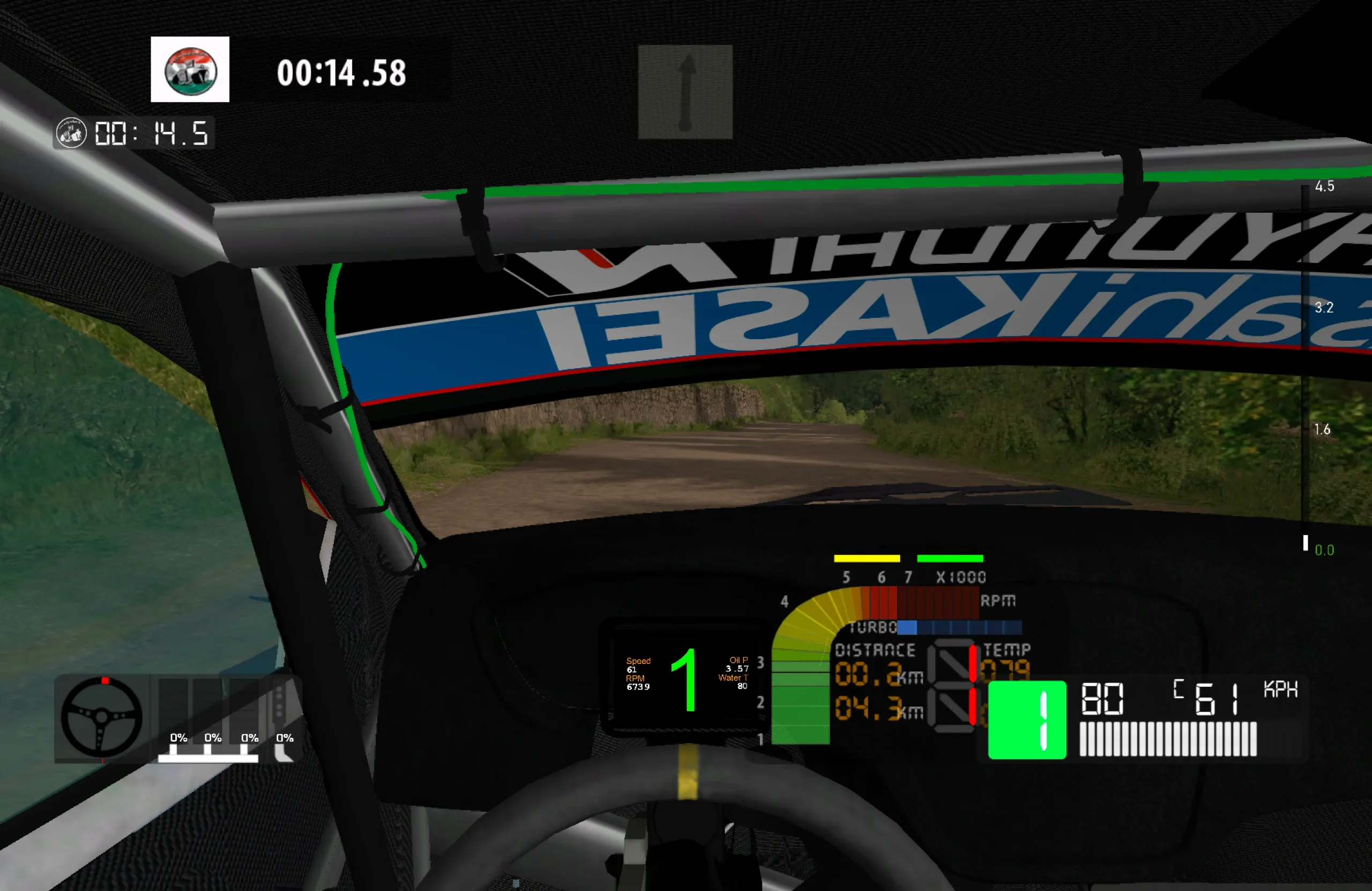
When driving:
- You should feel road texture through gravel and tarmac
- Kerb hits produce sharp spikes
- Understeer reduces force (wheel goes light)
- Oversteer kicks the wheel in the direction of the slide
If the wheel feels weak, increase Force Feedback Strength in the RBR options and in Torqer’s Richard Burns Rally page (“FFB Intensity” slider).
Compatibility notes for RBR on Mac
RBR is a 2004 game, so the GPU requirements are low: it should run on any Apple Silicon Mac. A few things are worth knowing before you start driving though:
Menu and game loading times sometimes freeze/hang and can be inexplicably slow. This is “normal”. Wine’s translation layer adds overhead to disk I/O and asset loading for older games. The stages themselves run fine once loaded, only the loading screens between menus and stages take longer than you’d expect. Sometimes, switching to another window and putting RBR back in focus ‘forces’ a freeze to unblock/refresh. Only thing we can recommend: be patient 🙂
Sometimes the scenery disappears after a few minutes in a stage. This is annoying (not seeing trees and running into them is definitely a problem), but we don’t have a definite fix for this. Restarting the stage temporarily resets things to normal.
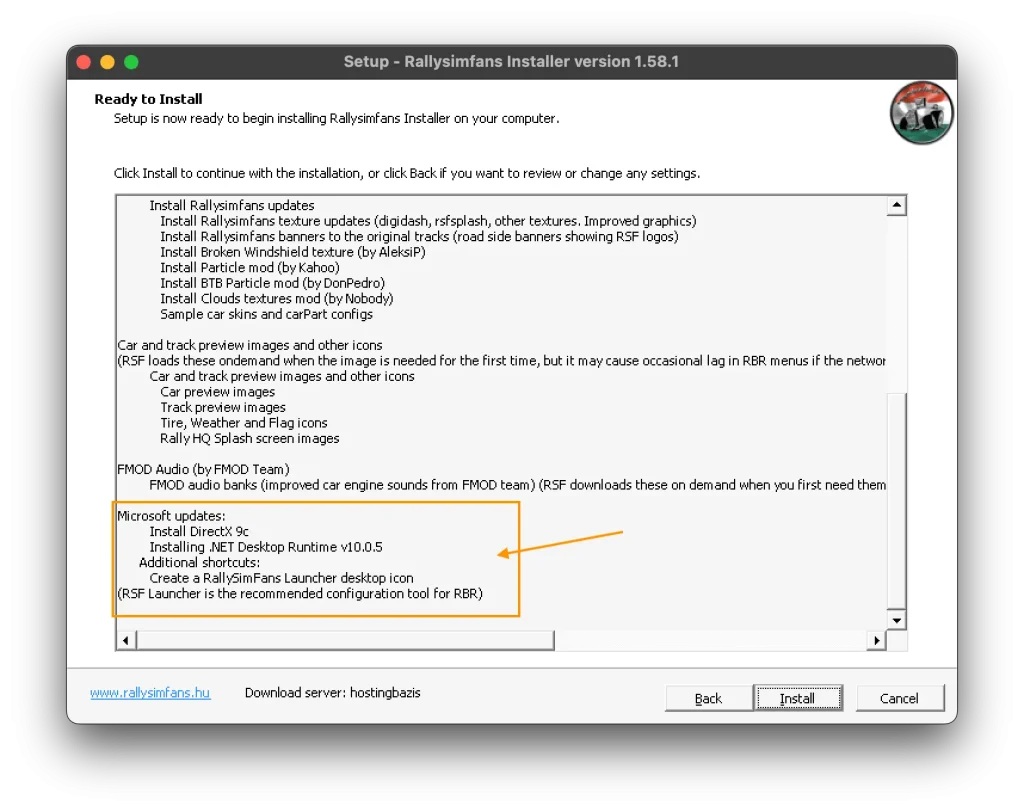
The RSF launcher uses the .NET framework, and is often buggy on CrossOver. If you want to start RBR using the RSF_Launcher.exe, you will have to make sure that .NET v10.0.5 is installed in your CrossOver bottle. The RSF installer should do it automatically, but make sure it is selected during the RBR installation procedure as confirm in the screenshot below:
If running RSF_Launcher.exe still doesn’t work, you can try manually installing .NET with Crossover by:
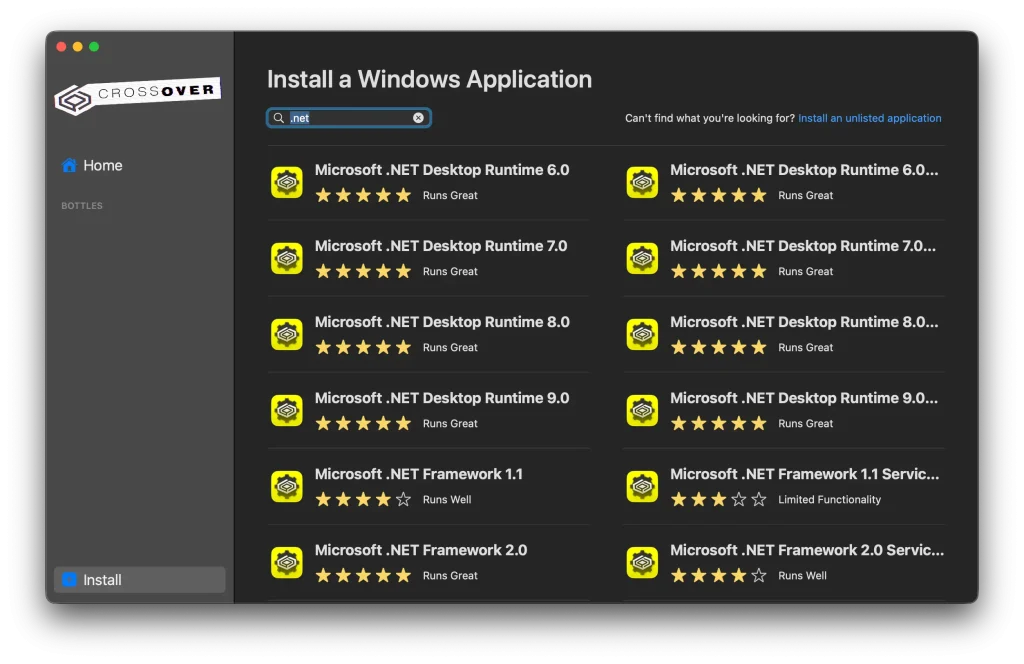
- Select your RBR bottle
- Click “Install” at the bottom left of CrossOver’s window
- Search “.net”, then select and install the latest .NET Desktop Runtime
- Try launching the RSF launcher again
Tip: Enable macOS Game Mode before playing your games. It reserves CPU and GPU headroom from other apps, which reduces stutters during a stage. Guide: How to enable Game Mode on Mac for CrossOver and Wine games
Troubleshooting
The game doesn’t start
You can try manually installing/reinstalling DirectX:
- Select your RBR bottle
- Click Install at the bottom left of CrossOver’s window
- Search “directx“
- Select and install DirectX for Modern Games
- Try launching RBR again
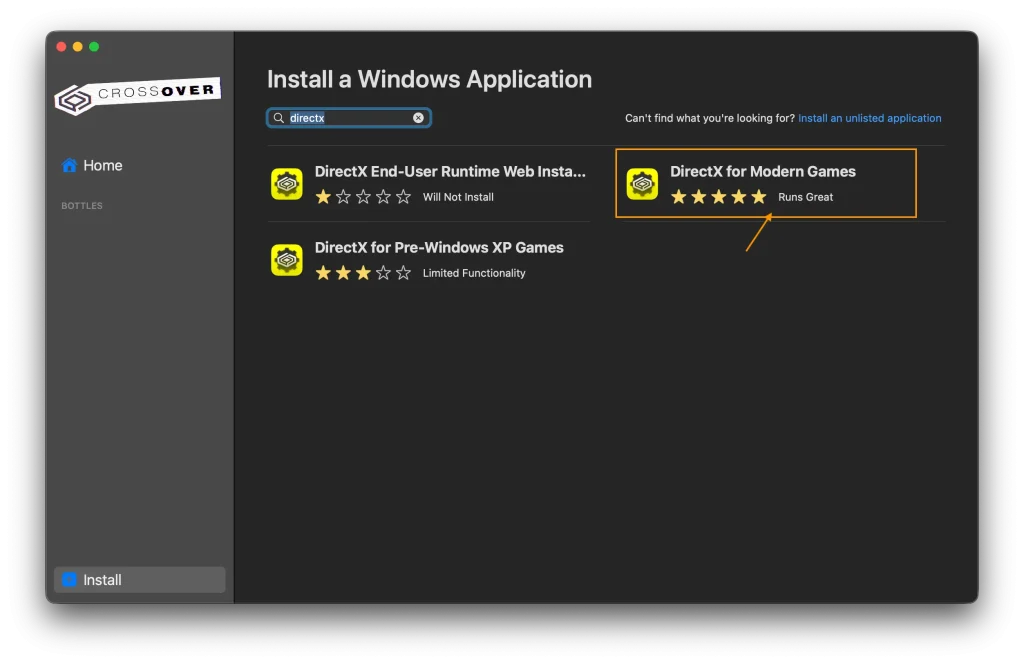
The game should run fine after that. If not, you can try to install DirectX for Pre-Windows CP Games as well. Sometimes this does the trick.
Force Feedback is greyed out in RBR’s controls menu
This means RBR didn’t detect an FFB-capable wheel. Make sure:
- Torqer is running and your wheel shows as connected (green indicator)
- Torqer FFB is installed in the correct bottle (check Install Torqer → bottle shows “Installed”)
- RBR was launched after Torqer was already running
If it’s still greyed out after reinstalling, quit RBR completely, confirm Torqer shows the wheel connected, then relaunch RBR.
The wheel turns but there’s no force
Confirm you enabled Force Feedback in RBR’s controls menu and set the strength above 0. Also check that Native FFB Intensity in Torqer is not set to 0. The FFB test in the menus may feel weak, run a short stage to experience the full force.
Torqer shows the wheel as disconnected
Unplug and replug the wheel. Make sure G Hub is not running. If any Logitech software was installed, remove it first.
Crashes or game won’t launch
Confirm D3DMetal and MSync are enabled in your CrossOver bottle settings (right-click bottle → Settings). If RBR launched once and now fails, try deleting the in-game configuration folder inside the bottle’s Windows user folder and let the game regenerate it on next launch.
Loading times are very long
This is normal for RBR under CrossOver. The game itself was not optimised for CrossOver or modern storage and translation layers. Expect stage loading to take 2–4× longer than on a native Windows install. Once a stage is loaded, it runs normally.
If you run into something not covered here, you can contact us.