How to play Assetto Corsa Competizione on Mac with force feedback (CrossOver + Torqer)
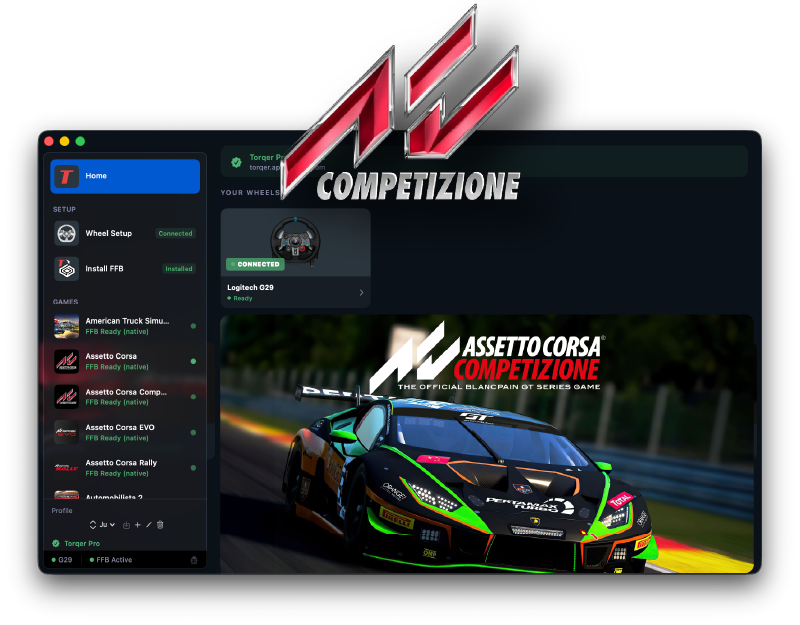
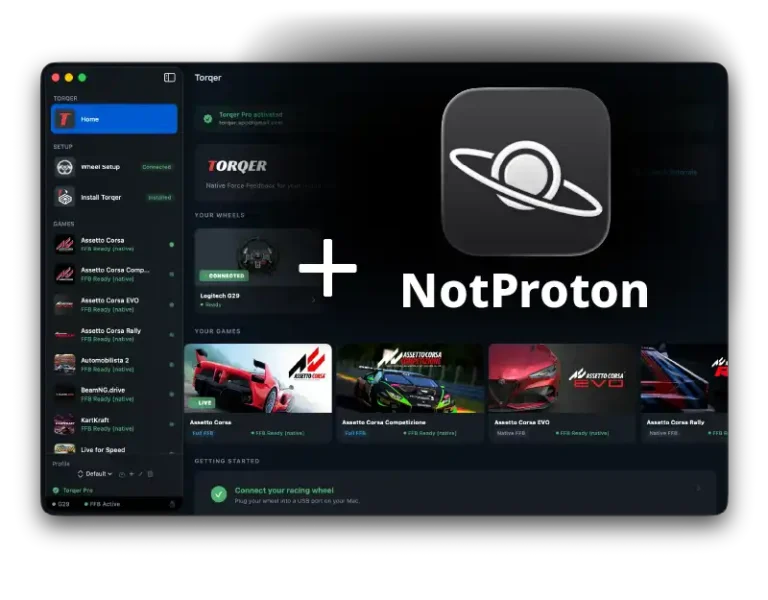
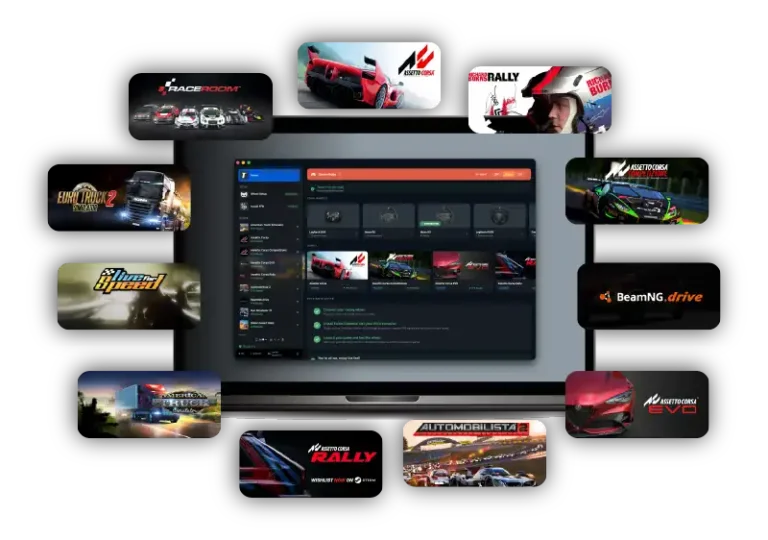
Assetto Corsa Competizione runs very well on Apple Silicon Macs through CrossOver, and Torqer restores proper force feedback on supported wheels. That matters even more in ACC than in a lighter sim, because GT3 cars feel vague and flat without real steering load, brake vibration, and the small cues that tell you what the front axle is doing.
The verified setup is the Steam version of ACC on CrossOver 25.1.1 with a Windows 10 64-bit bottle, D3DMetal, and MSync. Native FFB works, and ACC also supports Torqer’s Native + Advanced mode through the included TorqerBridge helper.
What you’ll need
- A Mac with Apple Silicon (M-series) running macOS 13 or later
- A Torqer-supported wheel
- CrossOver
- Torqer, free download with a 5-day full-feature trial
- A Steam copy of Assetto Corsa Competizione
Step 1 – Create the right CrossOver bottle
- Install and open CrossOver.
- Create a Windows 10 64-bit bottle.
- Name it something like
ACCorSteam.
Open the bottle settings and enable:
- D3DMetal
- MSync
This is the verified working baseline for ACC on Mac.
Step 2 – Install Steam and ACC
- Select that bottle in CrossOver.
- Click Install Software.
- Install Steam.
- Sign into Steam.
- Install Assetto Corsa Competizione.
Launch the game once to confirm it reaches the menus, then quit it before setting up force feedback.
Tip: Enable macOS Game Mode before launching. It helps with frame pacing and wireless latency in CrossOver. Guide: How to enable Game Mode on Mac for CrossOver and Wine games
Step 3 – Install Torqer and get native FFB working
3a. Install Torqer
Download Torqer, open the DMG, and drag Torqer to your Applications folder.
Launch Torqer. On first launch it starts a 5-day full-feature trial automatically.
3b. Connect your wheel
Plug in your wheel and confirm Torqer shows it as connected.
If Torqer does not see your wheel, other vendor-specific software may be interfering with its USB path. For Torqer to work properly, we recommend you fully uninstall vendor software and drivers like Logitech G Hub, etc. On Mac, such software is not needed for Torqer FFB to work, and often does more harm than good.
3c. Install Torqer into the ACC bottle
- In Torqer, click Install FFB.
- Select your ACC bottle.
- Click Install.
At this point, ACC’s Native FFB path is ready.
Step 4 – Turn on Native + Advanced for ACC
This is the ACC-specific part that makes the setup stronger than simple native FFB.
In Native + Advanced mode, Torqer keeps ACC’s own steering force as the base signal, then layers telemetry-driven haptics on top. That gives you more detail through the wheel without throwing away the game’s own FFB feel.
4a. Switch ACC to Native + Advanced
Open ACC in Torqer and switch the FFB mode to Native + Advanced.
Once you do that, Torqer shows the TorqerBridge Setup assistant directly on the ACC page.
4b. Install TorqerBridge
In the assistant:
- Click Install TorqerBridge
- Let Torqer copy
TorqerBridge.exeinto the same bottle as ACC
This part matters because ACC’s advanced telemetry has to come from the same Wine bottle as the game.
4c. Run TorqerBridge through CrossOver
Still on the ACC page in Torqer:
- Click Reveal TorqerBridge.exe
- In CrossOver, use Run Command for that same bottle
- Launch
TorqerBridge.exe
You can leave it running in the background while you drive.
4d. Enable FFB and drive
Back in Torqer, click Enable FFB.
Then launch ACC, go into a live session, and start driving. Torqer will wait for bridge packets and activate the advanced layer automatically once telemetry starts flowing.
Step 5 – Configure the wheel in ACC
Open ACC’s controls and force feedback settings and confirm your wheel is selected correctly.
Start with a clean baseline:
- Steering rotation:
720° - In-game FFB gain: moderate
- Extra canned effects: low
On the Torqer side, a good starting point for ACC is:
- Native FFB Intensity:
70–90% - ABS Haptics: relatively high
- Road Rumble / extra effects: moderate
ACC’s native steering signal is already strong, so it usually feels better if you start a little lower than you would in a lighter sim. ABS is especially worth feeling clearly in GT3 cars because it is such an important braking reference.
If you want more help with the sliders after the basic install is done, read: Tuning your FFB settings in Torqer
Troubleshooting
The wheel steers, but there is no force feedback
Make sure Torqer is running before ACC launches, the wheel shows as connected in Torqer, and Torqer is installed in the same bottle where ACC is installed.
If you want the general checklist, read: our no-FFB troubleshooting guide
Native FFB works, but Native + Advanced does not
Check all four ACC-specific conditions:
- ACC is set to Native + Advanced in Torqer
TorqerBridge.exeis installed in the same bottle as the gameTorqerBridge.exeis actually running through CrossOver- you clicked Enable FFB in Torqer
Torqer says it is waiting for telemetry
That usually means the advanced listener is armed but ACC is not sending live race telemetry yet. Start a real on-track session and drive out of the garage.
FFB feels too strong or too busy
Lower Native FFB Intensity first, then trim the advanced effects. ACC feels better when the steering weight stays clear and the extra haptics stay informative rather than noisy.
Performance feels inconsistent
Confirm D3DMetal and MSync are enabled, then enable macOS Game Mode too: How to enable Game Mode on Mac for CrossOver and Wine games
Tested configuration
Steam version of Assetto Corsa Competizione · CrossOver 25.1.1 · Windows 10 64-bit bottle · D3DMetal enabled · MSync enabled · Apple Silicon MacBook Pro M4 Pro · Torqer native FFB and Native + Advanced working
If you run into something not covered here, you can contact us.