How to set up Moza racing wheels on Mac with force feedback (CrossOver + Torqer)
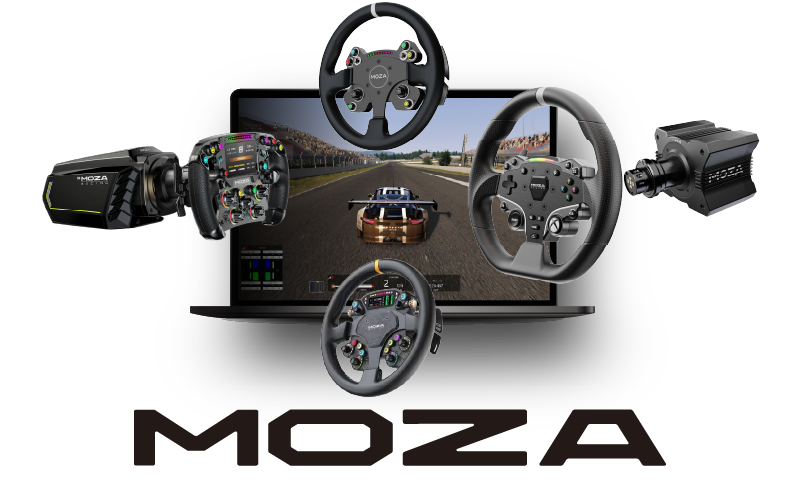
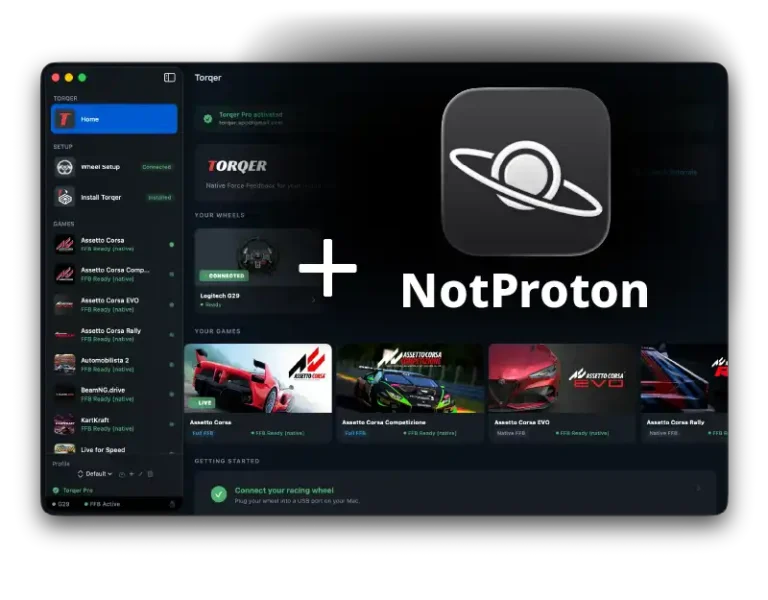
Moza racing wheels work on Apple Silicon Macs with full force feedback. Torqer talks to Moza bases directly over USB, and CrossOver runs your Windows sim racing games (no Bootcamp, no Moza Pit House needed). You plug in the wheel, install Torqer, and drive with full native haptics.
The Moza R3, R5, and R9 are fully supported today. The higher-end R12, R16, R21, and R25 Ultra share the same protocol and are in beta, with testers actively validating them. All seven bases use the same USB connection and the same force feedback path inside Torqer, so the setup process is identical regardless of which base you own.
Supported Moza models
| Base | Torque | Status | Notes |
|---|---|---|---|
| Moza R3 | 3.9 Nm | Fully supported | Confirmed in Assetto Corsa, F1 25 |
| Moza R5 | 5.5 Nm | Fully supported | Confirmed in Assetto Corsa, AC Rally, BeamNG |
| Moza R9 | 9 Nm | Fully supported | Confirmed in Assetto Corsa |
| Moza R12 | 12 Nm | Beta | Motor confirmed, in-game validation pending |
| Moza R16 | 16 Nm | Beta | Protocol confirmed, testing in progress |
| Moza R21 | 21 Nm | Beta | Protocol confirmed, testing in progress |
| Moza R25 Ultra | 25 Nm | Beta | Protocol confirmed, testing in progress |
If you own a beta-supported base and want to help test, contact us.
What you’ll need
- A Mac with Apple Silicon (M-series) running macOS 13 or later
- A Moza racing wheel base (any model listed above)
- CrossOver (paid app, 14-day free trial available)
- Torqer (includes a 5-day full-feature trial)
- A sim racing game that supports force feedback (see confirmed games below)
Step 1 – Connect your Moza wheel
Plug your Moza base into your Mac via USB. No mode switching and no Moza software needed. Pit House is a Windows-only configuration app; on Mac, Torqer handles the wheel directly and replaces it entirely.
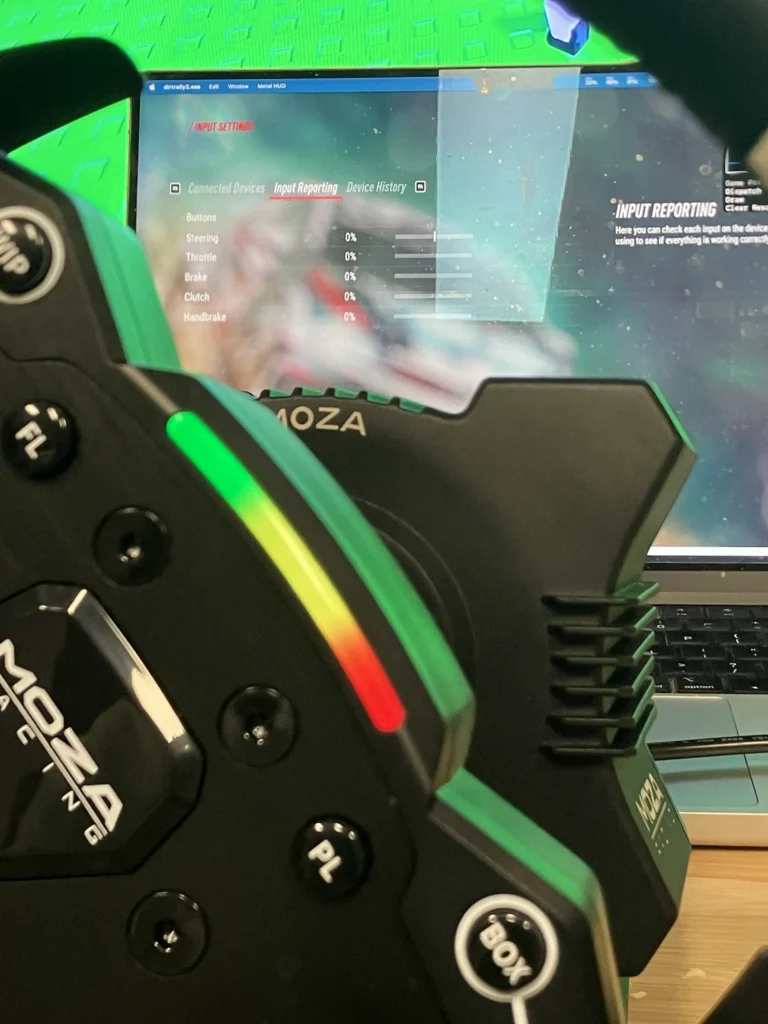
Torqer detects the wheel automatically when it connects. You should see your Moza base appear with a green connected indicator in Torqer’s sidebar.
Note: If you have Moza Pit House installed through a CrossOver bottle from a previous attempt, it should not interfere with Torqer. Torqer communicates with the wheel at the macOS USB level, below anything running inside CrossOver.
Step 2 – Set up CrossOver
If you already have CrossOver installed with a game bottle, skip to Step 3.
2a. Install CrossOver
- Download CrossOver from codeweavers.com. The 14-day free trial needs no credit card.
- Drag it to your
/Applicationsfolder and launch it.
2b. Create a Windows 10 64-bit bottle
- In CrossOver, click New Bottle
- Name it after your game or something like
Steam - Leave the type as Windows 10 64-bit
- Click Create
Open the bottle settings and enable:
- D3DMetal (translates Direct3D to Apple Metal)
- MSync (reduces CPU overhead from Wine’s synchronization layer)
2c. Install your game
- Select the bottle in CrossOver
- Click Install Software
- Search for Steam (or your launcher) and install it
- Sign in and install your game
For detailed per-game setup instructions, see the game-specific guides linked in the confirmed games section below.
Tip: Enable macOS Game Mode before launching any game. It reduces background load and improves frame pacing in CrossOver. Guide: How to enable Game Mode on Mac for CrossOver and Wine games
Step 3 – Install Torqer and enable FFB
3a. Download and install Torqer
Download Torqer, open the DMG, and drag Torqer to your Applications folder.
Launch Torqer. On first launch it starts a 5-day trial with all features enabled, no account needed.
3b. Confirm your wheel is detected
Your Moza base should already appear in Torqer’s sidebar with a green connected state. If it doesn’t, unplug the USB cable and plug it back in.
3c. Install FFB into your CrossOver bottle
- In Torqer, click Install FFB in the sidebar
- Select the bottle where your game is installed
- Click Install
This installs Torqer’s FFB components into the bottle so the game’s force feedback signal reaches your Moza wheel.
3d. Select your game in Torqer
Click your game in Torqer’s sidebar. Native FFB activates automatically when the game launches.
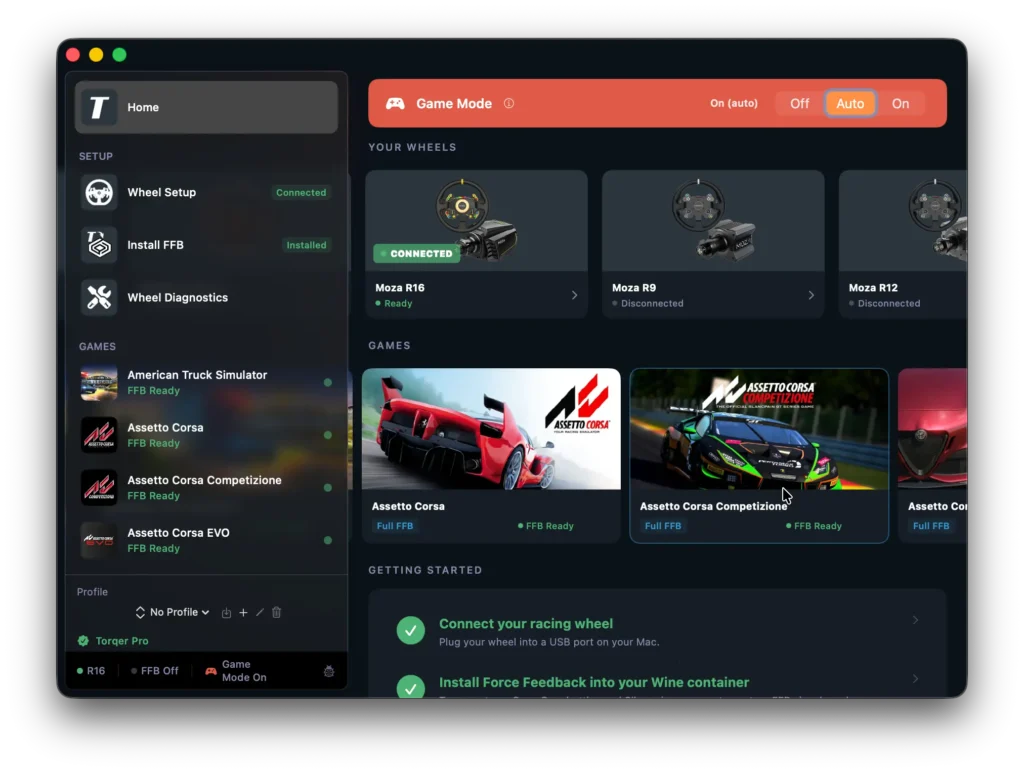
Step 4 – Launch a game and test FFB
The launch order matters:
- Make sure Torqer is running and your wheel is connected
- Launch the game through CrossOver
- In the game’s control settings, confirm the wheel is detected and bind your axes (steering, throttle, brake)
- Enable force feedback in the game’s settings
- Drive a few laps and feel the wheel respond
If the wheel steers but you feel no force, raise the in-game FFB strength first. Then raise Native FFB Intensity in Torqer if you want more overall output. Most Moza bases have plenty of torque headroom, so start at moderate in-game values and increase from there.
RPM LEDs
The Moza R5 supports RPM LED indicators on compatible ES rims through Torqer. This works in games that expose RPM telemetry, including Assetto Corsa Competizione.
RPM LED support on other Moza models is in beta. If you want to help test it, contact us.
Confirmed working games
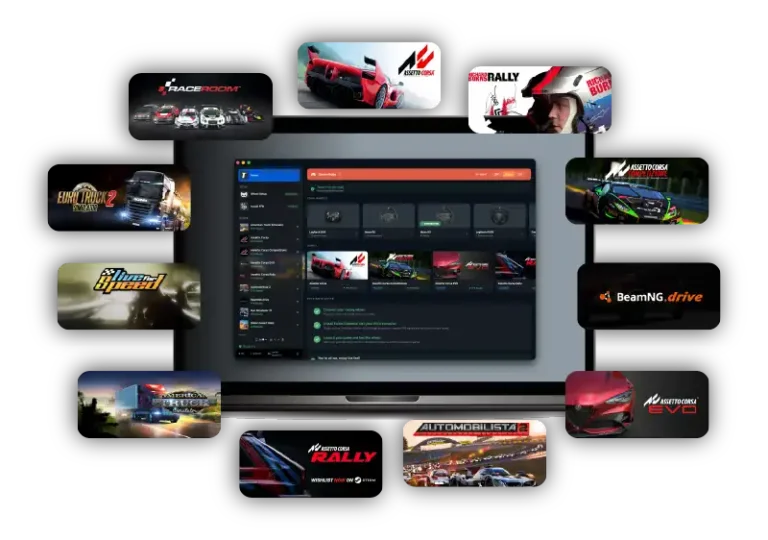
Many games have been tested and confirmed with Moza wheels. Here are a few examples with links to full setup guides where available:
Torqer supports a growing list of sim racing titles. For the full list of compatible games, visit the game compatibility page. Each game linked above has its own detailed guide covering CrossOver settings, in-game configuration, and troubleshooting.
Troubleshooting
Torqer does not detect the wheel
Unplug the USB cable and plug it back in. Confirm you are connecting directly to the Mac, not through a USB hub (some hubs don’t pass HID data cleanly). If Torqer still doesn’t see the wheel, try a different USB-C port.
The wheel is detected but there is no force feedback
Make sure Torqer is running before launching the game. Confirm FFB is installed in the correct CrossOver bottle (Torqer sidebar, Install FFB). If needed, reinstall.
Full checklist: No force feedback on Mac? Why it happens and how to fix it
FFB feels weak
Raise the in-game FFB strength first. Then increase Native FFB Intensity in Torqer. Moza bases can output considerably more force than what most games request at default settings; you may need both sliders higher than expected.
The wheel becomes unresponsive during gameplay
On Macs with 16 GB of RAM, heavy CrossOver and Steam memory pressure can temporarily make USB devices unavailable. Close other apps to free memory, or consider quitting Steam’s overlay and unnecessary background processes inside the bottle.
The game does not detect the wheel at all
Some games need the wheel connected before launch to recognize it during their input scan. Quit the game, confirm the wheel is plugged in and showing as connected in Torqer, then relaunch.
Tested configuration
Moza R5 / R3 / R9 · CrossOver 26.1 · Windows 10 64-bit bottle · D3DMetal enabled · MSync enabled · Apple Silicon MacBook Pro M4 Pro · Torqer native FFB confirmed in Assetto Corsa, Assetto Corsa Rally, BeamNG.drive
If you run into something not covered here, you can contact us.