How to run Assetto Corsa Rally on Mac with force feedback (CrossOver + Torqer)
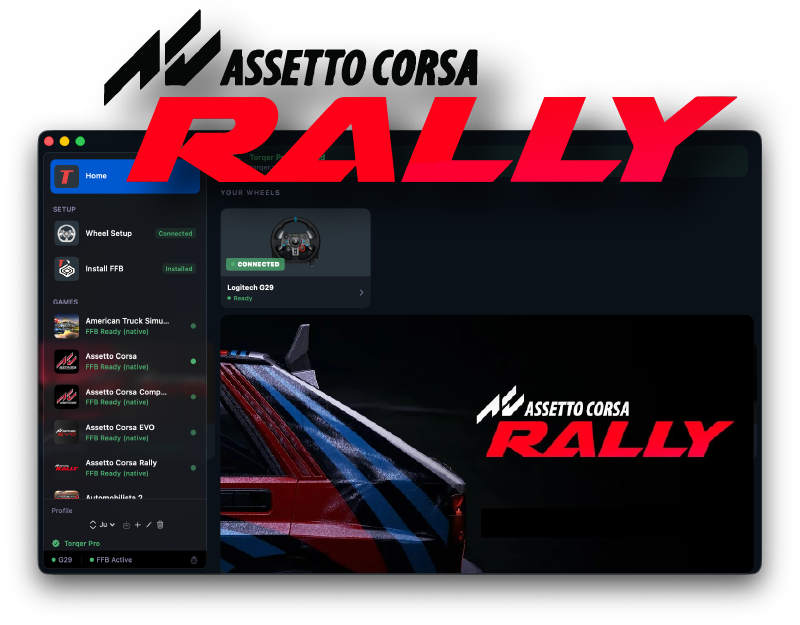
Assetto Corsa Rally on Mac is entirely possible, and with Torqer your Logitech wheel will have full force feedback. Rally stages, gravel pops, kerb strikes, the weight shifting through the car on a hairpin: all of it feeds through the wheel.
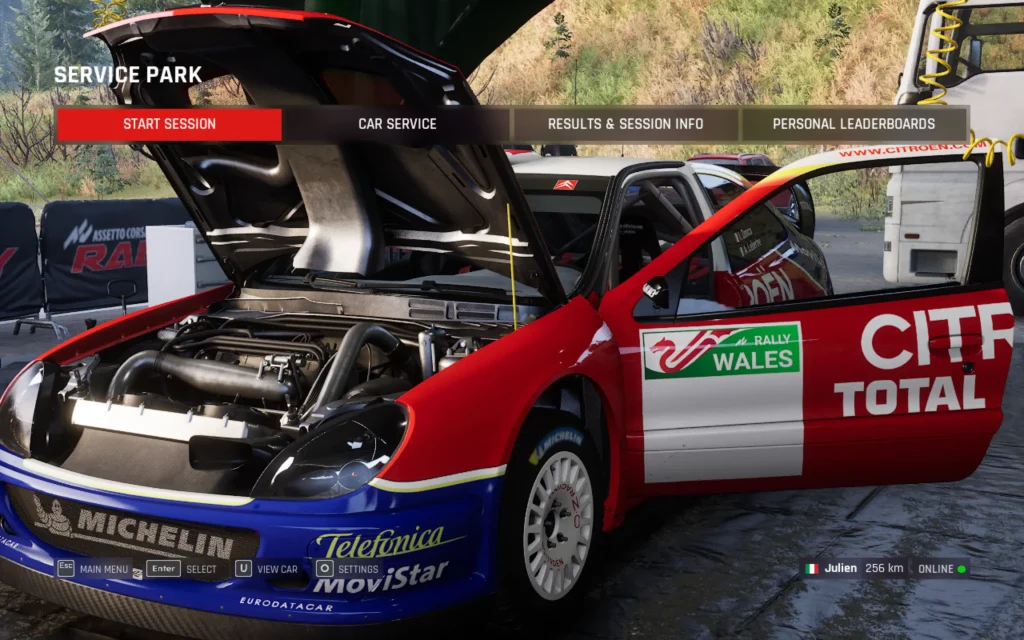
This guide covers everything from a clean Mac to driving with FFB. It’s been tested on an M4 Pro MacBook Pro.
What you’ll need
- A Mac with Apple Silicon (M-series) running macOS 13 or later
- A Torqer-supported wheel (G29, G923 PS, G27, G25, or DFGT)
- CrossOver — paid app, 14-day free trial available
- Torqer — free download, includes a 5-day full-feature trial
- A Steam copy of Assetto Corsa Rally
Step 1 – Prepare your Mac
1a. Uninstall Logitech G Hub (if installed)
G Hub conflicts with Torqer’s direct hardware access. If it’s on your Mac, remove it before continuing.
Open G Hub and use its built-in uninstall option, or drag the app from /Applications to the Trash and remove its launch agent:
sudo rm /Library/LaunchAgents/com.logi.ghub.engine.plistPlug in your wheel and leave it connected. No Logitech software is needed — Torqer handles the wheel directly.
1b. Install CrossOver
- Download CrossOver from codeweavers.com. The 14-day free trial needs no credit card.
- Drag it to your
/Applicationsfolder and launch it.
1c. Create a Steam bottle
A “bottle” is an isolated Windows environment inside CrossOver.
- In CrossOver, click New Bottle
- Name it something like
SteamorAssetto Corsa Rally - Leave the type as Windows 10 64-bit
- Click Create
Once the bottle is created, open its settings (right-click → Settings) and enable:
- D3DMetal — translates Direct3D to Apple Metal. Required for usable performance on Apple Silicon.
- MSync — reduces CPU overhead from Wine’s synchronisation layer. Improves frame pacing noticeably.
1d. Install Steam and Assetto Corsa Rally
- In CrossOver, select your bottle and click Install Software
- Search for Steam and install it
- Log into your Steam account inside CrossOver
- Find Assetto Corsa Rally in your library and install it
Once the download is complete, launch the game once to confirm it starts, then close it before continuing.
Step 2 – Lower the graphics settings
Assetto Corsa Rally is a demanding game. On an M4 Pro, you’ll need to reduce several settings to get smooth, consistent framerates that matter for sim driving.
Launch the game through CrossOver and open Settings → Graphics. The settings that have the biggest impact on performance:
- Resolution: drop to 1280×720 or 1440×900 if running full screen
- Graphics quality preset: Low or Very Low
On Mac, the goal isn’t visual fidelity yet, it’s a stable & smooth framerate. Even on minimum settings, the stages look good enough and the physics feel exactly the same. Smooth physics update is what matters for FFB quality.
Tip: Enable macOS Game Mode before launching. It reduces background CPU and GPU load from other apps, which translates directly to better frame pacing in CrossOver. Guide: How to enable Game Mode on Mac for CrossOver and Wine games
Step 3 – Install Torqer and set up FFB
3a. Download and install Torqer
Download Torqer, open the DMG, and drag Torqer to your Applications folder.
Launch Torqer. On first launch it starts a 5-day trial that unlocks all features (no account needed).
3b. Connect your wheel
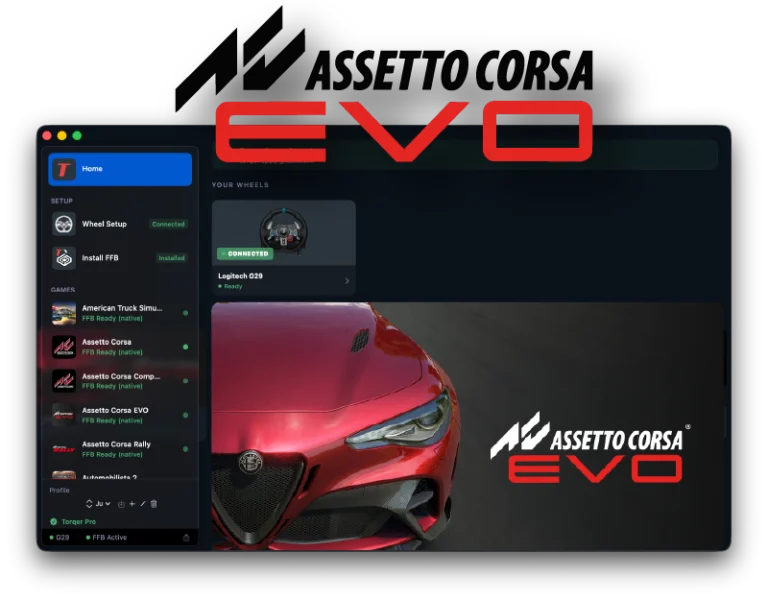
Plug in your wheel via USB if it isn’t already. Torqer detects it automatically and shows a green “Connected” indicator at the top of the window.
3c. Install Torqer into your CrossOver bottle
- In Torqer, click Install Torqer in the sidebar
- Torqer scans your CrossOver bottles automatically — select your Assetto Corsa Rally bottle
- Click Install
Torqer handles everything from here.
3d. Select Assetto Corsa Rally in Torqer
In Torqer’s sidebar, click Assetto Corsa Rally. Native FFB starts automatically when the game launches — no additional configuration needed.
Step 4 – Boost the FFB intensity
Assetto Corsa Rally ships with low default FFB values. Out of the box, the wheel feels timid and uninvolving. This is a known issue with the game — the defaults are tuned conservatively and need to be pushed up significantly.
In Torqer
On the Assetto Corsa Rally page, make sure Native FFB Intensity is set to 100%.
In-game
Inside Assetto Corsa Rally, go to Settings → Controls → Force Feedback and raise the FFB Gain slider as high as possible without clipping (typically 150-200%).
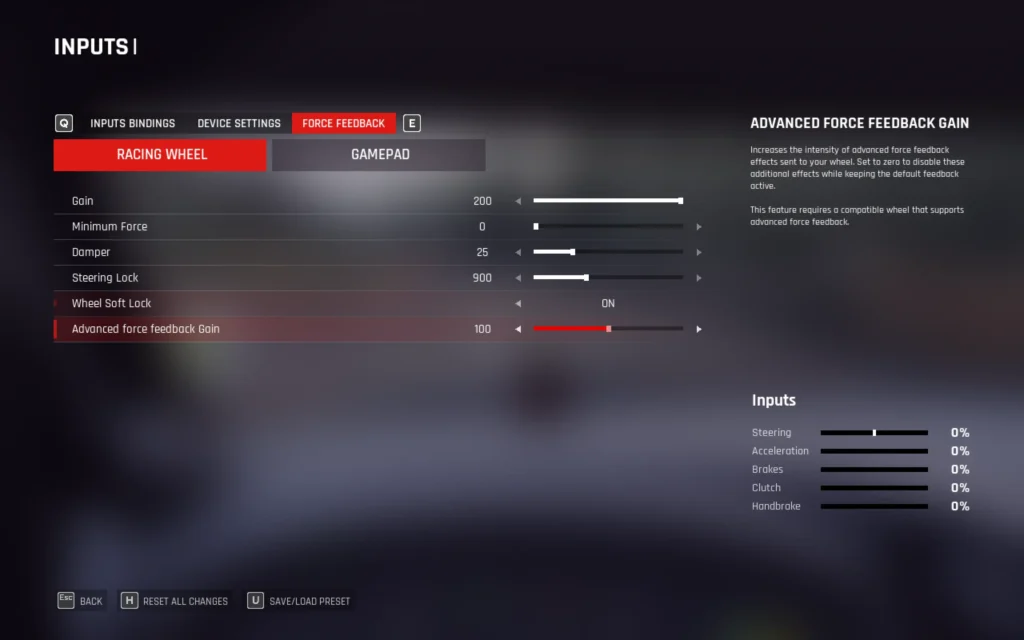
The combination of boosted in-game gain and Torqer gives a much more engaging feel that matches how the car actually behaves through the wheel.
Troubleshooting
The wheel steers but there’s no force feedback
Make sure Torqer is running and shows your wheel as connected before launching the game. In Torqer, go to Install Torqer and confirm the bottle shows as installed. If not, reinstall. The order matters: Torqer must be running first.
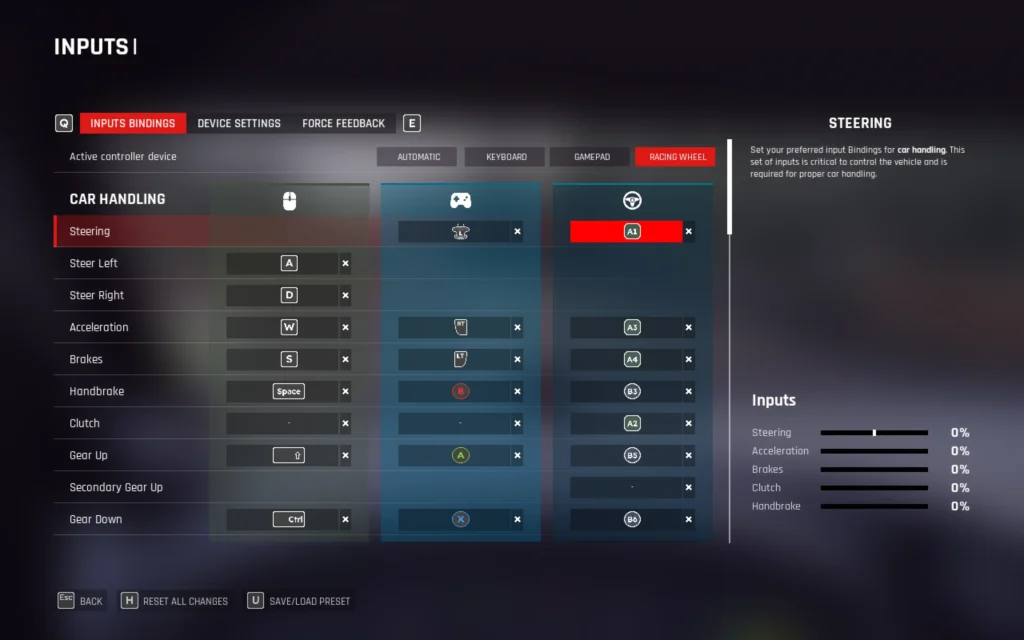
Also make sure your wheel’s controls are properly mapped in game:
Torqer shows the wheel as disconnected
Unplug and replug the wheel. Confirm G Hub is not installed. If any other Logitech or wheel software is running in the background, quit it.
The game crashes on launch
Confirm D3DMetal and MSync are enabled in your CrossOver bottle settings (right-click the bottle → Settings). If the game launched once and now doesn’t, try deleting and recreating the bottle’s graphics config: in the game files, delete AppData/Local/Assetto Corsa Rally/ from inside the bottle’s Windows user folder, which forces the game to regenerate settings on next launch.
Stuttering or low FPS
Lower shadow quality and reflections first: these are the two biggest GPU consumers in AC Rally on CrossOver. Also confirm Game Mode is enabled on your Mac: How to enable Game Mode on Mac for CrossOver and Wine games
If you run into something not covered here, you can contact us.