How to play Windows racing games from Mac Steam with force feedback (NotProton + Torqer)
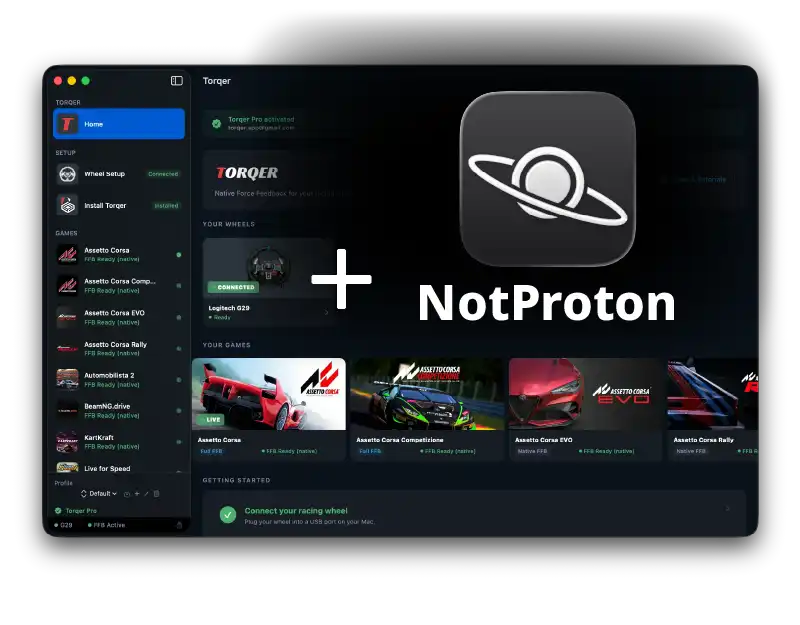
Torqer now works with NotProton. You can launch Windows sim racing games straight from the regular Mac version of Steam and get full force feedback on your wheel, with no CrossOver bottle to manage. It’s a big step for sim racing on Mac, and we’re excited to see more good ways to play.
NotProton is a different route from a CrossOver bottle, not a replacement for it. Below: what NotProton is, where it shines and where it falls short, and the exact steps to get force feedback working with Torqer.
What is NotProton?
NotProton is a free, open-source tool that brings Steam Play (the system behind Proton on Linux and Steam Deck) to the Mac version of Steam. Once it’s installed, Mac Steam gets a Compatibility option that runs Windows games through CrossOver’s engine.
The key difference from a CrossOver bottle:
- CrossOver bottle: you install the Windows version of Steam inside a bottle and launch games from there.
- NotProton: you keep using the Mac Steam app you already have. Each game gets its own small Windows environment (a “prefix”), created automatically the first time you launch it.
NotProton still needs CrossOver installed on your Mac: it uses CrossOver’s engine to run the games.
NotProton or a CrossOver bottle?
Both work with Torqer. Pick the one that fits how you play.
| NotProton | CrossOver bottle | |
|---|---|---|
| Where you launch games | Mac Steam, like any Mac game | Windows Steam inside the bottle |
| Game library | One library for Mac and Windows games | Separate Windows library |
| Setup per game | Automatic prefix per game | One bottle, shared by its games |
| Torqer FFB setup | Once per game | Once per bottle |
| Force feedback modes | Native FFB; Advanced FFB where it doesn’t need Torqer Bridge | Native FFB and Advanced FFB |
| RPM LED game plugins | Not supported yet | Yes |
| Launchers outside Steam | No | Yes |
| Cost | Free (needs CrossOver installed) | CrossOver license |
A few things to know before switching:
- Steam updates can break NotProton for a while. It supports specific Steam client versions and needs an update when Valve changes Steam.
- Valve Anti-Cheat isn’t supported. VAC games start in insecure mode, without matchmaking.
- Torqer Bridge and RPM LED game plugins aren’t available yet with NotProton, so Advanced FFB is limited in games that rely on the bridge. Native FFB works in every Torqer-supported game; see Torqer FFB modes explained for what each mode adds.
If you already have a working CrossOver setup, it stays the most complete option. Our complete guide to sim racing on Apple Silicon Mac covers the recommended CrossOver settings.
What you’ll need
- An Apple Silicon Mac
- CrossOver installed (NotProton uses its engine)
- The Mac version of Steam
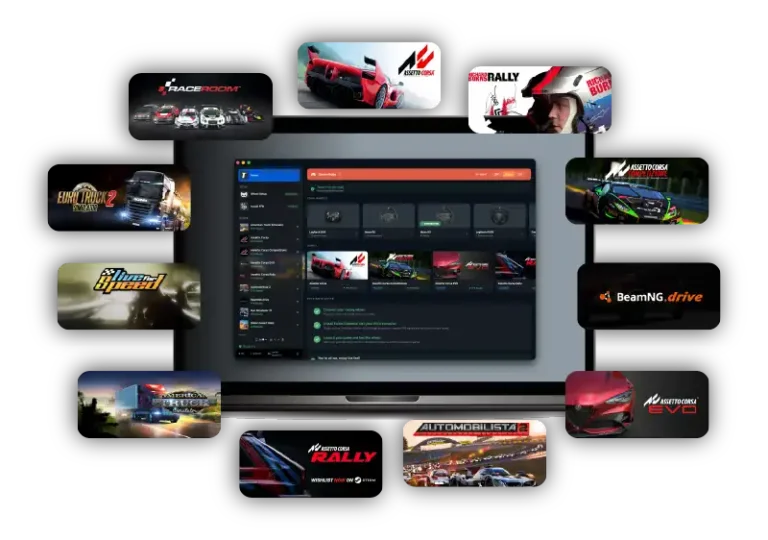
- A Windows sim racing game you own on Steam: see which games work on Mac
- A Torqer-supported wheel: see the current list. The Thrustmaster T300 / T300RS and T128-X betas work through CrossOver bottles only for now.
- Torqer 7.4 or later
Step 1 – Install NotProton
Follow the installation instructions on NotProton’s GitHub page.
Or use Homebrew, with one command in Terminal:
brew install --cask notprotonnot/notproton/notprotonCheck the page for the Steam and CrossOver versions NotProton currently supports before you start.
Step 2 – Turn on NotProton for your game
- In Steam, right-click the game and open Properties.
- Open Compatibility.
- Enable Force the use of a specific Steam Play compatibility tool, then pick a CrossOver version from the list.
To go back later, uncheck that box or select No Compatibility Tool.
Step 3 – Launch the game once, then quit
Launch the game from Steam and let it reach its main menu. This creates the game’s prefix, which Torqer needs to find.
Then quit the game completely and wait a few seconds for it to close in the background.
Step 4 – Install Torqer FFB for the game
- Download Torqer and open it.
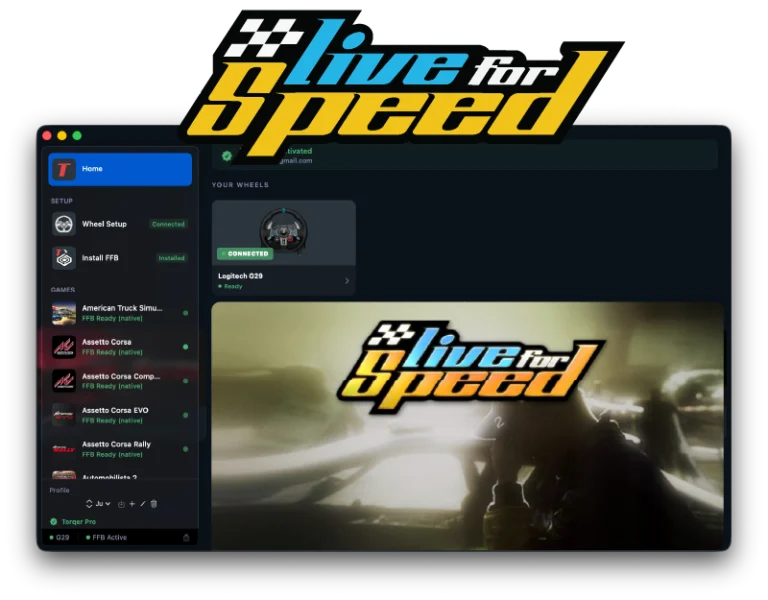
- Go to Install FFB. Your NotProton games appear in the list automatically, next to any CrossOver bottles.
- Click Install on your game.
Important: Install FFB with the game closed. Don’t launch the game, or use NotProton’s prefix rebuild, while Torqer is installing.
Repeat this step for each game you play through NotProton: every game has its own prefix.
Step 5 – Launch the game and drive
- Open Torqer before you launch the game, and keep it open while you play.
- Launch the game from Steam.
- Bind your wheel and pedals in the game’s controls menu, then drive.
Note (macOS 27): macOS 27 hides racing wheels from games unless a compatibility setting is active. Torqer applies it for you while it’s open, and puts back the previous setting when you quit Torqer. If the game was already running when you opened Torqer, quit the game and launch it again. While Torqer is open, this setting can also affect Steam gamepads, Big Picture and Steam Input; quitting Torqer restores your previous setting, and after a crash, open and quit Torqer once. More background in macOS 27 breaks wheel detection.
For the best performance, make sure Game Mode is on: see how to enable Game Mode on Mac.
Troubleshooting
My game doesn’t appear in Torqer’s Install FFB list
- Launch the game once from Steam with NotProton enabled, quit it, then click the circular arrow at the top of Install FFB to rescan.
- Check that Steam’s Compatibility setting for the game is still set to a CrossOver version.
The game runs, but there’s no force feedback
- Make sure Torqer was open before you launched the game.
- Check the game’s row in Install FFB: if it asks for Repair, quit the game and click it.
- See no force feedback on Mac: why it happens and how to fix it.
Force feedback stopped after rebuilding the prefix
NotProton’s prefix rebuild creates a fresh Windows environment for the game, which removes Torqer’s FFB components. Quit the game, then click Install on the game in Install FFB again.
If Torqer says NotProton is rebuilding the prefix, let NotProton finish (or complete its recovery), then rescan and try again. Torqer doesn’t change anything while a rebuild is in progress.
The wheel isn’t detected in the game
- On macOS 27, open Torqer first, then quit and relaunch the game (see Step 5).
- Vendor software or drivers can interfere with the wheel’s USB path: see the no force feedback guide.
Tested configuration
Steam version of Assetto Corsa Competizione · NotProton 1.1.5 · CrossOver 26.3 engine · macOS 27 · Apple Silicon Mac · Logitech G29 · Torqer native FFB working
Steam version of BeamNG.drive · NotProton · macOS 26 · Fanatec CSL DD · Torqer native FFB working
If you run into something not covered here, you can contact us.