How to play Assetto Corsa Evo on Mac with force feedback (CrossOver + Torqer)
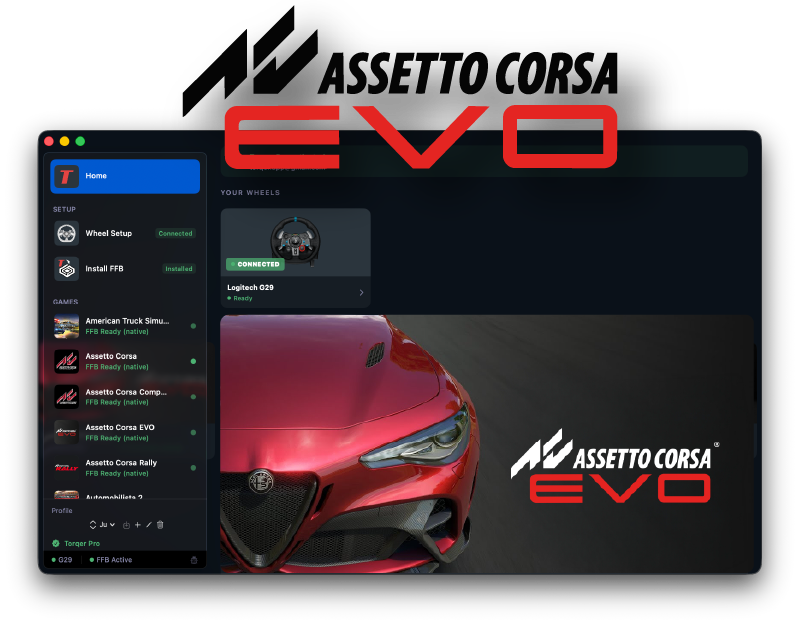
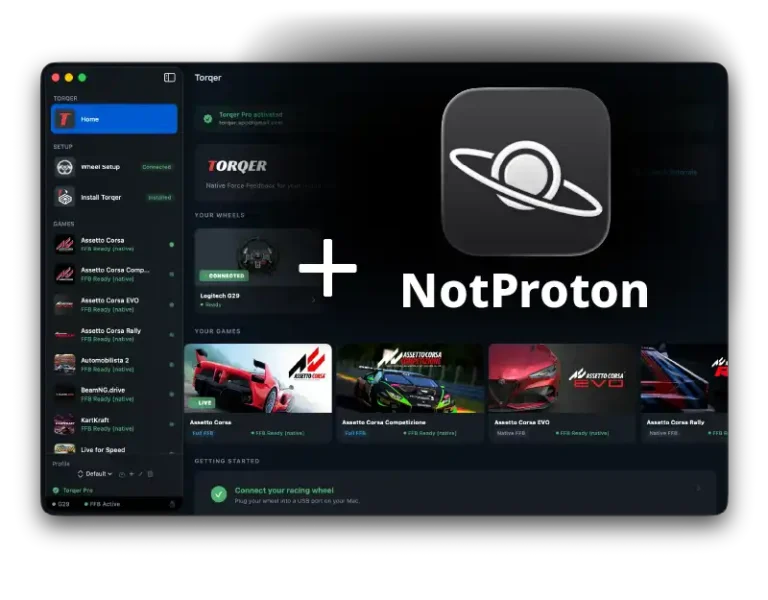
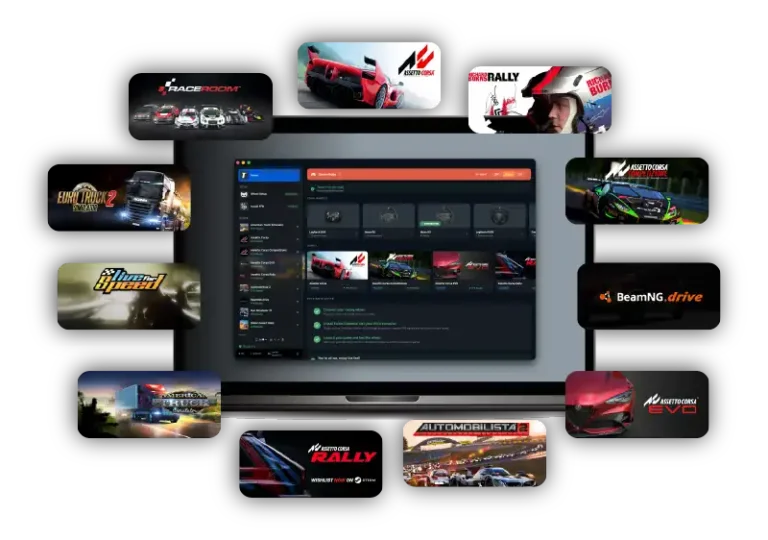
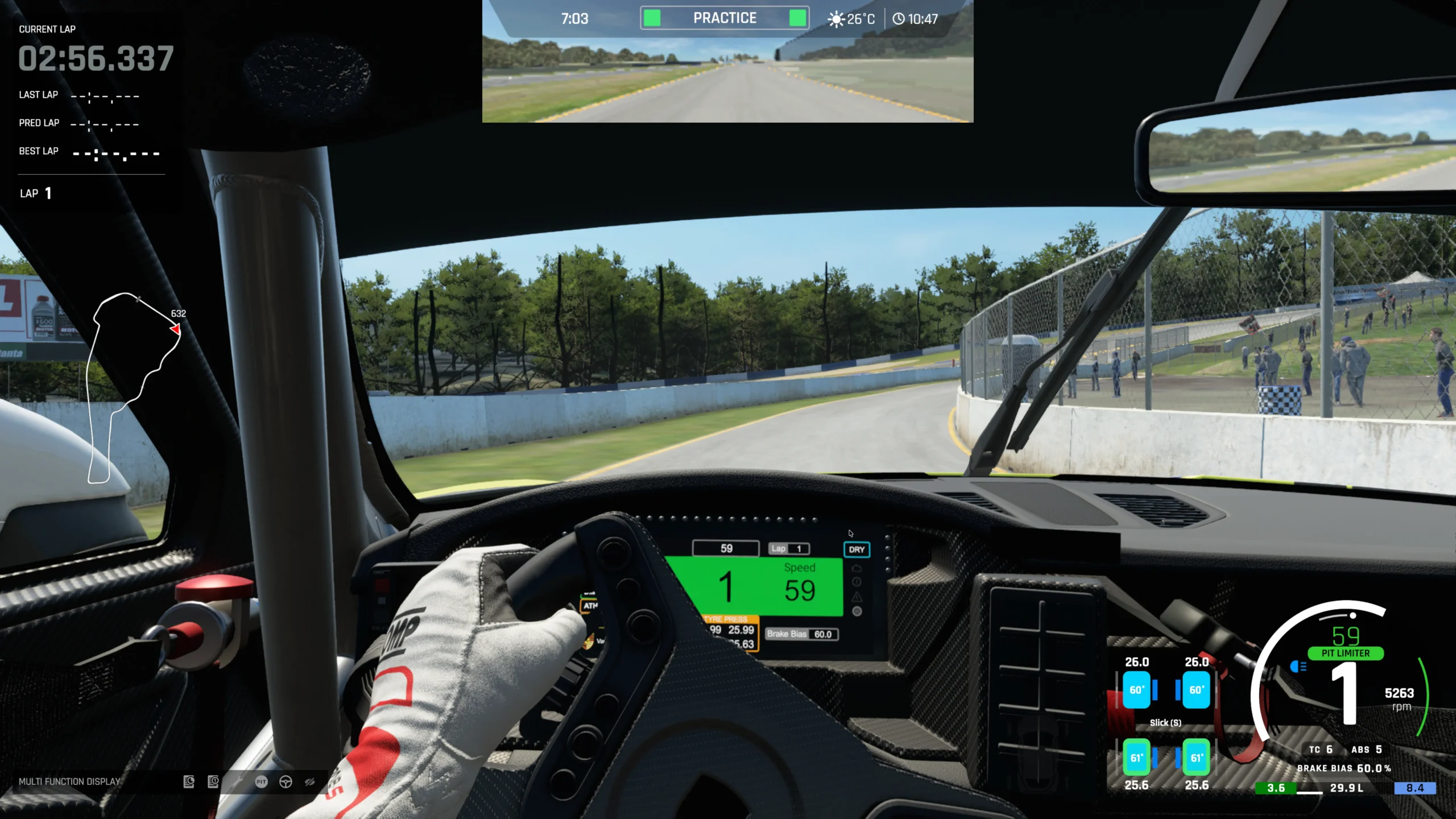
Assetto Corsa Evo runs quite well on most Apple Silicon Macs through CrossOver, and with Torqer you get full force feedback through the wheel. ACE’s physics model is detailed enough that the wheel becomes your primary information source (not the screen), and without FFB, you lose the front end pushing wide, the bite of ABS under heavy braking, the shift in grip between dry asphalt and a dusty kerb edge.
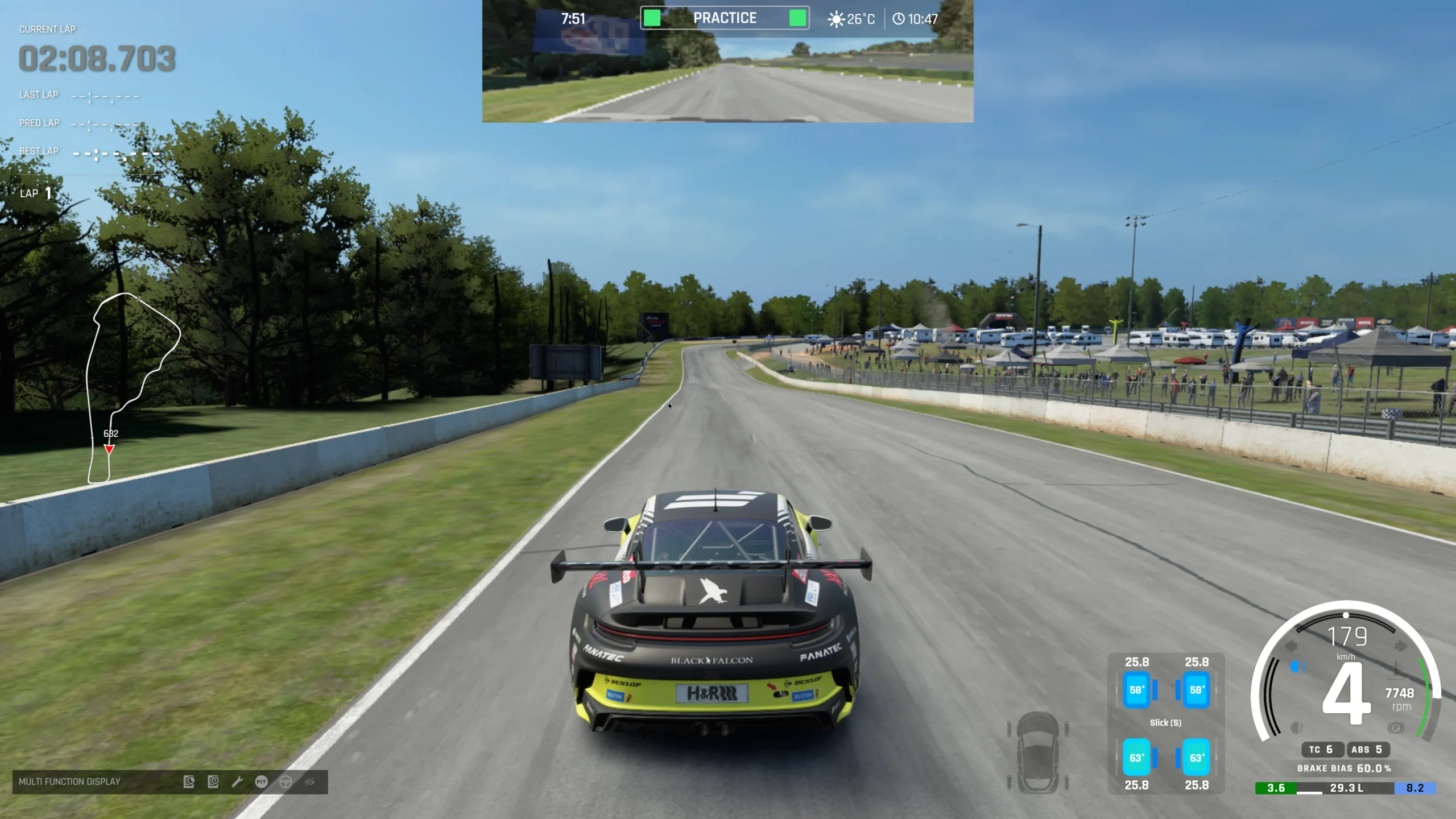
The game is still in Early Access (v0.9 as of this writing), so expect things to shift between updates. The current Steam build launches on CrossOver 26.3 with one specific workaround covered below, and both native and advanced FFB have been confirmed working. If you have already set up Assetto Corsa Competizione on your Mac, the process here is very similar.
What you’ll need
- A Mac with Apple Silicon (M-series) running macOS 13 or later
- A supported racing wheel (check Torqer’s supported wheels for the current list)
- CrossOver version 26.0 or later (26.3 verified)
- Torqer (free download, includes a 5-day full-feature trial)
- A Steam copy of Assetto Corsa Evo
Step 1 – Prepare your Mac
1a. Install CrossOver
- Download CrossOver from codeweavers.com. The 14-day free trial needs no credit card.
- Drag it to your
/Applicationsfolder and launch it.
1b. Create a Windows 10 64-bit bottle
- In CrossOver, click New Bottle
- Name it something like
SteamorAssetto Corsa Evo - Leave the type as Windows 10 64-bit
- Click Create
Open the bottle settings and enable:
- D3DMetal (translates Direct3D to Apple Metal)
- MSync (reduces CPU overhead from Wine’s synchronization layer)
Important: ACE requires CrossOver 26.0 or later. It will not launch on older versions.
Step 2 – Install Steam and Assetto Corsa Evo
- Select your bottle in CrossOver
- Click Install Software
- Search for Steam and install it
- Sign into your Steam account
- Install Assetto Corsa Evo from your library
Tip: Enable macOS Game Mode before launching. It reduces background CPU and GPU load, which helps frame pacing in CrossOver. Guide: How to enable Game Mode on Mac for CrossOver and Wine games
Step 3 – Launch ACE for the first time
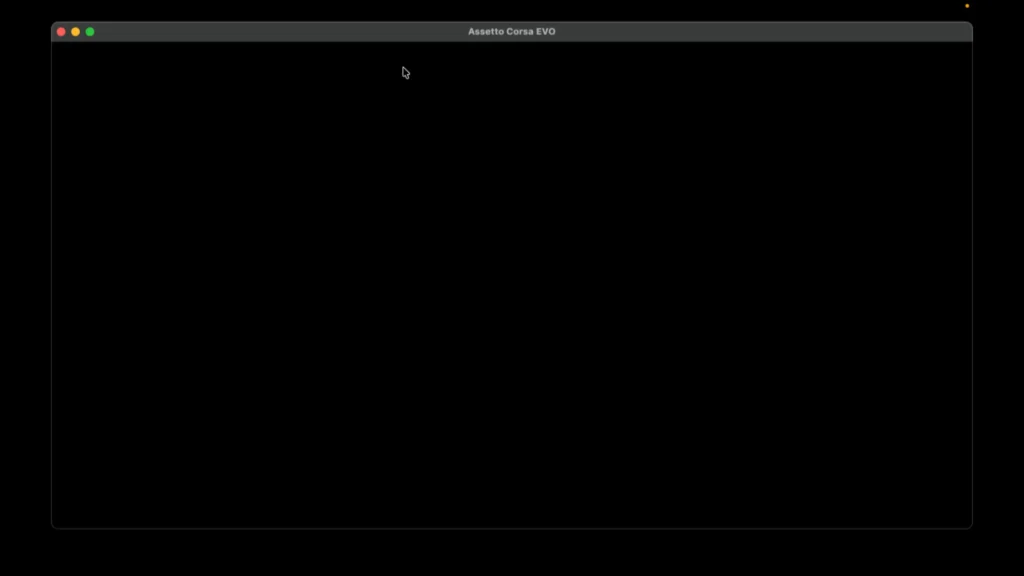
ACE can black-screen on startup if Steam keeps window focus during the launch sequence. The fix takes two seconds but you need to do it every time, or the game won’t launch properly.
How to launch
- Click Play in Steam
- Immediately click away from Steam: click on Finder, the desktop, or any other window
- You have roughly 3–6 seconds before the game tries to present its first frame
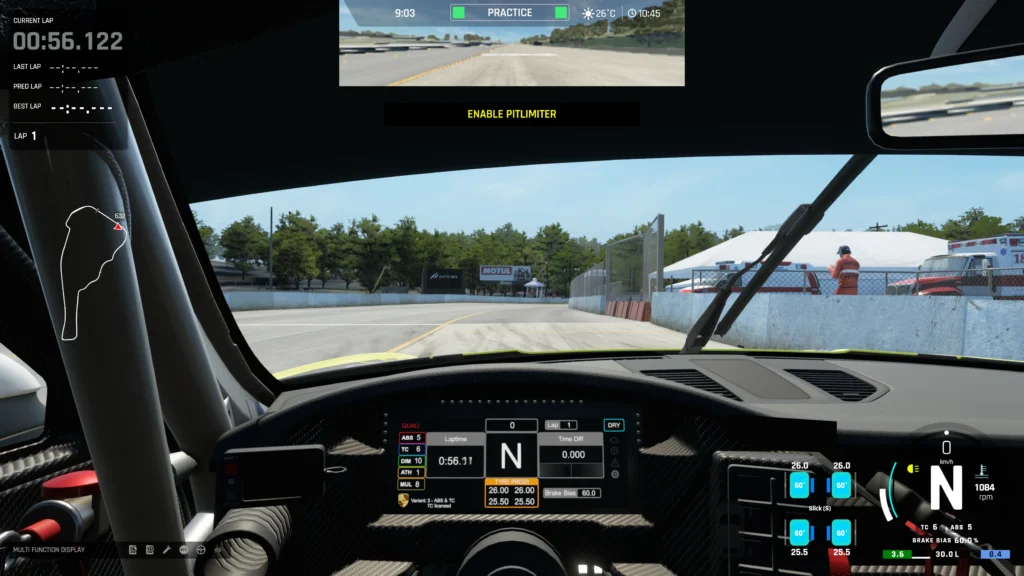
- ACE should launch normally after a few moments
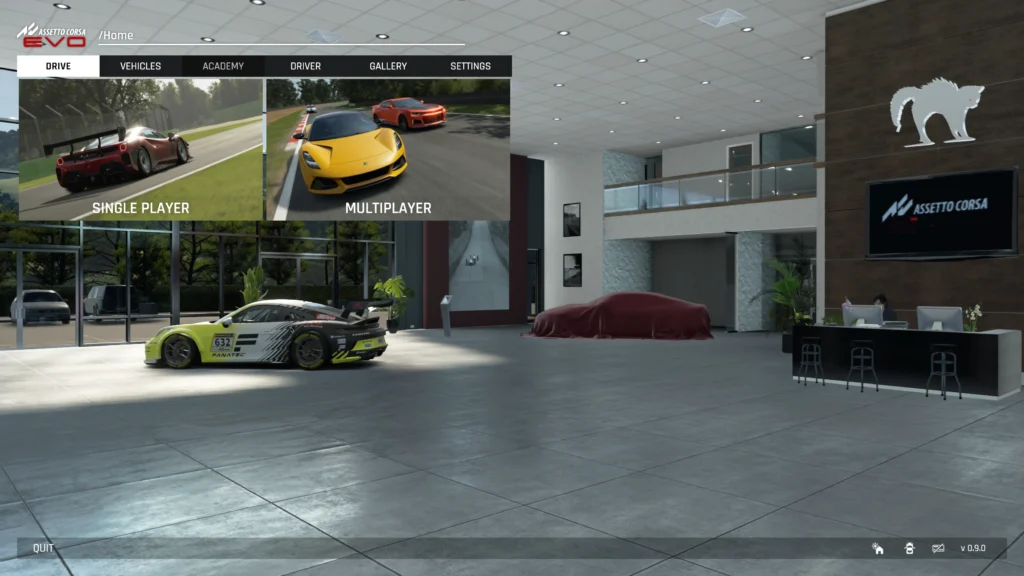
Do this now to confirm the game reaches the main menu, then close it before setting up force feedback.
If the display looks wrong
If ACE starts but the image appears cropped or zoomed in, press ⌥ Tab to switch away from the game, then ⌥ Tab again to switch back. The display ratio corrects itself. This only needs to happen once per launch.
Step 4 – Install Torqer and enable FFB
4a. Download and install Torqer
Download Torqer, open the DMG, and drag Torqer to your Applications folder.
Launch Torqer. On first launch it starts a 5-day trial with all features enabled, no account needed.
4b. Connect your wheel
Plug in your wheel via USB if it isn’t already. Torqer detects it automatically and shows a green connected state.
4c. Install FFB into your CrossOver bottle
- In Torqer, click Install FFB in the sidebar
- Select your Assetto Corsa Evo bottle
- Click Install
This installs Torqer’s FFB components into the bottle so ACE’s force feedback signal reaches the wheel.
4d. Select Assetto Corsa Evo in Torqer
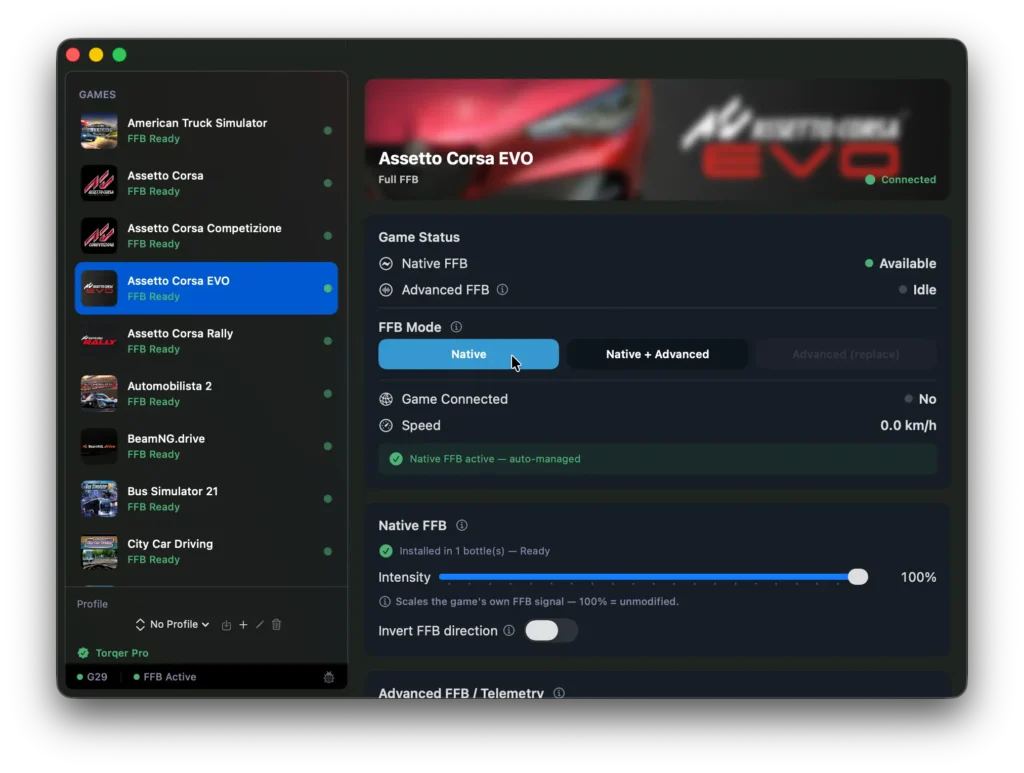
In Torqer’s sidebar, click Assetto Corsa Evo. Native FFB activates automatically when the game launches.
Step 5 – Enable advanced FFB with TorqerBridge
ACE supports advanced FFB through TorqerBridge, the same system used by Assetto Corsa Competizione. Where native FFB forwards whatever the game sends, advanced FFB reads live physics telemetry and feeds richer detail through the wheel: the vibration of a tire losing grip, the pulse of ABS biting under threshold braking.
5a. Install TorqerBridge
In Torqer, on the Assetto Corsa Evo page, click Install TorqerBridge. Torqer copies TorqerBridge into your ACE bottle.
5b. Launch TorqerBridge before playing
- In CrossOver, open Run Command for your ACE bottle
- Browse to or type the path to
TorqerBridge.exe - Click Run
Leave it running in the background while you drive.
5c. Choose your FFB mode
In Torqer on the ACE page, choose your FFB mode. Native FFB forwards the game’s own force signal directly to the wheel. Native + Advanced layers telemetry-driven effects on top of the game’s steering force, adding physics detail you wouldn’t otherwise feel. Advanced (replace) bypasses the game’s FFB entirely and uses Torqer’s own telemetry-driven output instead.
Start with Native + Advanced. It keeps the game’s steering weight and adds the extra physics detail from the telemetry.
Step 6 – Configure the wheel in-game
Launch ACE using the unfocus workaround from Step 3, then go to the control settings.
Confirm or bind:
- Steering
- Throttle and brake
- Clutch and gear paddles if you use them
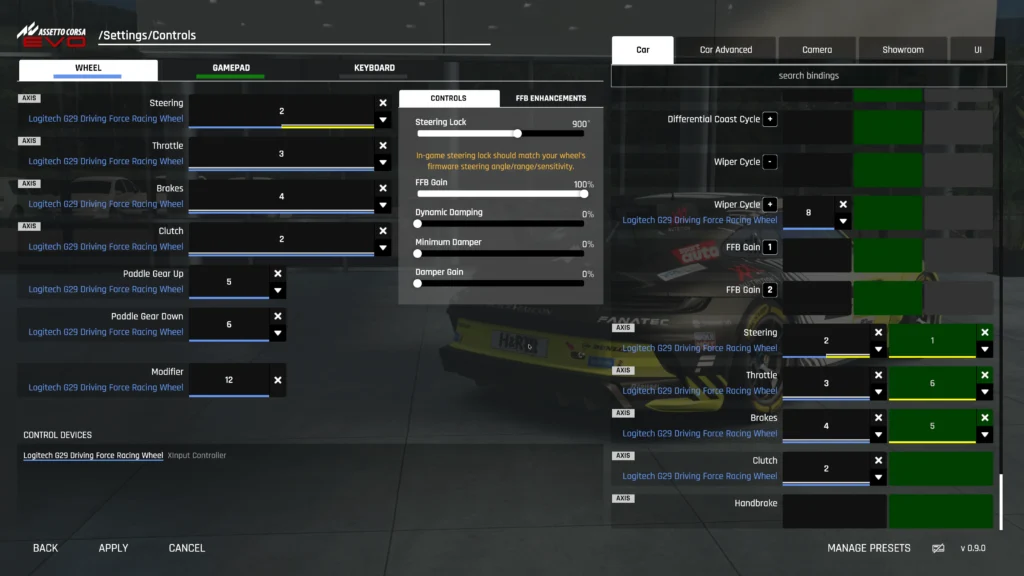
ACE’s FFB settings are in the controls menu. The exact sliders may change between Early Access updates, but as a starting point: set the main FFB strength to a medium-high value and keep secondary effects moderate. If the wheel still feels light, raise Native FFB Intensity in Torqer before maxing out the in-game slider.
If the wheel feels harsh or oversaturated, lower the in-game strength first, then adjust Torqer.
Tip: For context on how Torqer’s FFB modes interact with in-game settings and what each slider does, see Torqer FFB modes explained.
Before troubleshooting
If you use a Logitech wheel and Logitech G Hub is installed on your Mac, remove it.
G Hub can interfere with Torqer’s direct hardware access and prevent FFB from reaching the wheel. Open G Hub and use its uninstall flow, or drag it from /Applications to the Trash and remove its launch agent:
sudo rm /Library/LaunchAgents/com.logi.ghub.engine.plistLeave your wheel plugged in. Torqer handles the hardware directly. For more on vendor software conflicts: No force feedback on Mac? Why it happens and how to fix it
Troubleshooting
The game black-screens on launch
This is the most common issue with ACE on CrossOver. Immediately after pressing Play, click away from Steam so the game launches without Steam holding focus (see Step 3 for the full sequence). If it still black-screens, force-quit and try again; the timing can take a couple of attempts.
The display looks cropped or zoomed in
Press ⌥ Tab to switch away from the game, then ⌥ Tab to return. This resets the display ratio and only needs to happen once per launch.
The wheel steers but there is no force feedback
Make sure Torqer is running and shows your wheel as connected before launching ACE. In Torqer, confirm FFB is installed in the correct bottle. If needed, reinstall from the Install FFB page.
Full checklist: No force feedback on Mac? Why it happens and how to fix it
Advanced FFB is not working
Confirm TorqerBridge is running inside the same CrossOver bottle as ACE (Step 5b). TorqerBridge must be launched separately via Run Command and left running alongside the game.
FFB feels too light
Raise the in-game FFB strength first, then increase Native FFB Intensity in Torqer. If you are using Native + Advanced mode, the advanced intensity slider controls how much telemetry detail comes through the wheel.
Performance feels choppy
Lower the graphics settings, particularly shadows, reflections, and anti-aliasing. ACE is still in Early Access and performance varies between builds. Confirm Game Mode is enabled: How to enable Game Mode on Mac for CrossOver and Wine games
ACE does not launch at all
Confirm you are on CrossOver 26.0 or later. ACE does not run on CrossOver 25. Also verify the bottle is set to Windows 10 64-bit with D3DMetal and MSync enabled.
Tested configuration
Steam version of Assetto Corsa Evo (Early Access v0.9) · CrossOver 26.3.0 · Windows 10 64-bit bottle · D3DMetal enabled · MSync enabled · Apple Silicon MacBook Pro M4 Pro · Logitech G29 · Torqer native FFB and Native + Advanced
If you run into something not covered here, you can contact us.