How to set up Force Feedback for Assetto Corsa on Mac (step-by-step with CrossOver + Torqer)
If you’re running Assetto Corsa on a Mac with a Logitech wheel, you’ve probably already discovered the frustrating truth: the game runs, the wheel steers, but there’s no force feedback. No resistance in corners. No rumble over curbs. Just a dead wheel.
This guide walks you through getting full force feedback working: from a clean Mac to driving with a wheel that actually pushes back.
What you’ll need:
- A Mac with Apple Silicon (M-Series) running macOS 13 or later
- A Logitech wheel
- CrossOver (from CodeWeavers): paid app, 14-day free trial available
- Torqer: free download, includes a 5-day full-feature trial
- A Steam copy of Assetto Corsa
Step 1 – Get your Mac ready
1a. Remove vendor/driver software if installed
Driver software like Logitech G Hub can conflict with Torqer’s direct hardware access. If such software is installed, we recommend you remove it before continuing.
For Logitech G Hub specifically: Open G Hub and use its uninstall flow, or drag it from /Applications to the Trash and remove its launch agent:
sudo rm /Library/LaunchAgents/com.logi.ghub.engine.plistOnce it’s gone, plug in your wheel and leave it connected. You don’t need any Logitech software – Torqer handles the wheel directly.
1b. Install CrossOver
CrossOver is the compatibility layer that runs Windows games on Mac without Bootcamp or a Windows license. It’s based on Wine, optimised for macOS.
- Download CrossOver from codeweavers.com. A 14-day free trial is available – no credit card needed.
- Drag CrossOver to your
/Applicationsfolder and launch it.
1c. Create a new bottle for Assetto Corsa / Steam
A “bottle” is an isolated Windows environment. Each game gets its own.
- In CrossOver, click New Bottle
- Name it something recognisable —
Assetto CorsaorSteamworks fine - Leave the type as Windows 10 64-bit
- Click Create
Once the bottle is created, open its settings (right-click → Settings) and make sure the following are enabled:
- D3DMetal: uses Apple’s Metal graphics API instead of Direct3D translation. Required for good performance on Apple Silicon.
- MSync: reduces CPU overhead from Wine’s synchronisation primitives. Noticeably improves frame pacing.
1d. Install Steam inside your bottle
- In CrossOver, select your Assetto Corsa bottle
- Click Install Software (or the
+button) - Search for Steam and install it
- Once Steam launches inside CrossOver, log into your Steam account
- Find Assetto Corsa in your library and install it
Note: If CrossOver asks whether to install any Visual C++ redistributables or DirectX components during setup – let it. These are expected.
The game will take a while to download. Once it’s done, you can launch it once to verify it runs, then close it before moving on.
Step 2 – Install Torqer and set up native FFB
Native FFB is Torqer’s core feature: it intercepts the force feedback signals your game already generates and routes them to your physical G29.
2a. Download and install Torqer
Download Torqer, open the DMG, and drag Torqer to your Applications folder.
Launch Torqer. On first launch, it will start a 5-day trial that unlocks all features – no account or credit card needed.
2b. Connect your wheel
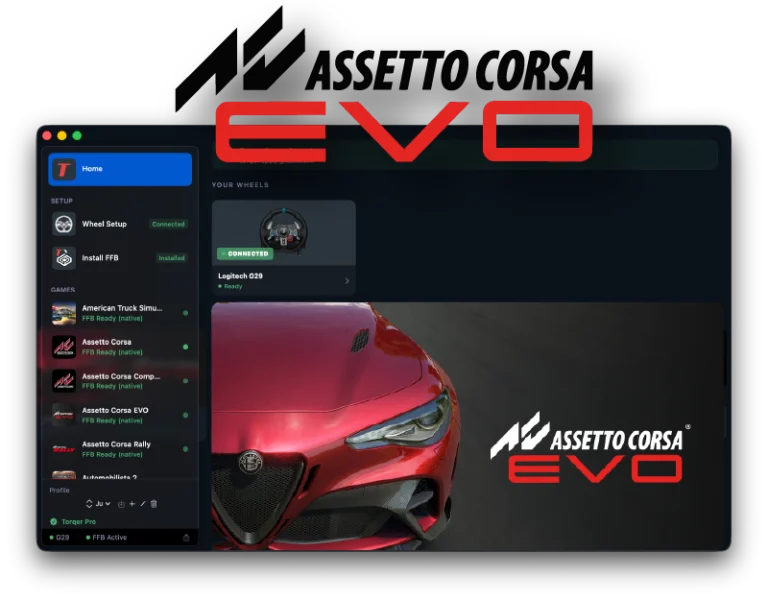
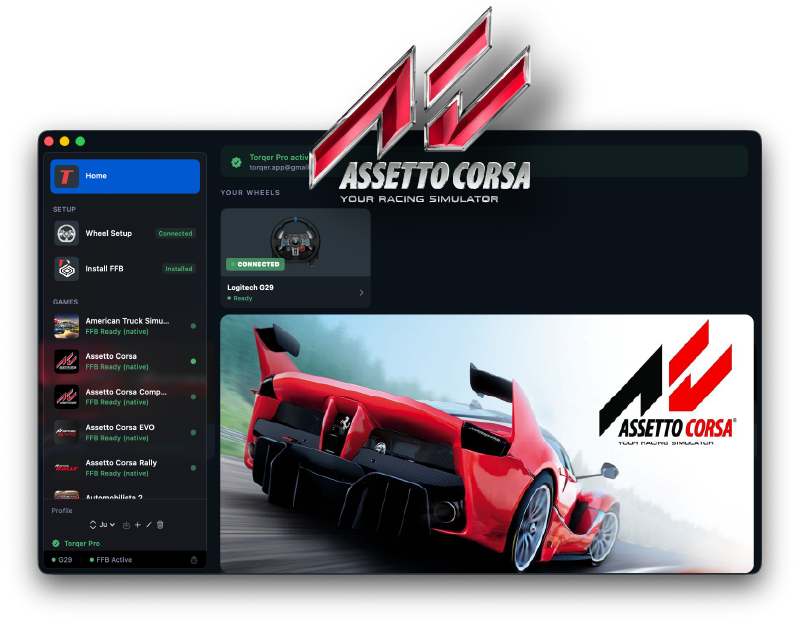
Plug in your wheel via USB if it isn’t already. Torqer will detect it automatically and show a green “Connected” indicator at the top of the window.
2c. Install Torqer into your CrossOver bottle
Without Torqer, force feedback signals from the game never reach your wheel – CrossOver has no way to pass them through on its own.
- In Torqer, click Install Torqer in the sidebar (the install icon)
- Torqer will scan your CrossOver bottles automatically. Select your Assetto Corsa bottle from the list.
- Click Install
Torqer handles the rest automatically.
2d. Select Assetto Corsa in Torqer
In Torqer’s sidebar, click Assetto Corsa. Native FFB is managed automatically – Torqer starts listening for signals from the game as soon as it launches.
Step 3 – Drive
- In CrossOver, launch Steam then Assetto Corsa from your bottle
- In AC’s settings, make sure your wheel is selected as the input device
- Start a session
The moment you’re on track, you’ll feel it: resistance building through corners, the wheel pulling toward the kerb as you clip it, the light steering of an understeering car going wide. That’s real FFB computed by Assetto Corsa’s own physics engine, delivered right through your wheel.
No force feedback? See the troubleshooting section at the bottom of this guide.
(Optional) Step 4 – Enable advanced FFB with Torqer haptics
Torqer’s native FFB (covered above) delivers everything Assetto Corsa’s game engine sends to the wheel. That’s already better than what most Mac players have ever experienced.
But Torqer can go further. With Advanced FFB enabled, Torqer reads real-time physics telemetry directly from AC (tyre forces, suspension data, G-loads, race data, etc) and generates a layer of haptic effects on top of the base FFB signal.
These include:
- Car Weight -) feel the car’s mass shifting through the steering column, derived from real tyre physics (self-aligning torque). The front end goes light when you understeer. It loads up as you pick up grip mid-corner.
- Road Rumble – high-frequency vibration computed from live suspension velocity, not a generic buzz
- ABS Haptics – distinct buzz when ABS activates under braking
- Traction Control Haptics – wheel shudder when TC cuts in
- Gear Shift Pulse – short tactile click on every upshift and downshift
- Collision Impacts – sharp directional force on hard contacts
To enable this, you need to turn on Advanced FFB in Torqer.
4a. About UDP telemetry in Assetto Corsa
Good news: there’s nothing to configure. Assetto Corsa broadcasts physics telemetry by default – it’s always on in the background, regardless of any in-game settings. You won’t find a toggle for it in the menus because there isn’t one. Torqer connects to it automatically the moment you start a session.
4b. Switch to Advanced FFB mode in Torqer
- In Torqer, navigate to your Assetto Corsa page
- Under FFB Mode, select Supplement: this keeps native FFB for the base car weight signal, while adding Torqer’s physics-derived haptics on top
- Enable the effects you want in the Advanced FFB section and adjust their intensities to taste
The Supplement mode is the recommended starting point for most drivers. If you want Torqer to compute car weight entirely from its own tyre physics model (instead of from the game’s DirectInput output), switch to Advanced Replacement – useful if you feel the native signal is too sharp or too soft for your preference.
(Optional) Step 5 – Install Content Manager and use mods
Assetto Corsa’s built-in launcher is basic. Most serious players use Content Manager – a full-featured launcher and game manager that adds a proper car/track browser, mod management, server browser, and the ability to install Custom Shaders Patch (CSP) for enhanced visuals.
Content Manager (Full version) installs and runs inside your CrossOver bottle alongside Assetto Corsa. You can install it the same way you installed Steam – through CrossOver’s software installer, or by downloading the .exe directly from assettocorsa.club and running it inside your bottle.
Important: If you install mods, particularly cars from community sites like Race Sim Studio or Assetto Corsa Mods, many of them use CSP Extended Physics – an alternative physics engine that crashes under CrossOver.
Read our guide on how to fix this in 30 seconds: Why most modded cars crash in Assetto Corsa on Mac, and how to fix it
Troubleshooting
The wheel steers but there’s still no force feedback
Make sure Torqer is installed in your bottle. In Torqer, go to Install Torqer and check that the status shows as installed for your Assetto Corsa bottle. If it isn’t, reinstall. Also confirm that Torqer is running and shows the wheel as connected before you launch AC – the order matters.
Torqer shows the wheel as disconnected
Unplug and replug your wheel. Check that G Hub is not installed – it conflicts with Torqer’s wheel access. If you’re running any other wheel software, quit it.
Assetto Corsa crashes on launch
This is usually unrelated to FFB. Check that D3DMetal and MSync are enabled in your bottle settings. If you’re loading a modded car, see our CSP Extended Physics guide.
FFB feels too strong / too light
In Torqer’s Assetto Corsa page, use the Native FFB Intensity slider to scale the overall strength up or down. Start at 100% and adjust from there. In AC’s own settings (Controls), also check that the FFB gain is set to something reasonable (80–100% is a good baseline).
Advanced FFB effects aren’t working
Make sure UDP telemetry is enabled in AC’s Options → General with port 9996, IP 127.0.0.1, and 100 Hz update rate. Then confirm Torqer shows a live car detected in the Assetto Corsa page.
That’s everything. If you run into something not covered here, you can contact us.