How to play City Car Driving on Mac with force feedback (CrossOver + Torqer)
City Car Driving runs on Apple Silicon Macs through CrossOver, and with Torqer you get proper force feedback on your steering wheel. The game is a driving school simulator, and FFB makes a real difference: you feel road resistance, weight transfer through corners, and surface texture in a way that mouse or gamepad input simply cannot replicate.
There is one specific setup step to know before you start. City Car Driving will only activate FFB if you use the generic “Default” control profile and map your wheel axes manually. Selecting a named profile like “Logitech G29” from the Controls menu hides the Vibration settings entirely, and FFB will not work at all. This guide walks through the exact steps. The setup has been confirmed on CrossOver 26.1.0.
What you’ll need
- A Mac with Apple Silicon (M-series) running macOS 13 or later
- A Torqer-compatible steering wheel
- CrossOver or Sikarugir
- Torqer – free download, includes a 5-day full-feature trial
- A copy of City Car Driving (Steam version)
Step 1 – Prepare your Mac
1a. Install CrossOver
Download CrossOver from codeweavers.com, drag it to /Applications, and launch it.
1b. Create a Windows 10 64-bit bottle
- In CrossOver, click New Bottle
- Create a Windows 10 64-bit bottle
- Name it something like
City Car Driving
Open the bottle settings (right-click the bottle → Settings) and enable:
- D3DMetal
- MSync
Step 2 – Install City Car Driving
Install City Car Driving through Steam inside that bottle. Launch it once to confirm it reaches the main menu, then close it before continuing.
Note: A slightly off engine sound is a known cosmetic quirk of the CrossOver setup. It does not affect gameplay or FFB.
Tip: Enable macOS Game Mode before launching for better performance in CrossOver. Guide: How to enable Game Mode on Mac for CrossOver and Wine games
Step 3 – Install Torqer and enable FFB
3a. Download and install Torqer
Download Torqer, open the DMG, and drag Torqer to your Applications folder.
Launch Torqer. On first launch it starts a 5-day full-feature trial automatically.
3b. Connect your wheel
Plug in your wheel via USB. Torqer should detect it and show a green connected state.
3c. Install Torqer into your CrossOver bottle
- In Torqer, click Install FFB in the sidebar
- Select your City Car Driving bottle
- Click Install
Tip: Enable macOS Game Mode before launching for better performance in CrossOver. Guide: How to enable Game Mode on Mac for CrossOver and Wine games
Step 4 – Configure the wheel in-game
This is the most important part of the setup. City Car Driving requires a specific control configuration before FFB becomes available.
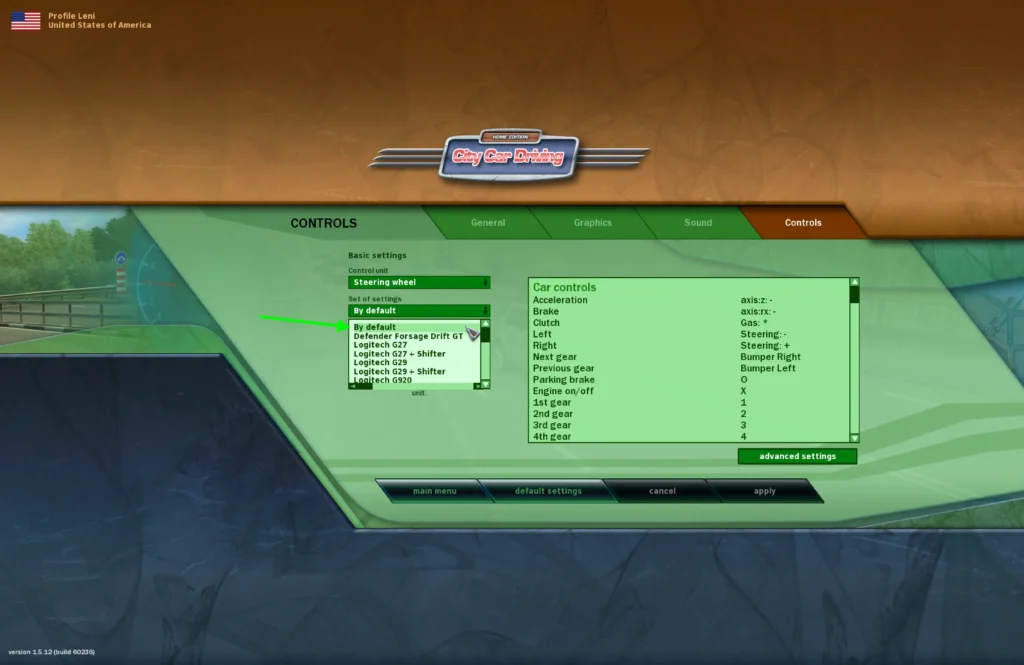
4a. Open Settings → Controls and pick the Default profile
Launch City Car Driving and go to Settings → Controls.
Important: Do not select your wheel’s named profile (for example “Logitech G29”) from the profile list. Choosing a named profile hides the Vibration tab and FFB will not work.
Set the Control Unit to Steering Wheel and leave the profile as By default.
4b. Map all axes and buttons manually
With the Default profile selected, map each control by hand by double-clicking each binding (entries turn purple when binding is ready for input):

- Steering axis
- Throttle
- Brake
- Clutch (if applicable)
- Gear shift buttons or paddles
4c. Confirm the Vibration tab appears
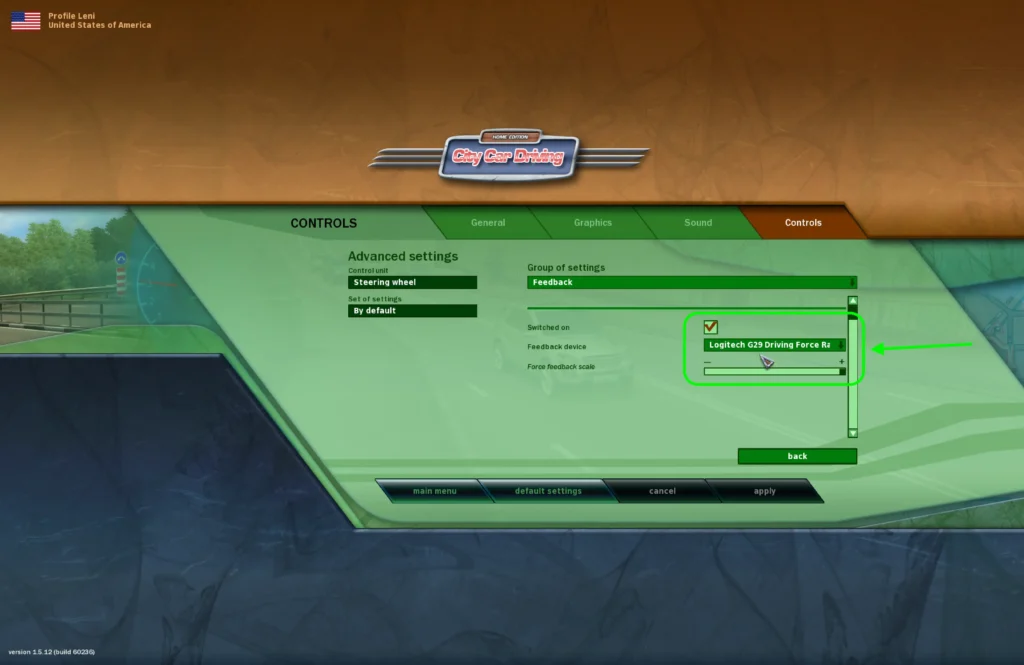
After mapping, open the Advanced Settings dropdown. A Feedback tab should now be visible.

Important: Do not start a driving session until the Feedback tab is present. If you do not see it, it means the game is not setup properly for FFB to work.
If the Feedback tab is missing, use this fix:
- Set Control Unit to Keyboard
- Set it back to Steering Wheel
- Re-map your axes and buttons (if not done before)
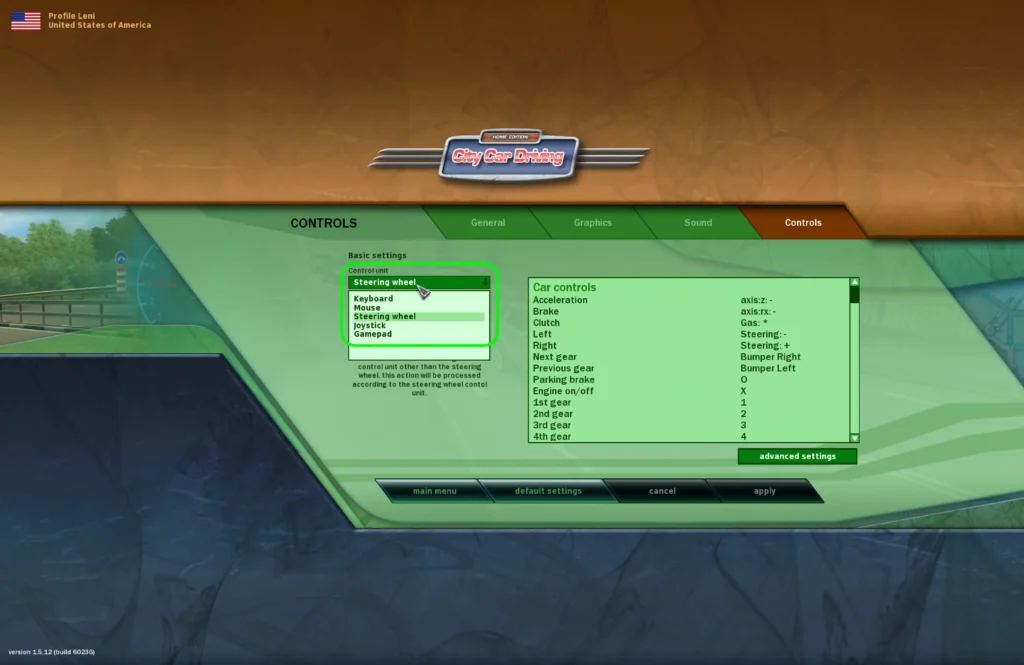
This workaround refreshes the game’s control settings, and the Feedback tab should now appear.
4d. Enable FFB in the Vibration tab
Open the Feedback tab and make sure force feedback is enabled. Set the strength to a comfortable starting level — around 50% is a safe starting point.
Step 5 – Drive
Once the Feedback tab is active and your wheel is mapped, you are ready to drive. City Car Driving’s FFB gives a clear sense of steering weight and road feel, which helps with the game’s exercises and traffic scenarios.

If the wheel feels too light, raise the Native FFB Intensity slider on the City Car Driving page inside Torqer.
Before troubleshooting: remove vendor software and drivers (e.g. Logitech G Hub)
If you have Logitech G Hub installed or other wheel vendor driver software, it can conflict with Torqer’s direct hardware access. Remove it before continuing.
Open G Hub and use its built-in uninstall option, or drag it from /Applications to the Trash and remove its launch agent:
sudo rm /Library/LaunchAgents/com.logi.ghub.engine.plistLeave your wheel plugged in. Torqer talks to it directly.
Troubleshooting
No force feedback at all
The first thing to check is whether the Vibration tab is visible in Advanced Settings. If it is not there, go back to Step 4c. FFB cannot work until the Vibration tab appears.
Also confirm:
- Torqer is running before you launch the game
- Your wheel shows as connected in Torqer
- Torqer is installed in the correct CrossOver bottle
General FFB checklist: No force feedback on Mac — why it happens and how to fix it
The Vibration tab disappears after restarting the game
City Car Driving can revert the control setup between sessions. Each time you launch, quickly check that the Default profile is still selected and the Vibration tab is still visible before entering a session. The Keyboard → Steering Wheel toggle works reliably when needed.
FFB feels too weak
Raise the Native FFB Intensity slider on the City Car Driving page in Torqer.
The game does not launch
Confirm the bottle is Windows 10 64-bit with both D3DMetal and MSync enabled.
If you run into something not covered here, you can contact us.
Tested configuration
Steam version of City Car Driving · CrossOver 26.1.0 · Windows 10 64-bit bottle · D3DMetal enabled · MSync enabled · Apple Silicon MacBook Pro M4 Pro · Logitech G29 · Torqer Native FFB working