Get Force Feedback working on Sikarugir with Torqer
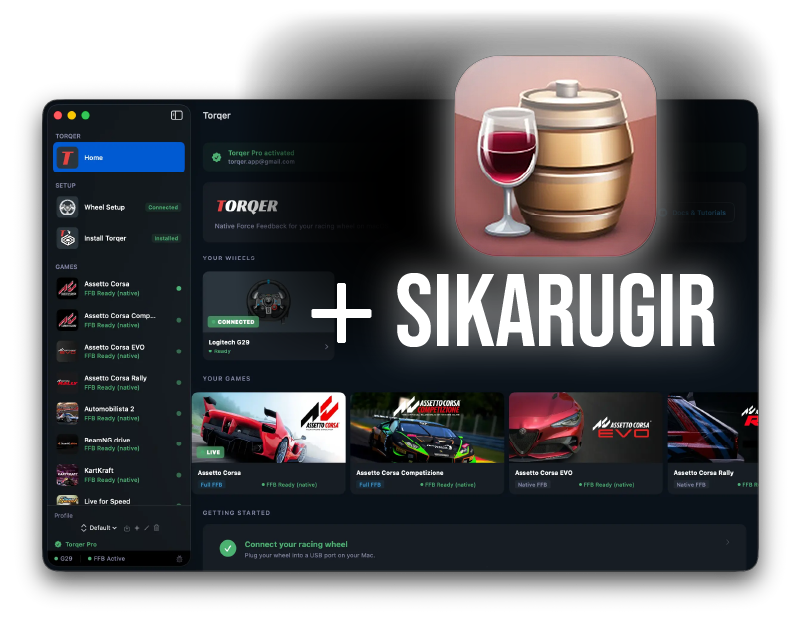
Sikarugir is a Wine wrapper tool for macOS. It lets you package a Windows game or launcher into a Mac-style .app wrapper, similar in spirit to Wineskin.
Torqer now supports Sikarugir wrappers directly. That means you can install a Windows racing game inside Sikarugir, point Torqer at the wrapper, and get native force feedback on supported Logitech wheels.
This guide walks through the full setup using Live for Speed as the example game.
What you’ll need
- A Mac running macOS
- Rosetta 2, if you’re on Apple Silicon
- Sikarugir Creator
- Torqer
- A supported Logitech wheel such as a G29
- A Windows racing game supported by Torqer native FFB
For this guide, the example game is Live for Speed because it is small, quick to install, and confirmed working with Torqer native FFB through Sikarugir.
Step 1 — Prepare your Mac
1a. Install Rosetta 2
Sikarugir Creator is currently distributed as an Intel Mac app, so Apple Silicon Macs need Rosetta 2.
Open Terminal and run:
/usr/sbin/softwareupdate --install-rosetta --agree-to-licenseIf Rosetta is already installed, macOS will tell you.
1b. Remove Logitech G Hub if installed
Torqer talks to the wheel directly. Logitech G Hub can interfere with direct wheel access on macOS.
If G Hub is installed, remove it before continuing. After uninstalling, unplug and replug your wheel.
Step 2 — Install Sikarugir
The easiest install path is Homebrew.
If you do not have Homebrew installed, install it first from:
https://brew.shThen install Sikarugir Creator:
brew update
brew install --cask Sikarugir-App/sikarugir/sikarugir
After installation, you should have:
/Applications/Sikarugir Creator.appLaunch Sikarugir Creator once to make sure it opens correctly.
If macOS blocks Sikarugir
If macOS refuses to open Sikarugir because it was downloaded from the internet, right-click the app and choose Open.
If needed, you can also clear quarantine manually:
xattr -dr com.apple.quarantine "/Applications/Sikarugir Creator.app"Step 3 — Create a Sikarugir wrapper
Sikarugir creates Mac .app wrappers. Each wrapper contains its own isolated Windows-style environment and game installation.
In Sikarugir Creator:
- Create a new wrapper.
- Name it something clear, such as
Live for SpeedorSteam. - Choose a location where you want the wrapper to live.
Example:
/Users/yourname/Applications/Sikarugir/Live for Speed.appor on an external drive:
/Volumes/ExternalDrive/SIKARUGIR/Steam.appTorqer supports both locations. If the wrapper is on an external drive, you will add it manually from Torqer later.
Step 4 — Install an example game in Sikarugir
This guide uses Live for Speed because it is easy to test.
Option A: Install Live for Speed directly
- Download the Windows installer from:
https://www.lfs.net- In Sikarugir, run the installer inside your wrapper.
- Install LFS to the default location suggested by the installer.
- Configure the wrapper to launch
LFS.exe.
A typical launch target inside the wrapper may look like:
C:\LFS\LFS.exeOption B: Install Steam in the wrapper
You can also install Steam inside a Sikarugir wrapper, then install games from Steam.
This is useful if the game is distributed through Steam, but for a first Torqer test, direct LFS installation is faster and simpler.
Step 5 — Test the game before adding Torqer
Before installing Torqer into the wrapper, launch the game once from Sikarugir.
Confirm:
- the game starts
- your wheel is detected
- steering input works
- pedals/buttons work
At this stage, force feedback may still be missing. That is expected. The purpose of this step is to confirm that the Sikarugir wrapper itself is healthy before Torqer changes anything.
If the game does not launch or the wheel is not detected, fix that first before moving on.
Step 6 — Install Torqer
Download Torqer from:
https://torqer.appOpen the DMG, drag Torqer to your Applications folder, and launch it.
Plug in your wheel. Torqer should show it as connected.
Step 7 — Add your Sikarugir wrapper in Torqer
In Torqer:
- Open Install FFB from the sidebar.
- Click Add Sikarugir Wrapper.
- Select either:
- the Sikarugir
.appwrapper itself, or - the folder containing your Sikarugir wrappers
For example, both of these are valid:
/Volumes/ExternalDrive/SIKARUGIR/Steam.app/Volumes/ExternalDrive/SIKARUGIRIf you select a folder, Torqer scans one level down and adds valid Sikarugir .app wrappers automatically.
After adding the wrapper, it should appear in the list with a Sikarugir label.
Step 8 — Install Torqer FFB into the Sikarugir wrapper
In the Install FFB list:
- Find your Sikarugir wrapper.
- Click Install.
- Wait for Torqer to finish.
Torqer installs the required FFB support files into the selected Sikarugir wrapper automatically. You do not need to edit the wrapper manually.
After installation, fully quit and relaunch the Sikarugir wrapper.
Step 9 — Launch the game and test force feedback
- Make sure Torqer is running.
- Make sure your wheel is connected in Torqer.
- Launch the game from Sikarugir.
- Start a driving session.
With Live for Speed, force feedback should activate once you are in-game and the wheel is actively being driven by the simulation.
If everything is working, the wheel should no longer feel dead. You should feel steering resistance and force changes from the game.
Troubleshooting
The Sikarugir wrapper does not appear in Torqer
Use Add Sikarugir Wrapper and select either the .app wrapper or its parent folder.
Make sure you selected the actual game wrapper, not the Sikarugir Creator app.
If you selected a folder, it should be the folder that directly contains your Sikarugir game .app wrappers.
The game launches, but there is no force feedback
Check the basics first:
- Torqer is running before the game launches
- the wheel is connected in Torqer
- the Sikarugir wrapper shows as installed in Torqer’s Install FFB page
- you fully restarted the wrapper after installing Torqer FFB
- in-game force feedback is enabled
For Live for Speed, also check the in-game wheel/FFB settings and make sure the G29 is selected correctly.
The wheel steers, but FFB is still dead
This usually means the wrapper was not fully updated or restarted after installing Torqer FFB.
Reinstall Torqer FFB into the wrapper from the Install FFB page, then fully quit and relaunch the wrapper.
The game stopped launching after installing Torqer
Open Torqer, go to Install FFB, select the Sikarugir wrapper, and click Uninstall.
This removes Torqer’s wrapper-side support files and restores the wrapper to its previous state.
Then launch the game again to confirm the wrapper itself still works.
Torqer cannot access a wrapper on an external drive
Make sure the external drive is mounted before launching Torqer.
If the wrapper is on an external drive, add it manually from the Install FFB page instead of relying on automatic discovery.
What Torqer changes inside a Sikarugir wrapper
Torqer does not modify the Sikarugir launcher itself.
It adds the wrapper-side support files needed for native force feedback, and it can remove them again from the same Install FFB screen.
The important practical point is simple: once Torqer is installed into the selected wrapper, supported games can send their native force feedback to your wheel through Torqer.
Confirmed working example
Live for Speed has been tested in a Sikarugir wrapper with:
- G29 wheel input working
- Torqer native FFB installed into the wrapper
- force feedback working in-game
This makes LFS the recommended first test game if you want to confirm your Sikarugir + Torqer setup before installing larger games.