How to get Force Feedback working in rFactor 2 on Mac (CrossOver + Torqer)
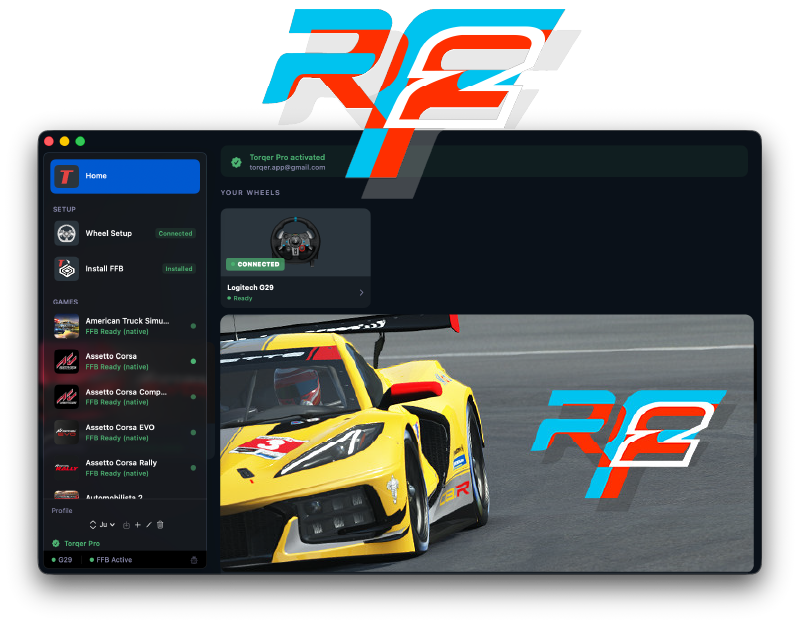
rFactor 2 is one of the most respected physics simulators in sim racing: and yes, it runs on Mac. Getting force feedback working takes a few specific steps, but once it’s set up it feels great. This guide covers everything from scratch.
What you’ll need
- A Mac with Apple Silicon (M-series) running macOS 13 or later
- A Logitech wheel (G29, G27, G923 PS, G25, or Driving Force GT)
- CrossOver 26 or later — FFB in rFactor 2 requires CrossOver 26 minimum. Earlier versions won’t work for FFB.
- Torqer — free download, includes a 5-day full-feature trial
- A Steam copy of rFactor 2
Step 1 – Prepare your Mac
1a. Remove Logitech G Hub if installed
G Hub conflicts with Torqer’s direct hardware access. If it’s installed, remove it before continuing.
Open G Hub, go to Settings, and look for an uninstall option — or drag the app from /Applications to the Trash and remove its launch agent:
sudo rm /Library/LaunchAgents/com.logi.ghub.engine.plistOnce removed, plug in your wheel and leave it connected. Torqer talks to the wheel directly — no Logitech software needed.
1b. Install CrossOver 26
CrossOver is the compatibility layer that lets you run Windows games on Mac without Bootcamp or a Windows licence. It’s based on Wine, tuned for Apple Silicon.
- Download CrossOver from codeweavers.com. A 14-day free trial is available — no credit card needed.
- Make sure you’re on CrossOver 26 or later. rFactor 2 FFB does not work on CrossOver 25 or earlier.
- Drag CrossOver to your
/Applicationsfolder and launch it.
Step 2 – Create a bottle for rFactor 2
A “bottle” is an isolated Windows environment inside CrossOver.
- In CrossOver, click New Bottle
- Name it
rFactor 2orSteam - Set the type to Windows 10 64-bit
- Click Create
Configure the bottle settings
Right-click the bottle → Settings, and configure:
- Graphics: set to DXVK — this is required for rFactor 2 to run correctly on Mac. D3DMetal does not work with rFactor 2.
- Synchronisation: MSync (recommended on CrossOver 26)
Install DirectX for modern games
rFactor 2 requires an additional DirectX component not included by default:
- Select your bottle, click Install Software
- Search for DirectX for Modern Games and install it
Without this step, rFactor 2 will launch to a black screen and hang. This is the fix.
Step 3 – Install Steam and rFactor 2
- In CrossOver, select your bottle, click Install Software
- Search for Steam and install it
- Log into your Steam account inside Steam
- Install rFactor 2 from your library
First launch of rFactor 2 will take a few minutes as it compiles shaders. This is normal.
Step 4 – Set up Torqer
- Download and install Torqer from torqer.app
- Open Torqer — your wheel should be detected automatically in the top section
- In the sidebar, click Install FFB, then find your rFactor 2 bottle and click Install
- In the sidebar, select rFactor 2
- Make sure Native FFB is selected as the FFB mode
- Torqer will activate automatically once rFactor 2 is running
Step 5 – Invert FFB in rFactor 2
This is the one rFactor 2-specific step that trips people up. Due to how rFactor 2 handles DirectInput force feedback on non-native devices, the FFB direction comes out inverted by default — meaning forces push the wrong way. The fix is to set FFB strength to -100% inside rFactor 2’s controller settings.
Method 1 — In-game settings (easiest)
- Launch rFactor 2 and go to Settings → Controls → Force Feedback
- Set Force Feedback Strength to -100% (arrow it all the way down past 0 into negative values)
- Leave all other settings at their defaults to start
Method 2 — Edit the config file directly
If you prefer to set this outside the game, or want to verify the setting is saved:
- Open Finder and navigate to your rFactor 2 bottle. The path is:
~/Library/Application Support/CrossOver/Bottles/[your bottle name]/drive_c/users/crossover/Documents/rFactor2/UserData/player/- Open the file
Controller.JSONin a text editor - Find the line:
"Steering effects strength"- Change its value from the default (e.g.
1.0) to-1.0 - Save the file
Reference: the rFactor 2 community thread on OverTake.gg that first documented this fix: https://www.overtake.gg/threads/reverse-ffb-forces-in-rf2.166677/
Step 6 – Drive
Launch rFactor 2 through CrossOver, load a session, and head out on track. Your wheel should now push back through corners, kerbs, and under braking.
If FFB feels too strong or too weak, adjust the Native FFB Intensity slider in Torqer’s rFactor 2 page. Start around 60–80% and tune from there.
Troubleshooting
FFB does nothing at all
- Confirm CrossOver 26 or later is installed (Help → About CrossOver to check the version)
- Confirm Torqer shows your wheel as connected (green indicator at the top)
- Confirm the Torqer FFB install shows as active for your rFactor 2 bottle
- Restart rFactor 2 after installing Torqer FFB — the DLL is loaded at game startup
Game crashes or black screen on launch
- Make sure DXVK is selected as the graphics backend (not D3DMetal)
- Make sure DirectX for Modern Games is installed in the bottle
FFB forces feel backwards (wheel pulls right in left corners)
- You haven’t set FFB to -100% yet — go back to Step 5
Content Manager / plugins
- rFactor 2 plugins and mods generally work through the standard mod installation process inside the bottle. No special steps needed beyond what’s described above.
Tested configuration
MacBook Pro M4 Pro (14-core, 48 GB RAM) · macOS Sequoia · CrossOver 26 · Windows 10 64-bit bottle · DXVK + MSync · rFactor 2 via Steam · Logitech G29