How to run The Crew 2 on Mac with force feedback (CrossOver + Torqer)
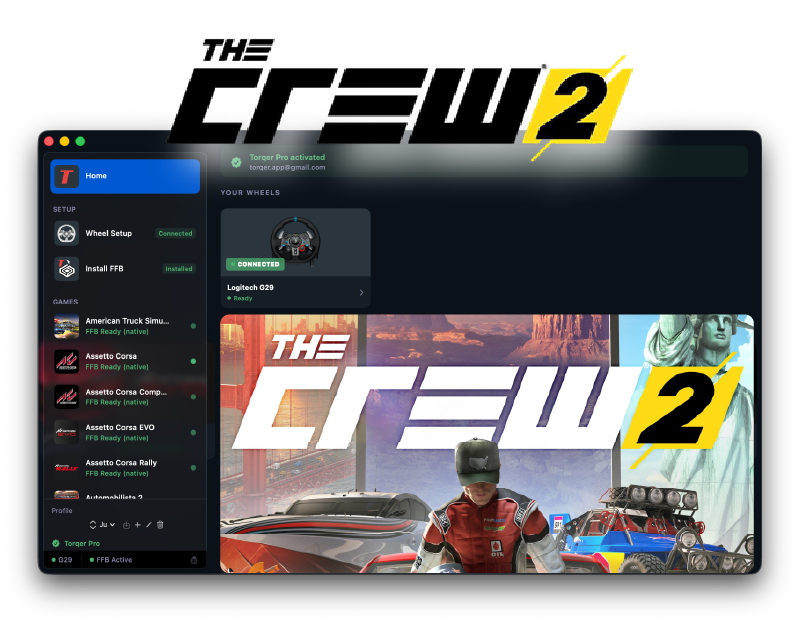
The Crew 2 does run on Apple Silicon Macs through CrossOver, and with Torqer you can get proper force feedback on your wheel. Once it is set up, FFB works across the whole game, including cars, boats, and planes.
This guide covers the exact setup that matters. It has been confirmed on CrossOver 26.1.
What you’ll need
- A Mac with Apple Silicon (M-series) running macOS 13 or later
- A Torqer-compatible wheel
- CrossOver
- Torqer — free download, includes a 5-day full-feature trial
- A copy of The Crew 2
Step 1 – Prepare your Mac
1a. Uninstall Logitech G Hub (if installed)
G Hub conflicts with Torqer’s direct hardware access. If it is installed, remove it before continuing.
Open G Hub and use its built-in uninstall option, or drag it from /Applications to the Trash and remove its launch agent:
sudo rm /Library/LaunchAgents/com.logi.ghub.engine.plistLeave your wheel plugged in. Torqer talks to it directly.
1b. Install CrossOver
- Download CrossOver from codeweavers.com.
- Drag it to
/Applicationsand launch it.
Important: Do not rename the CrossOver app. Its internal code signature expects the default app name, and renaming it can break Wine.
1c. Create a Windows 10 64-bit bottle
- In CrossOver, click New Bottle
- Create a Windows 10 64-bit bottle
- Name it something like
The Crew 2
Open the bottle settings (right-click the bottle → Settings) and enable:
- D3DMetal — required for this setup
- MSync — recommended, and part of the working setup
Note: Some users report that starting from CrossOver’s built-in Epic Games Store bottle template makes the install easier. That is fine, but it does not replace the steps below. The bottle still needs to be Windows 10 64-bit, with D3DMetal + MSync, and you still need to install DirectX for Modern Games for The Crew 2 to launch properly.
Step 2 – Install DirectX for Modern Games
This step is mandatory.
- Select your The Crew 2 bottle in CrossOver
- Click Install Software
- Search for DirectX for Modern Games
- Install it into that bottle
Without this, The Crew 2 may fail to launch correctly even if the rest of the bottle looks fine.
Step 3 – Install and launch The Crew 2
Install the game in that same bottle using your normal launcher flow.
If you are using Epic, creating the bottle from CrossOver’s Epic Games Store template can help. If you are using another launcher path, that is fine too. The important part is that the game ends up in the same bottle where you enabled D3DMetal + MSync and installed DirectX for Modern Games.
Once the game is installed, launch it once to confirm it reaches the menus, then close it before setting up FFB.
Tip: Enable macOS Game Mode before launching. It helps reduce background CPU and GPU load, which can improve frame pacing in CrossOver. Guide: How to enable Game Mode on Mac for CrossOver and Wine games
Step 4 – Install Torqer and enable FFB
4a. Download and install Torqer
Download Torqer, open the DMG, and drag Torqer to your Applications folder.
Launch Torqer. On first launch it starts a 5-day full-feature trial automatically.
4b. Connect your wheel
Plug in your wheel via USB if it is not already connected. Torqer should detect it automatically and show a green connected state.
4c. Install Torqer into your CrossOver bottle
- In Torqer, click Install FFB in the sidebar
- Select your The Crew 2 bottle
- Click Install
This installs Torqer’s DirectInput wrapper into the bottle so the game’s FFB signal can reach your wheel.
4d. Select The Crew 2 in Torqer
In Torqer’s sidebar, click The Crew 2. This game currently uses Native FFB, which means Torqer forwards the game’s own force feedback signal directly to the wheel.
Step 5 – Map the wheel in-game
Launch The Crew 2 through CrossOver and go into the controls menu.
Map all of your wheel axes and buttons manually. This part can be a bit finicky, especially for the steering axis.
If the steering axis does not bind on the first try:
- try the assignment again
- turn the wheel more deliberately through a larger range
- unbind and rebind if needed
Be stubborn here. Users report that it can take a couple of tries, but it does eventually grab correctly.
Once the wheel is mapped, go to the force feedback settings and set:
- FFB Gain: 100%
At lower values, the wheel feels too weak.
Step 6 – Drive
Once the bottle is configured properly and the wheel is mapped, The Crew 2 is genuinely playable on Mac with force feedback. The nice part is that the FFB is not limited to cars: you also get it in boats and planes.
If the wheel feels a bit light even with in-game gain at 100%, raise Native FFB Intensity on The Crew 2’s page in Torqer.
Troubleshooting
The game does not launch
Confirm all four bottle requirements:
- Windows 10 64-bit
- D3DMetal
- MSync
- DirectX for Modern Games installed in that bottle
If one of those is missing, fix it first.
The wheel is detected, but steering will not bind
This is the common annoying part of the setup. Retry the steering assignment a few times, turn the wheel more aggressively when binding, and clear any bad binding before trying again.
The wheel steers, but there is no force feedback
Make sure Torqer is running before launching the game, your wheel shows as connected in Torqer, and Torqer is installed in the correct bottle. If needed, reinstall the FFB wrapper into that bottle. If you want the general fix checklist, read: No force feedback on Mac — why it happens and how to fix it
FFB feels weak
Set the in-game FFB Gain to 100% first. Then increase Native FFB Intensity in Torqer for The Crew 2.
Performance feels inconsistent
Confirm D3DMetal and MSync are enabled, then enable macOS Game Mode as well: How to enable Game Mode on Mac for CrossOver and Wine games
If you run into something not covered here, you can contact us.