How to host an Assetto Corsa multiplayer server on Mac
If you’re running Assetto Corsa via CrossOver on an Apple Silicon Mac, you can host a multiplayer server for your friends directly from your machine — no Windows PC, no VPS required. This guide walks through the complete setup using Content Manager Full.
What you need
- Assetto Corsa installed via CrossOver
- Content Manager Full (the paid version — the free version doesn’t include server management)
- A router you can configure (to open ports)
Step 1 — Open ports on your router
Your Mac needs to accept incoming connections from the internet. Log into your router admin panel and forward these two ports to your Mac’s local IP address:
| Port | Protocol | Purpose |
|---|---|---|
| 9600 | TCP + UDP | Game traffic |
| 8081 | TCP | Server registration with AC public lobby |
To find your Mac’s local IP: System Settings → Network → your active connection.
To find your public IP (what you’ll share with friends): search “what is my ip” in any browser.
macOS Firewall: after forwarding ports, also check System Settings → Network → Firewall → Options and make sure CrossOver or
acServer.exeis set to allow incoming connections.
Step 2 — Create a server preset in Content Manager
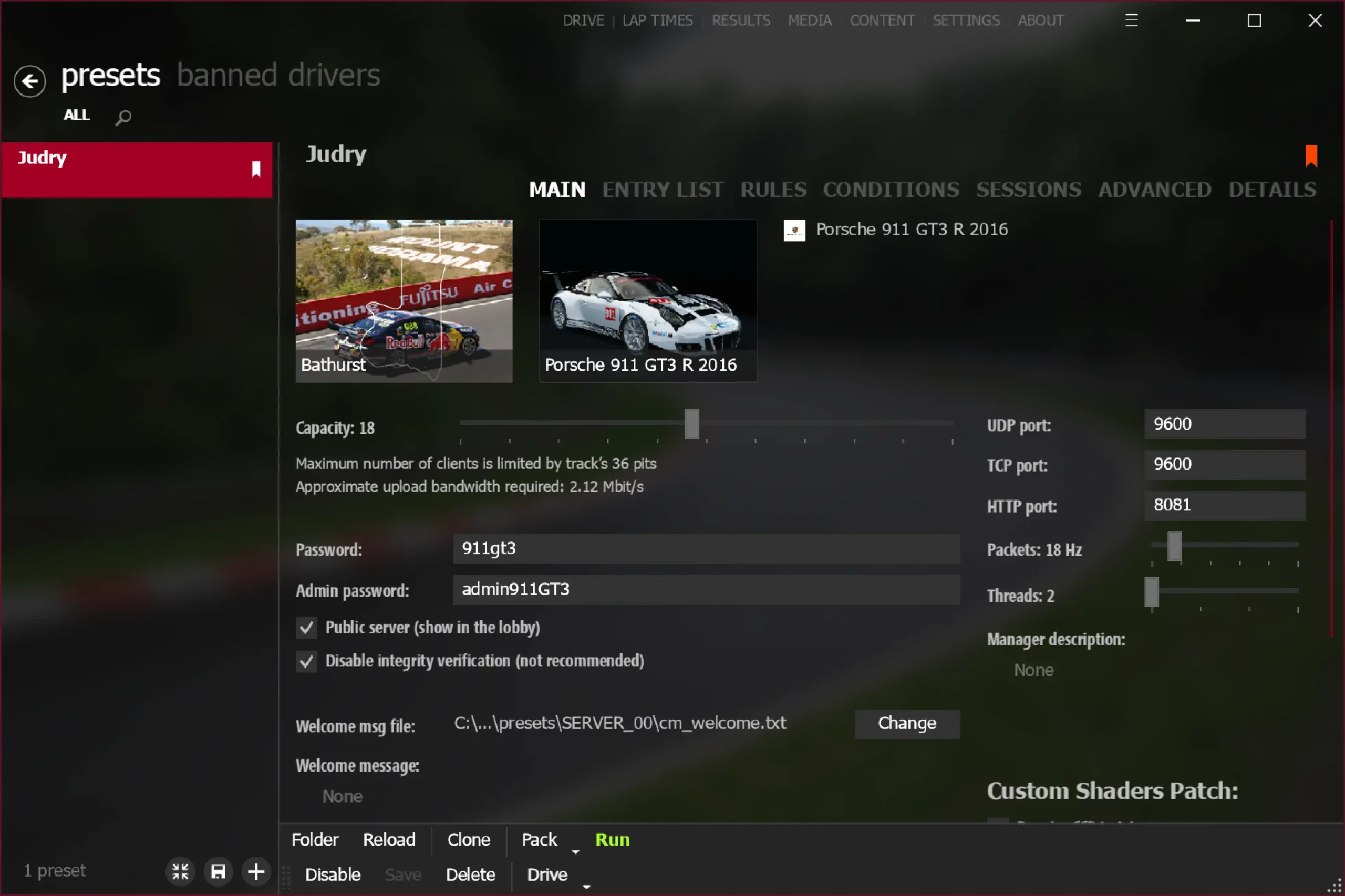
Open Content Manager and click the Server icon in the left sidebar. Hit + to create a new preset and give it a name.
Main tab
- Server name — what appears in the server browser
- Password — set one to keep it private (recommended)
- Max clients — number of players including yourself
- Track — pick any track and layout
- Cars — add the car models you want to allow
Advanced tab
Verify the ports match what you forwarded:
- TCP port:
9600 - UDP port:
9600 - HTTP port:
8081
Check “Register to the lobby” if you want the server to appear in CM’s online browser so friends can search it by name. Uncheck it to keep it completely unlisted (share your IP directly instead).
Step 3 — Set up the entry list
The entry list defines every available car slot on the server. This is how multiplayer car selection works in AC.
How slots work
Each entry = one car = one player. AC tracks every car as a separate physical entity on track, so each player needs their own slot. Players connect, see the list of available slots, and pick whichever car they want — first come, first served.
Offering a choice of cars
If you want 3 players to be able to each pick from 3 different cars, you need 3 slots per car (9 entries total):
| Slot | Car |
|---|---|
| 1–3 | Ferrari 458 Italia |
| 4–6 | Lotus Elise SC |
| 7–9 | Abarth 500 |
When all 3 players connect, each picks a slot from any car they like. Unused slots simply stay empty.
Reserving a specific car for yourself
Add your entry, select your car, and paste your Steam GUID in the GUID field. Only you can take that slot — it shows as reserved to everyone else. Find your GUID in CM → Settings → Account.
Leave the GUID field blank for all other slots so anyone can take them.
Step 4 — Start the server
Click Run Server. A log window appears. Look for:
Starting HTTP server on port 8081
Waiting for connections...
That means the server is up and accepting connections.
Step 5 — Friends connect
Share your public IP address and password with your friends. They connect in CM via:
- Drive → Online → Search — search your server name (if registered to lobby)
- Drive → Online → IP button (top-right in CM) → enter
YOUR.PUBLIC.IP:9600
Everyone needs the same cars and track installed. For default Kunos content this is never an issue.
Important: don’t enable “Require CSP to join”
Custom Shaders Patch (CSP) is a popular Windows mod framework. CM’s server options include a “Require CSP to join” toggle — leave this off when hosting from Mac.
When enabled, CSP attempts to initialize enhanced track rendering features using DirectX hooks. Under CrossOver/Wine, this crashes the game immediately when trying to join:
AC\trackavatar.cpp (539): TrackAvatar::updateThis option provides no benefit for private sessions with default Kunos content. Leave it unchecked and everything works correctly.
Dealing with checksum errors (modded cars/sounds)
If you’ve modified any car files — including sound banks — the server will reject clients whose files don’t match. You’ll see a “checksum error” on join.
Option A — Everyone installs the same mod
If all players have identical files, hashes match and the error disappears. The correct fix when running mods.
Option B — Disable integrity verification
In your server preset, check “Disable integrity verification.” This skips file hash checking entirely. For a private password-protected server with friends you trust, this is completely fine — it has no effect on the driving experience. The check exists to prevent cheating on public servers.
If port forwarding doesn’t work (CGNAT)
Some internet providers — particularly fibre providers and mobile broadband — use carrier-grade NAT (CGNAT), which means your router doesn’t have a real public IP and port forwarding is impossible.
The workaround: use a virtual LAN tool like ZeroTier or Tailscale (both free for personal use). These create an encrypted peer-to-peer network between you and your friends. Instead of your public IP, friends connect using your virtual IP from the tool. No port forwarding needed at all.
Setup takes about 5 minutes:
- You and your friends all install ZeroTier (or Tailscale)
- Create a network and invite friends to join it
- Start your AC server normally
- Friends connect using your ZeroTier/Tailscale IP instead of your public IP
Quick reference
| Setting | Recommended value |
|---|---|
| TCP/UDP port | 9600 |
| HTTP port | 8081 |
| Register to lobby | On (searchable) or Off (share IP directly) |
| Require CSP to join | Off — crashes on Mac |
| Disable integrity verification | Off normally; On if using modded sounds |
| Password | Yes — keep it private |
| Slots per car | One per expected player (add extras for choice) |