How to make Content Manager work with Assetto Corsa on Mac
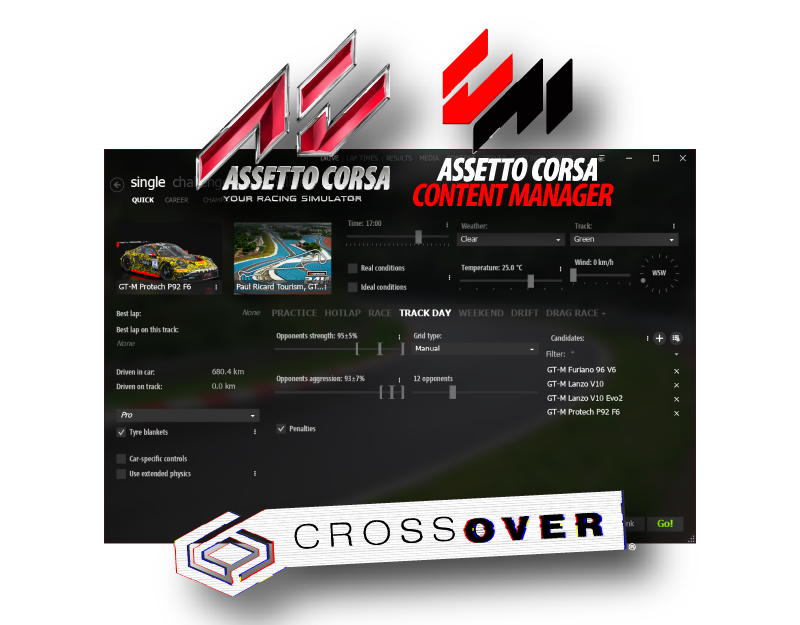
Content Manager is basically mandatory if you want to get the most out of Assetto Corsa: mods, Custom Shaders Patch, server browsing, car and track management, presets, better settings, drag-and-drop installs, and a much better launcher.
On Windows, installing it is simple. On Mac through CrossOver, it can be weird. Content Manager might open as an invisible window, crash after the first setup popup, fail to launch AC, show broken fonts, or work once and then never open again.
The good news: Content Manager can work very well with Assetto Corsa on Mac. The bad news: the order matters, the bottle matters, and one filename matters much more than it should.
This is the setup path we would use from a clean install.
What You Need
- An Apple Silicon Mac
- CrossOver 25.1.1
- Steam
- Assetto Corsa on Steam
- Content Manager
- Optional but recommended: Torqer, if you use a Logitech wheel and want force feedback on Mac
Use the official Content Manager download page.
Do not download random repacks from mod sites unless you know exactly what you are doing.
IMPORTANT: The latest CrossOver version that has been confirmed to work with Content Manager is CrossOver 25.1.1 (unfortunately, CrossOver 26 onwards broke support for Content Manager).
The good news is that you should be able to keep both 25.X and 26.X version of CrossOver in your /Applications folder interchangeably with no issue: just use the 25.X version when you want to play AC with Content Manager, and use the 26.X version for newer games.
The Short Version
If you already have Assetto Corsa working in CrossOver 25.1.1 and only need the key Content Manager fix:
- Download Content Manager from the official site.
- Extract it into a permanent folder inside the same CrossOver bottle as Assetto Corsa.
- Rename the executable exactly:
Content Manager Local Safe.exe- In CrossOver, open the Assetto Corsa bottle.
- Make sure Steam is already running inside that bottle.
- Use Run Command to launch
Content Manager Local Safe.exe. - Save it as a launcher.
- In Content Manager, point the Assetto Corsa root folder to:
C:\Program Files (x86)\Steam\steamapps\common\assettocorsaThat rename is the big one. If Content Manager opens as a dock icon with no visible window, crashes after the first popup, or refuses to start properly, this is the first fix to try.
Step 1 — Start from a Clean CrossOver Bottle
If you have tried ten different fixes already, the fastest path is often to stop debugging and make a clean bottle.
In CrossOver:
- Important: make sure you’re using CrossOver 25.1.1 (not a 26.X version)
- Create or install into a dedicated Assetto Corsa bottle.
- Use a 64-bit Windows bottle.
- Install Assetto Corsa through CrossOver’s installer if available, or install Steam into the bottle and then install Assetto Corsa from Steam.
Do not mix Assetto Corsa, random test apps, old Content Manager attempts, and unrelated games in the same bottle. Content Manager is much easier to fix when the bottle only contains what Assetto Corsa needs.
Before touching Content Manager, launch Assetto Corsa once from Steam and confirm:
- the game opens
- the main menu appears
- a basic driving session loads
If the base game does not work, Content Manager will not fix it.
Step 2 — Install the Usual Runtime Dependencies
If you install Assetto Corsa through CrossOver’s built-in installer, many dependencies may already be handled.
If you are building the bottle manually, the commonly reported working stack is:
- Microsoft .NET Framework 4.5.2 or newer
- DirectX for modern games
- Visual C++ 2015-2022 runtime
- Steam
- Assetto Corsa
Content Manager itself requires .NET 4.5.2. If CM fails instantly or throws a .NET-related error, check this before changing graphics settings.
Step 3 — Add the dwrite Override
This is one of the common fixes for Content Manager, CSP and UI/font behavior under CrossOver.
In CrossOver:
- Select your Assetto Corsa bottle.
- Open Wine Configuration.
- Go to the Libraries tab.
- In New override for library, type:
dwrite- Click Add.
- Set it to:
native,builtinDifferent CrossOver versions sometimes display the wording slightly differently, but the important point is that dwrite should be listed as an override and should prefer the native version before falling back to built-in.
Step 4 — Add the Segoe UI Font
If Content Manager opens with broken fonts, missing text, weird spacing, or unreadable UI, install Segoe UI into the bottle.
You need a copy of:
segoeui.ttfPlace it in the bottle’s Windows fonts folder:
C:\Windows\FontsIn CrossOver terms, that is inside your bottle’s drive_c/windows/Fonts folder.
Restart CrossOver after adding the font.
Step 5 — Install Assetto Corsa and Run It Once
Install Assetto Corsa from Steam inside the same bottle.
After installation:
- Launch Steam inside the bottle.
- Launch Assetto Corsa once from Steam.
- Reach the game menu.
- If the standard launcher opens, go to Options → General and disable GPU-accelerated game launcher if you see launcher crashes.
- Close Assetto Corsa.
- Leave Steam installed and ready in the same bottle.
The important thing is that the Assetto Corsa folder exists and Steam has initialized the game normally before Content Manager tries to control it.
Step 6 — Download Content Manager
Download Content Manager from the official page.
Extract the ZIP.
Do not keep it in your macOS Downloads folder forever. Put it somewhere permanent inside the bottle, for example:
C:\Content Manager\or:
C:\AC Tools\Avoid placing it directly inside the Assetto Corsa game folder. Keeping tools separate makes Steam verification and game updates cleaner.
Step 7 — Rename the Executable
This is the most important CrossOver-specific step.
Rename:
Content Manager.exeto:
Content Manager Local Safe.exeUse that exact name.
Why this helps is less important than the result: on CrossOver, this filename avoids a set of startup/configuration problems that frequently make CM invisible, unstable, or impossible to reopen after first launch.
If you only remember one thing from this article, remember this rename.
Step 8 — Launch Steam First
Before launching Content Manager, open Steam inside the same CrossOver bottle and leave it running.
This matters because Content Manager expects Steam to be available for Assetto Corsa ownership, launch and online features.
Recommended order:
- Start CrossOver.
- Open the Assetto Corsa bottle.
- Launch Steam.
- Wait until Steam is fully open and logged in.
- Launch Content Manager.
If CM starts Steam by itself, it may still work, but manually launching Steam first is more reliable.
Step 9 — Run Content Manager from CrossOver
In CrossOver:
- Select the Assetto Corsa bottle.
- Click Run Command.
- Click Browse.
- Select:
Content Manager Local Safe.exe- Click Run.
If it opens correctly, save it as a launcher so you can start it directly from CrossOver next time.
Do not create random shortcuts from inside Content Manager during first setup. Several users report breaking their CM startup after using CM’s own shortcut/start-menu option. Use CrossOver’s launcher instead.
Step 10 — Point CM to Assetto Corsa
On first launch, Content Manager will ask for your Assetto Corsa folder.
If Assetto Corsa is installed through Steam in the same bottle, the usual path is:
C:\Program Files (x86)\Steam\steamapps\common\assettocorsaIf CM does not see it, browse manually.
You can also use CrossOver’s mapped Mac filesystem through Z:\, but the C:\... path inside the bottle is cleaner when Steam and AC are installed in the same bottle.
Once the path is set, complete CM’s first-run setup.
Step 11 — Fix Black Popups or Broken UI
If Content Manager opens but popups, menus or tooltips are black or visually broken:
- Open Content Manager.
- Go to Settings → Content Manager → Appearance.
- Disable Windows transparency.
- Restart Content Manager.
This is a common Wine/Proton workaround and is worth trying before changing the whole bottle.
If fonts still look wrong, go back to the Segoe UI font step.
Step 12 — Install Custom Shaders Patch
Content Manager’s built-in CSP installer may work. If it does, use it.
If the built-in CSP installer appears to run but CSP does not actually activate, use the manual drag-and-drop method:
- Download the CSP ZIP you want to use.
- Open Content Manager.
- Drag the CSP ZIP directly onto the Content Manager window.
- Let CM install it.
- Restart Content Manager.
Start with a stable/recommended CSP version. Do not begin by installing experimental preview builds, Pure, Sol, Shutoko, traffic packs, weather scripts and ten car packs all at once.
Get a basic CM + CSP setup working first. Then add mods gradually.
Step 13 — Launch Assetto Corsa from Content Manager
Once CM is configured:
- Open Steam inside the bottle.
- Open Content Manager.
- Select a standard Kunos car and track.
- Click Drive.
Use base game content first. Do not test your first launch with a heavy mod track, traffic layout or CSP-extended physics car.
If the base game launches from CM, your setup is good.
Recommended Startup Order
For daily use:
- Connect your wheel.
- Open Torqer.
- Open CrossOver.
- Launch Steam inside the Assetto Corsa bottle.
- Launch
Content Manager Local Safe.exe. - Start your session from Content Manager.
If you use AirPods or a Bluetooth controller, also consider enabling macOS Game Mode manually before launching the game.
Using Torqer with Content Manager
Torqer works with Assetto Corsa launched through Content Manager as long as Torqer’s FFB support is installed in the same CrossOver bottle.
In Torqer:
- Open Install FFB.
- Select the CrossOver bottle that contains Assetto Corsa and Content Manager.
- Click Install if it is not already installed.
- Open the Assetto Corsa page in Torqer.
- Use Native FFB, or arm Advanced FFB before launching the session.
Then launch the session from Content Manager.
Important Mod Compatibility Note
Content Manager makes it very easy to install mods. That is good, but it also makes it easy to install mods that are not Mac-friendly.
Some Assetto Corsa car mods use CSP Extended Physics. Those can crash under CrossOver even when Content Manager and CSP are working correctly.
If a specific modded car crashes while standard Kunos cars work, the Content Manager setup is probably not the problem. The car may need its physics package switched to the standard AC physics format.
We cover that separately in this article.
Troubleshooting
Content Manager opens in the Dock, but no window appears
Rename the executable to:
Content Manager Local Safe.exeThen run it from CrossOver’s Run Command inside the Assetto Corsa bottle.
Content Manager crashes after the first setup popup
Use the Content Manager Local Safe.exe rename.
If you clicked an option to create shortcuts inside CM during first setup and it broke afterward, remove that CM copy and set it up again. Use CrossOver’s launcher instead of CM’s internal shortcut creation.
Content Manager says Assetto Corsa is missing
Make sure:
- AC is installed in the same bottle
- Steam is running
- the AC root path points to the actual
assettocorsafolder - you launched AC once from Steam before setting up CM
Typical path:
C:\Program Files (x86)\Steam\steamapps\common\assettocorsaCM launches, but clicking Drive does nothing
Start with base content:
- Kunos car
- Kunos track
- no traffic
- no weather extensions
- no experimental CSP features
Also make sure Steam is open before CM.
Race cancelled
Common causes:
- Steam is not running
- AC root folder is wrong
- CSP install is broken
- selected mod car uses CSP Extended Physics
- selected track/layout requires additional CSP features
Test with base AC content first.
UI text looks wrong
Install segoeui.ttf into the bottle’s Windows fonts folder, then restart CrossOver.
Popups or menus are black
In Content Manager:
Settings → Content Manager → Appearance → Disable windows transparencyRestart CM afterward.
CSP says installed, but does not seem active
Try installing CSP by dragging the CSP ZIP directly into the Content Manager window instead of relying on the built-in updater.
Content Manager worked once, then stopped working
Check whether you:
- renamed it correctly
- moved the executable after creating the CrossOver launcher
- created a shortcut from inside CM
- changed the AC bottle after first launch
- opened CM without Steam running
If the bottle is now messy, creating a clean dedicated Assetto Corsa bottle is often faster than debugging every failed experiment.
Sources
- Official Content Manager page: https://assettocorsa.club/content-manager.html
- x4fab Content Manager requirements: https://x4fab.itch.io/ac-content-manager
- AppleGamingWiki Assetto Corsa compatibility notes: https://www.applegamingwiki.com/wiki/Assetto_Corsa
- Peter McMillan’s Assetto Corsa + CrossOver notes: https://www.petermcmillan.com/content/getting-assetto-corsa-running-mac-mini-m4-crossover
- macOS/CrossOver community reports around
Content Manager Local Safe.exe,dwrite, Steam launch order and Segoe UI font fixes: https://www.reddit.com/r/macgaming/comments/14z3t6b/assetto_corsa_steam_content_manager_on_crossover/