How to play Euro Truck Simulator 2 on Mac with force feedback (CrossOver + Torqer)
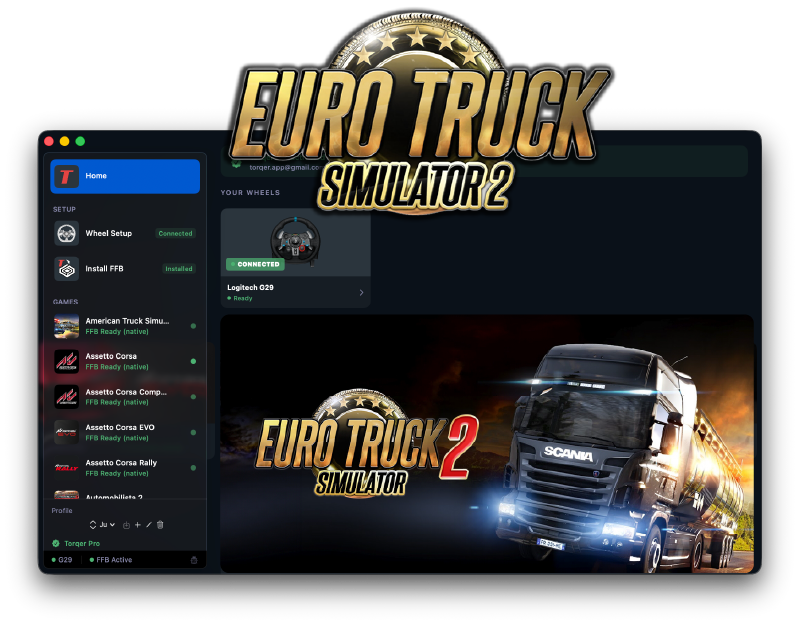
Euro Truck Simulator 2 runs very well on Apple Silicon Macs through CrossOver, and with Torqer you can get proper force feedback on a compatible wheel instead of just basic steering input. Once the setup is done, ETS2 feels the way it should: steering weight, road texture, and resistance through the wheel instead of a dead rim.
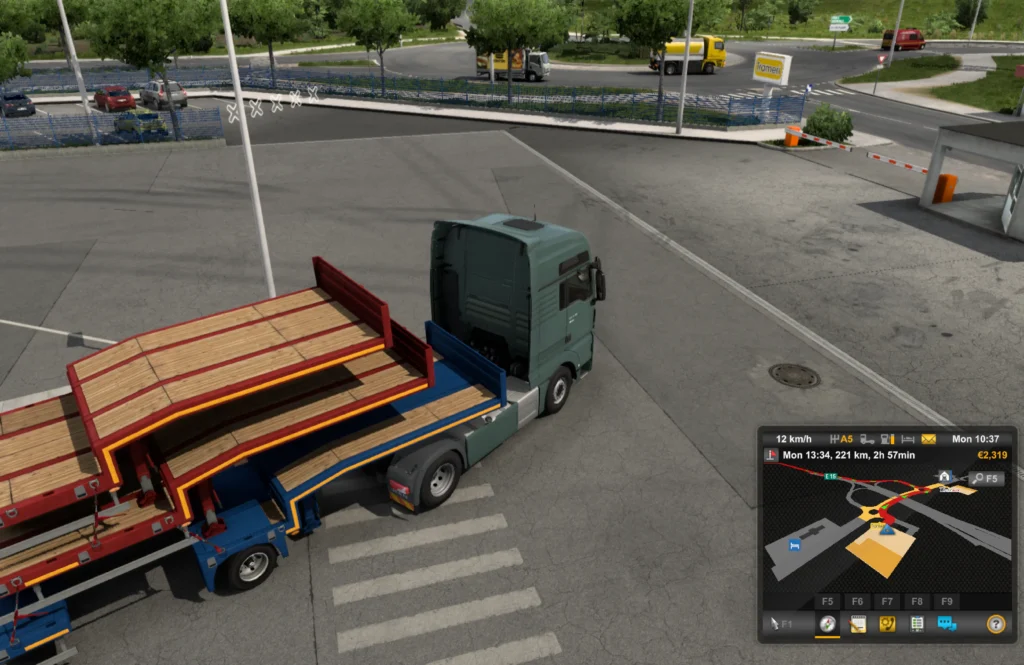
This guide covers the setup that matters for Mac users who want ETS2 with real FFB.
What you’ll need
- A Mac with Apple Silicon (M-series) running macOS 13 or later
- A Torqer-supported wheel
- CrossOver
- Torqer — free download, includes a 5-day full-feature trial
- A Steam copy of Euro Truck Simulator 2
Step 1 – Prepare your Mac
1a. Remove Logitech G Hub if installed
G Hub conflicts with Torqer’s direct access to the wheel. If it is installed, remove it before going further.
Open G Hub and use its uninstall flow, or drag it from /Applications to the Trash and remove its launch agent:
sudo rm /Library/LaunchAgents/com.logi.ghub.engine.plistLeave the wheel plugged in. Torqer talks to the hardware directly.
1b. Install CrossOver
- Download CrossOver from codeweavers.com
- Drag it to
/Applications - Launch it
Important: Do not rename the CrossOver app. Its internal code signature expects the default name.
1c. Create a Windows 10 64-bit bottle
- In CrossOver, click New Bottle
- Create a Windows 10 64-bit bottle
- Name it something like
ETS2orSteam
Open the bottle settings and enable:
- D3DMetal
- MSync
This is the working setup from Torqer’s verified compatibility testing.
Step 2 – Install Steam and ETS2
- Select the bottle in CrossOver
- Click Install Software
- Search for Steam and install it
- Sign into Steam
- Install Euro Truck Simulator 2
Once the game finishes installing, launch it once to confirm it reaches the menus, then close it before setting up FFB.
Tip: Enable macOS Game Mode before launching. It helps reduce background CPU and GPU load, which can improve frame pacing in CrossOver. Guide: How to enable Game Mode on Mac for CrossOver and Wine games
Step 3 – Install Torqer and enable FFB
3a. Download and install Torqer
Download Torqer, open the DMG, and drag Torqer to your Applications folder.
Launch Torqer. On first launch it starts a 5-day full-feature trial automatically.
3b. Connect your wheel
Plug in your wheel via USB if it is not already connected. Torqer should detect it automatically and show a green connected state.
3c. Install Torqer into your CrossOver bottle
- In Torqer, click Install FFB in the sidebar
- Select your ETS2 bottle
- Click Install
This installs Torqer’s DirectInput wrapper into the bottle so ETS2’s force feedback signal can actually reach the wheel.
3d. Select Euro Truck Simulator 2 in Torqer
In Torqer’s sidebar, click Euro Truck Simulator 2.
ETS2 currently uses Native FFB, which means Torqer forwards the game’s own force feedback signal directly to the wheel. No advanced mode is needed here.
Step 4 – Configure the wheel in ETS2
Launch ETS2 through CrossOver and go to the controller settings.
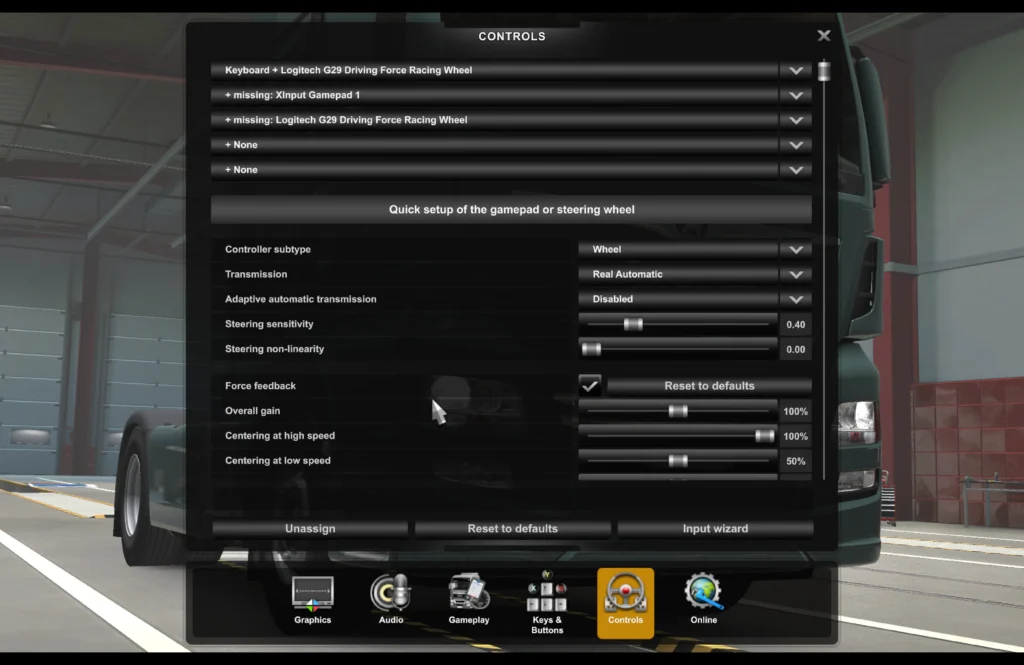
Make sure the game is using your wheel rather than keyboard-only input, then map or confirm the main controls:
- Steering
- Throttle
- Brake
- Clutch if applicable
- Gear controls or paddles if you use them
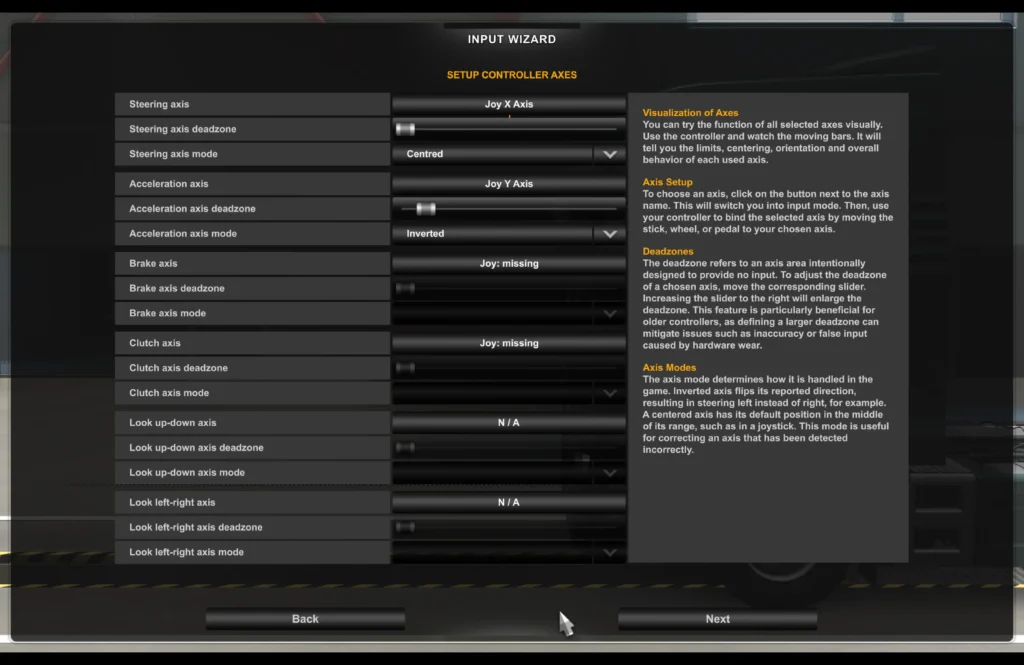
After that, open the force feedback section and enable FFB if it is not already active.
Good starting points:
- Overall FFB / Gain: 80–100%
- Centering at high speed: moderate
- Road surface / bumps: moderate
- Engine resonance / collision effects: lower, then raise to taste
ETS2 is not a violent FFB game. The goal is steady steering weight and useful road detail, not a hyper-aggressive wheel.
If the wheel still feels weak after raising the in-game FFB settings, increase Native FFB Intensity on Torqer’s ETS2 page.
Step 5 – Drive and fine-tune
Once Torqer is installed in the correct bottle, ETS2 is straightforward: launch Torqer first, then launch the game through CrossOver.
If the wheel feels too light:
- raise the in-game FFB strength first
- then raise Native FFB Intensity in Torqer
If the wheel feels noisy or exaggerated over small bumps:
- lower the road surface and resonance-related sliders in ETS2
- keep the main steering force stronger than the secondary effects
For truck sims, the best feel usually comes from a clean, heavier steering signal rather than every effect slider being maxed out.
Troubleshooting
The wheel steers, but there is no force feedback
Make sure Torqer is running before launching ETS2, your wheel shows as connected in Torqer, and the FFB wrapper is installed in the same bottle where ETS2 is installed. If needed, reinstall it from Torqer’s Install FFB page.
ETS2 launches, but the wheel is not detected properly
Reopen the controls menu and rebind the wheel axes. If another controller profile was selected first, ETS2 can stick to the wrong input device until you switch it manually.
FFB feels weak
Raise the in-game force feedback sliders first, then raise Native FFB Intensity in Torqer for ETS2.
The game runs, but performance feels uneven
Confirm D3DMetal and MSync are enabled in the bottle settings. Also enable macOS Game Mode: How to enable Game Mode on Mac for CrossOver and Wine games
The wheel does nothing at all
Double-check that Logitech G Hub is not installed and that Torqer shows the wheel as connected. If Torqer does not see the wheel, the game will not get FFB either.
Tested configuration
Steam bottle on CrossOver 25.1.1 · Windows 10 64-bit bottle · D3DMetal + MSync · Apple Silicon MacBook Pro M4 Pro · Logitech wheel via Torqer
If you run into something not covered here, you can contact us.